View a 3D Gaussian Splat Tileset with LODs in Cesium for Unreal
3D Tiles enables large photoreal Gaussian splat representations to be visualized at scale using level-of-detail (LOD) streaming capabilities. In this tutorial, you’ll learn how to load a 3D Gaussian splat tileset from Cesium ion, understand how LOD refinement works in Cesium for Unreal, and apply practical performance optimizations to your application for smooth interaction.

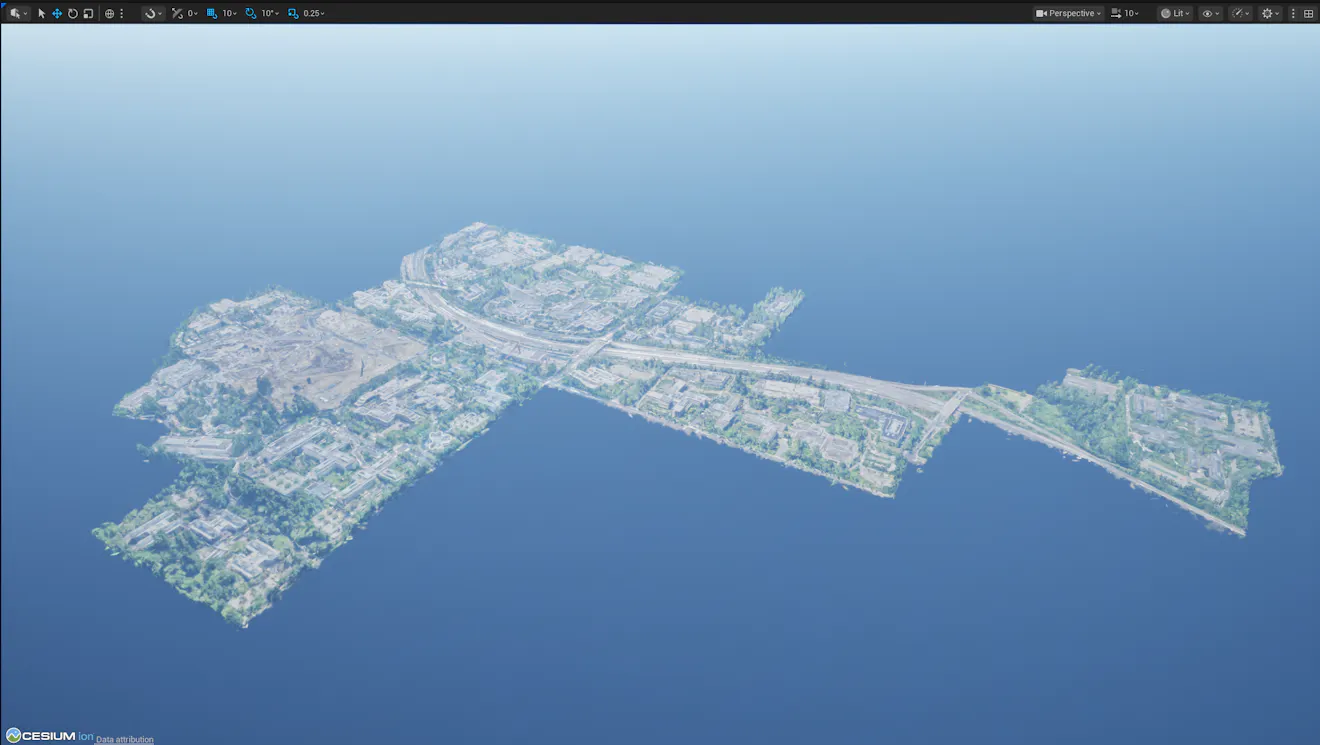
3D Gaussian splat tileset of the Microsoft Redmond Campus, shown in Unreal Engine with Cesium World Terrain. Captured in partnership with Bentley Systems from 20,169 photos (427.7 gigapixels), covering approximately 3.7 square km with 110 million splats. This dataset is used as a reference for focusing the actor at the center of the viewport.
You’ll learn how to:
- Connect to Cesium ion from Unreal Engine.
- Load a 3D Gaussian splat tiles dataset into a level.
- Configure LOD using screen space error.
- Monitor runtime performance using Unreal Engine stat commands.
- Apply Unreal Engine rendering settings to reduce GPU overhead.
- Unreal Engine 5.5+ and Cesium for Unreal v2.24.0+.
- Know how to set up a basic Cesium for Unreal application. Check out our Cesium for Unreal Quickstart guide for instructions on starting with the Cesium for Unreal plugin.
- A Cesium ion account to stream assets into Unreal Engine. Sign up for a free Cesium ion account if you don’t already have one.
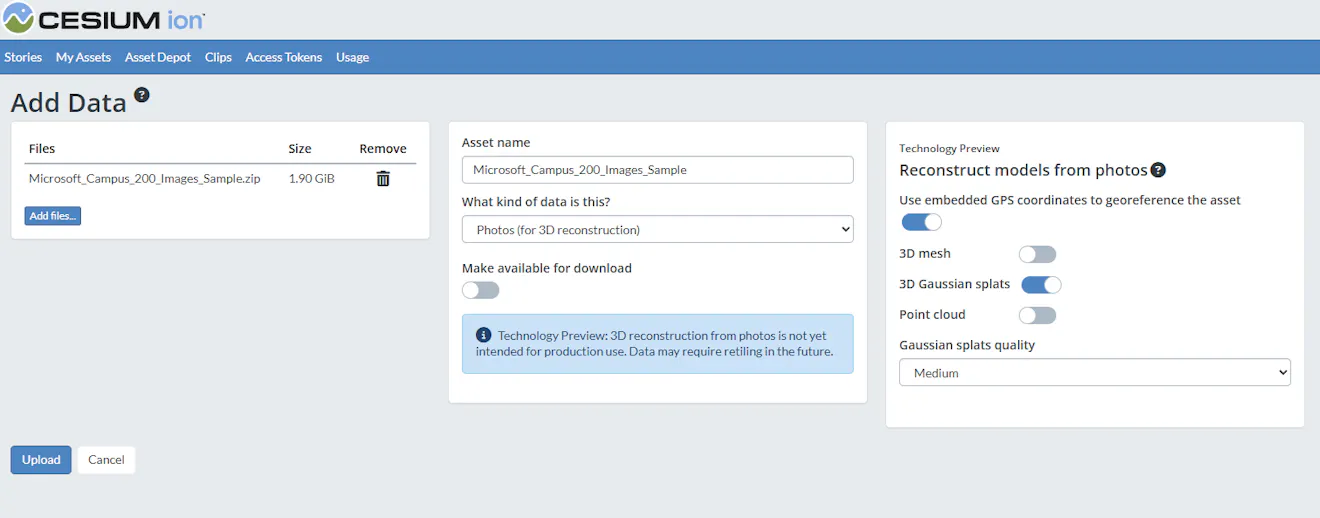
This tutorial assumes you have a Gaussian splat tileset available in your Cesium ion account. If you need to create one, follow the tutorial to create 3D reality models from photos.
When exporting your dataset, select Gaussian splats as the output type.
- Open your Unreal project.
- From the Cesium menu, open the Cesium ion panel.
- Sign in to your Cesium ion account or paste your access token.
You’ll need a valid Cesium ion access token to stream your own datasets into Unreal Engine. Tokens are managed through your Cesium ion account.
In the Cesium ion Assets panel, locate your Gaussian splat tileset and click “Add to Level.”
This creates a Cesium 3D Tileset actor in your scene that streams Gaussian splats at runtime.
- Select the Cesium 3D Tileset actor.
- Press F (Focus) to frame the dataset (or double-click the actor).
- Adjust the camera for your preferred viewing angle.
Like other 3D Tiles datasets, LOD refinement for Gaussian splats is driven by screen space error (SSE).
Screen space error is a metric that determines which LODs should be loaded for a given view at runtime. It is derived from geometric error—the quantified difference between a given LOD and the source data it was generated from. A full explanation can be found in the 3D Tiles specification.
For this tutorial, it is enough to understand that it affects how much LOD is loaded at any point in the application. The Maximum Screen Space Error property is the threshold for which a Cesium 3D Tileset decides to load more detail.
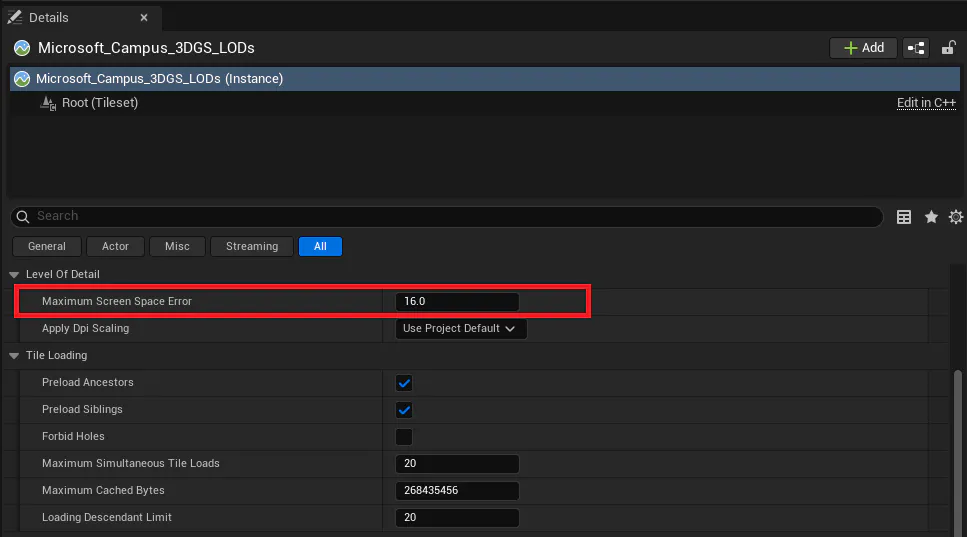
The Maximum Screen Space Error setting can be found in the Details pane in your Unreal Editor.
Maximum Screen Space Error has an inverse relationship with LOD. Higher values result in lower levels of detail staying in view for longer, which favors performance. Conversely, lower values force higher LODs to load, which increase visual fidelity at higher GPU cost.
Common values for this property are:
- 24–64 for performance‑oriented interaction.
- 8–16 for higher‑quality inspection.
Unreal Engine provides various tools out of the box to profile performance in your application. Open the in‑editor console (~) and run:
- stat fps
- stat unit

Because Cesium for Unreal uses Niagara under the hood to render splats, you can also run “stat Niagara” to view the current memory consumption of the on-screen splats. This can help inform the Maximum Screen Space Error you choose, as well as other options to optimize your level for Gaussian splats.
Gaussian splats use a custom rendering path in Cesium for Unreal that does not integrate or benefit from various features in Unreal Engine. Adjusting these settings may improve your level’s performance.
Disable or reduce dynamic shadows
- Disable Cast Shadows on unnecessary lights.
- Prefer a single directional light when possible.
Adjust lighting complexity
- Avoid multiple dynamic lights affecting the splat tileset.
- Use simpler lighting setups for inspection workflows.
Reduce post‑processing cost
- Motion Blur
- Ambient Occlusion
- Depth of Field
These effects do not improve splat quality and add GPU cost:
- Avoid continuous camera animation when inspecting detail.
- Increase Maximum Screen Space Error during navigation.
- Lower it only when evaluating fine detail.
- Use stat fps while adjusting settings.
These adjustments affect performance, not dataset quality. The underlying Gaussian splats are unchanged.
- Color comes from view‑dependent data in the dataset.
- Dramatic lighting changes may not behave like mesh materials.
- Splats excel at photoreal detail, thin structures, and complex geometry.
This is expected behavior.
- Upload your own photo datasets to Cesium ion.
- Generate Gaussian splats with LODs.
Tileset does not appear
- Confirm your ion access token is valid.
- Verify the asset is fully processed in ion.
Performance is lower than expected
- Increase Maximum Screen Space Error.
- Reduce dynamic lighting and shadows.
- Monitor stat fps and stat unit.
- Cesium for Unreal quickstart: guide to building a Cesium for Unreal app with Cesium World Terrain and Cesium OSM Buildings.
- Adding datasets: adding datasets to Cesium for Unreal
- Introducing 3D Gaussian splats with hierarchical LOD using 3D Tiles