Cesium ion MCP server
Manage your Cesium ion account from an AI assistant.
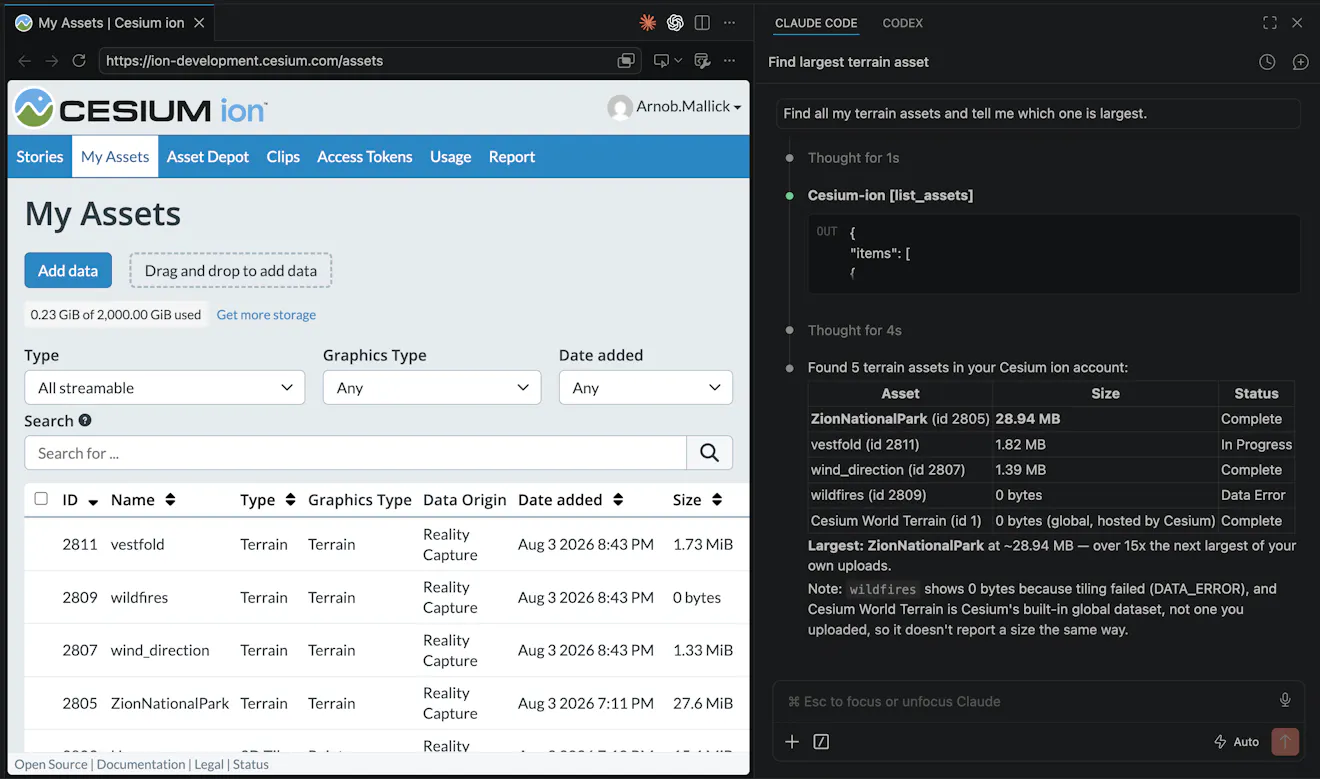
The Cesium ion MCP server lets tools like Claude, Codex, Cursor, and GitHub Copilot search your assets, upload new data for tiling, organize them with labels, and import iModels. All of that can be driven by having a chat with your favorite AI assistant.
What is MCP?
The Model Context Protocol (MCP) is an open standard that lets AI assistants securely connect to external services. An MCP server exposes a set of tools, well-defined actions like "list assets" or "upload data," that the assistant can call on your behalf. You simply give your instructions. The assistant translates them into tool calls and reports back the results.
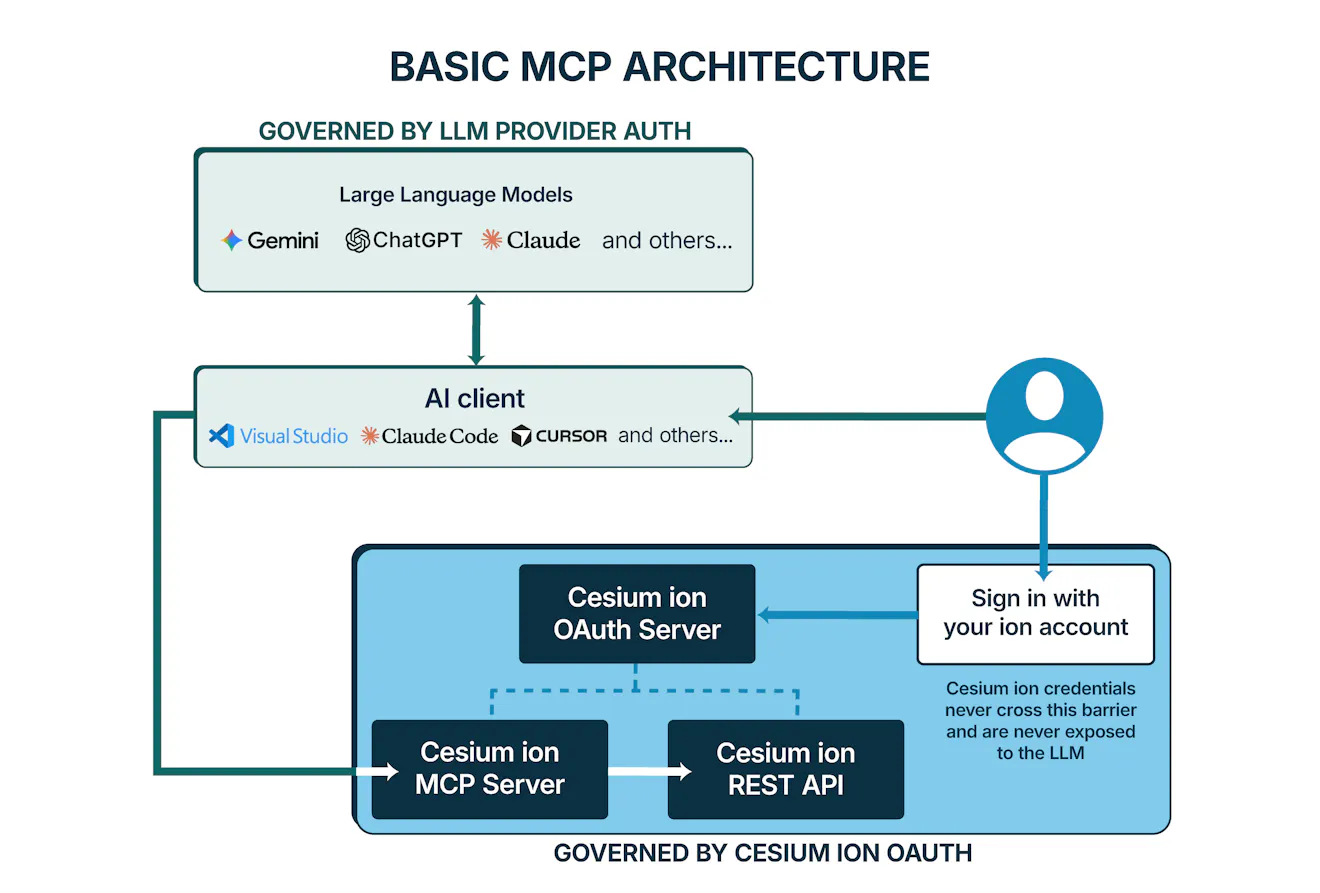
The Cesium ion MCP server is a hosted service that exposes your ion data to any MCP-compatible client. You sign in with your existing ion account through OAuth.
What can it do?
The server's tools support workflows like:
Discover and inspect assets. List everything in your account, search by name or description, filter by type or tiling status, and pull full metadata for any asset, including the bounding volume of a 3D Tiles tileset. You can also organize your assets with labels. See Managing Assets with AI.
Upload and tile new data. Ask the assistant to create a new asset, and it opens a drag-and-drop importer right inside the chat. Your files upload directly to ion's storage. They never pass through the AI model, and the assistant monitors tiling progress until your asset is ready to stream. See Uploading Data with the Asset Importer.
Interact with Bentley iModels. If your organization uses Bentley Infrastructure Cloud, import a mesh export of an iModel directly into ion as 3D Tiles, then inspect its BIM elements. See Importing iModels from Bentley iTwin.
Example prompts
Once connected, you talk to your assistant naturally:
List my Cesium ion assets.Find all assets with "bridge" in the name that finished tiling.Upload a new photogrammetry asset called "Campus survey — July 2026".Label every asset from the July survey as "field-2026" so I can find them later.Add a description to the Reichstag asset linking to its Wikipedia page.
Is it safe?
The server is designed so that you keep control of your account:
- You sign in with OAuth. When you connect a client, ion shows you exactly which permissions the server is requesting (List Assets, Read Asset, Write Asset, Read Labels, and Write Labels) and you approve them on ion's own consent page. You can revoke access at any time from your ion account settings.
- Your files never pass through the model. Uploads happen in a sandboxed importer panel in your chat window and go straight to ion's cloud storage.
- Destructive actions ask first. Tools that delete assets or labels are flagged as destructive, so well-behaved MCP clients prompt you for confirmation before running them.
- Read-only by design where possible. Search, list, and inspect tools are marked read-only and cannot modify your account.
The guarantees above cover how the server handles your credentials and destructive actions. They don't cover the AI model's judgment. The server acts on whatever account you sign in with, including any shared team assets that account can reach, so a poorly worded or overly broad prompt can still do more than you intended. If you manage production data, try the server with a non-production account first to get a feel for how the assistant behaves.
Supported clients
Any MCP client that supports remote servers over Streamable HTTP with OAuth can connect—including, but not limited to, Claude Desktop, Claude Code, Codex, Cursor, VS Code (GitHub Copilot), and the GitHub Copilot desktop app. If you want to upload assets into ion using the MCP server, your client also needs to support MCP Apps (interactive tool UIs).


