MCP Tool Reference
Every tool exposed by the Cesium ion MCP server, with parameters, behavior annotations, and required OAuth scopes. Use this page when writing agent prompts or debugging tool calls; for guided workflows, start with the tutorials instead.
Conventions
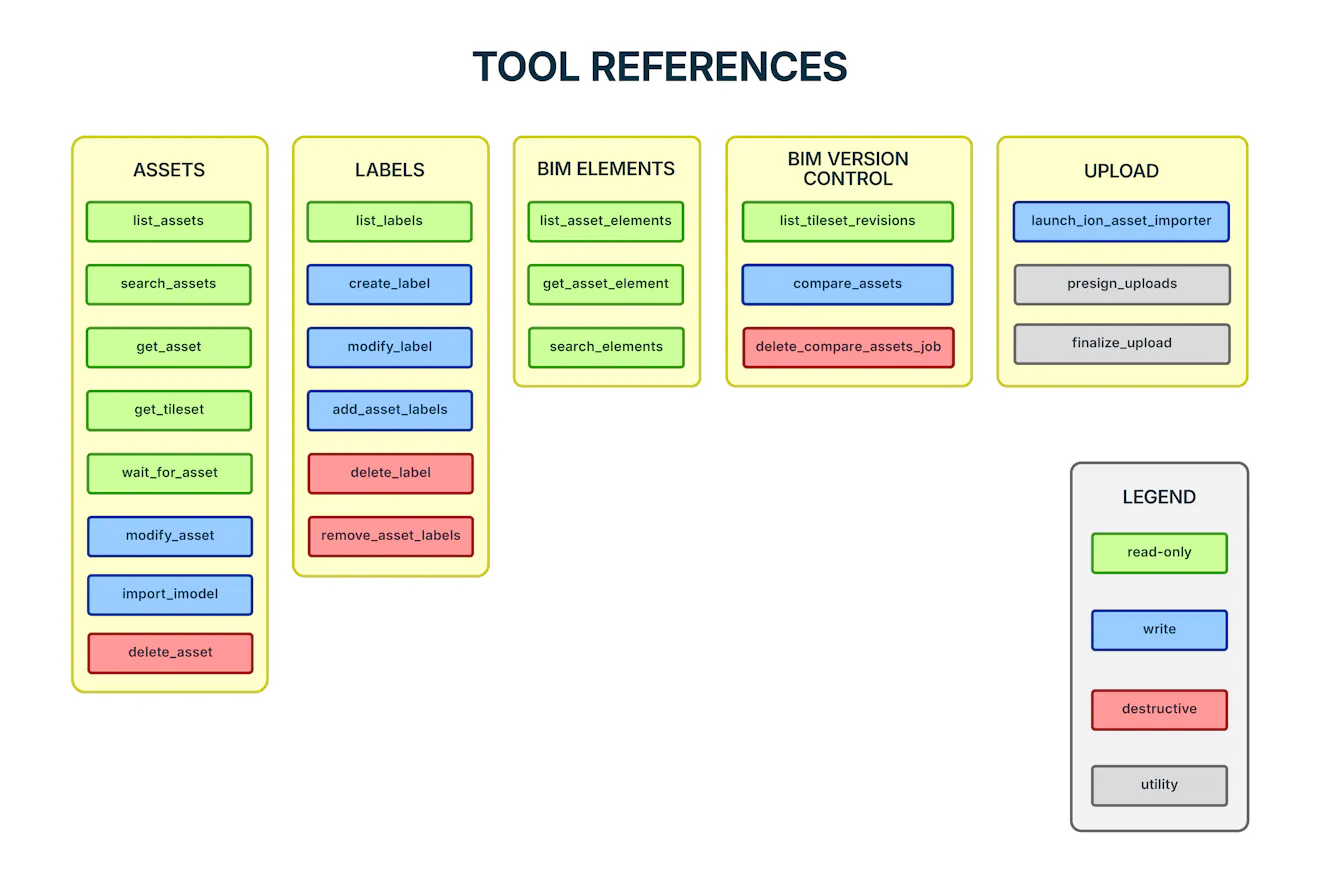
- Read-only tools never modify your account.
- Destructive tools are annotated so MCP clients prompt for confirmation before running them.
- Internal tools exist to support the in-chat upload importer and should never be called directly from a conversation.
- BIM element, tileset revision, and change detection tools only work on assets created via
import_imodel. - The server requests these OAuth scopes at sign-in:
assets:list,assets:read,assets:write,labels:read,labels:write.
list_assets — read-only
List assets in the authenticated account, one page at a time, with basic metadata (ID, name, type, status, bytes, dateAdded).
| Parameter | Type | Required | Description |
|---|---|---|---|
limit | integer 1–1000 | no | Max results per page (default 100) |
page | integer ≥ 1 | no | Page number, 1-indexed |
sortBy | DATE_ADDED | NAME | BYTES | no | Sort field (default DATE_ADDED) |
sortOrder | ASC | DESC | no | Sort direction (default DESC) |
search_assets — read-only
Search assets by name/description substring, with optional filters.
| Parameter | Type | Required | Description |
|---|---|---|---|
search | string | yes | Substring matched against name and description |
type | 3DTILES | GLTF | IMAGERY | TERRAIN | KML | CZML | GEOJSON | no | Filter by asset type |
status | AWAITING_FILES | NOT_STARTED | IN_PROGRESS | COMPLETE | ERROR | DATA_ERROR | no | Filter by tiling status |
limit | integer 1–1000 | no | Max results (default 100) |
get_asset — read-only
Full metadata for one asset: name, description, type, status, tiling progress, bytes, and dates.
| Parameter | Type | Required | Description |
|---|---|---|---|
assetId | positive integer | yes | The asset ID |
get_tileset — read-only
Fetches the root tileset.json of a 3D Tiles asset, including its bounding volume. Fails for non-3DTILES assets.
| Parameter | Type | Required | Description |
|---|---|---|---|
assetId | positive integer | yes | The asset ID (must be a 3DTILES asset) |
modify_asset — write
Update an asset's display name and/or Markdown description. Other properties can't be changed after creation.
| Parameter | Type | Required | Description |
|---|---|---|---|
assetId | positive integer | yes | The asset ID |
name | string | no | New display name |
description | string | no | New Markdown description |
delete_asset — destructive
Permanently delete an asset. Clients prompt for confirmation. Deleted assets cannot be recovered, and applications streaming the asset stop working.
| Parameter | Type | Required | Description |
|---|---|---|---|
assetId | positive integer | yes | The asset ID |
wait_for_asset — read-only
Poll an asset until tiling reaches a terminal status (COMPLETE, ERROR, DATA_ERROR) or the timeout elapses. Returns the final metadata and whether it timed out.
| Parameter | Type | Required | Description |
|---|---|---|---|
assetId | positive integer | yes | The asset ID |
timeoutSeconds | integer 1–86400 | no | Max wait (default 1800 = 30 min) |
pollIntervalSeconds | integer 1–300 | no | Poll interval (default 10) |
import_imodel — write
Triggers and imports a fresh mesh export of an iModel from Bentley Infrastructure Cloud as a new ion asset. No pre-existing export is required; ion creates one as part of the import. This requires the signed-in ion account to have a linked Bentley account (a one-time step in ion's account settings, separate from the ion sign-in above), to be an owner of the iTwin containing the iModel, and to belong to the same organization as that iTwin. There is currently no MCP tool to look up an iModel or iTwin ID, so the caller needs the iModel's GUID already. Follow up with wait_for_asset. Only assets created this way can be used with the BIM element, tileset revision, and change detection tools below. See Importing iModels from Bentley iTwin.
| Parameter | Type | Required | Description |
|---|---|---|---|
iModelId | string | yes | ID (GUID) of the iModel to import |
name | string | yes | Display name for the new asset |
See Managing Assets with AI for a walkthrough of these.
list_labels — read-only
List labels in the authenticated account, one page at a time, with basic metadata (ID, name, color, assets, stories).
| Parameter | Type | Required | Description |
|---|---|---|---|
limit | integer 1–1000 | no | Max results per page (default 100) |
page | integer ≥ 1 | no | Page number, 1-indexed |
search | string | no | Filter applied to the label name |
create_label — write
Create a new label. Assign it to assets afterward with add_asset_labels.
| Parameter | Type | Required | Description |
|---|---|---|---|
name | string | yes | Label name |
color | string | yes | Label color as a CSS hex string |
modify_label — write
Update an existing label's name and/or color.
| Parameter | Type | Required | Description |
|---|---|---|---|
labelId | positive integer | yes | The label ID |
name | string | no | New label name |
color | string | no | New label color as a CSS hex string |
delete_label — destructive
Permanently delete a label. Clients prompt for confirmation.
| Parameter | Type | Required | Description |
|---|---|---|---|
labelId | positive integer | yes | The label ID |
add_asset_labels — write
Add one or more existing labels to an asset.
| Parameter | Type | Required | Description |
|---|---|---|---|
assetId | positive integer | yes | The asset ID |
labelIds | array of positive integers | yes | Label IDs to add |
remove_asset_labels — destructive
Remove one or more labels from an asset. Clients prompt for confirmation.
| Parameter | Type | Required | Description |
|---|---|---|---|
assetId | positive integer | yes | The asset ID |
labelIds | array of positive integers | yes | Label IDs to remove |
These work only on assets created via import_imodel, where each element is a piece of BIM geometry with its own properties. See Importing iModels from Bentley iTwin for a full walkthrough.
list_asset_elements — read-only
Paginated list of an asset's elements, with basic metadata (ID, location, properties). Supports a SQL-style where clause.
| Parameter | Type | Required | Description |
|---|---|---|---|
assetId | positive integer | yes | The asset ID |
limit | integer 1–1000 | no | Max results per page (default 100) |
page | integer ≥ 1 | no | Page number, 1-indexed |
where | string | no | SQL-style filter, e.g. UserLabel LIKE '%pipe%' OR Height >= 10 |
get_asset_element — read-only
Metadata and location for a single element within an asset.
| Parameter | Type | Required | Description |
|---|---|---|---|
assetId | positive integer | yes | The asset ID |
elementId | string | yes | The element's unique identifier within the asset |
search_elements — read-only
Search an asset's elements using Lucene query syntax against indexed element properties.
| Parameter | Type | Required | Description |
|---|---|---|---|
assetId | positive integer | yes | The asset ID |
search | string | yes | Lucene-syntax search term |
continuationToken | string | no | Token from a previous response, for the next page |
Like the BIM element tools above, these only work on assets created via import_imodel. Each import exports the iModel at a specific version as a 3D Tiles asset, called a tileset revision. Compare two revisions of the same iModel to see which elements changed between those versions.
list_tileset_revisions — read-only
List the 3D Tiles assets exported from the same iModel as the given asset, one page at a time, with each one's asset ID, name, and creation timestamp. The given asset can be any asset created by importing that iModel.
| Parameter | Type | Required | Description |
|---|---|---|---|
assetId | positive integer | yes | Any asset created by importing the iModel |
limit | integer 1–1000 | no | Max results per page (default 100) |
page | integer ≥ 1 | no | Page number, 1-indexed |
compare_assets — write
Compare two tileset revisions of the same iModel. Starts a change detection job if a report isn't already available, then polls until it's ready or the timeout elapses. The response includes up to 1,000 changed elements directly, plus a link to download the full report. Each comparison is saved in your account as a change detection report asset. The earlier version must be fromAssetId and the later version toAssetId.
| Parameter | Type | Required | Description |
|---|---|---|---|
fromAssetId | positive integer | yes | Asset exported at the earlier version |
toAssetId | positive integer | yes | Asset exported at the later version |
timeoutSeconds | integer 1–86400 | no | Max wait (default 1800 = 30 min) |
pollIntervalSeconds | integer 1–300 | no | Poll interval (default 10) |
delete_compare_assets_job — destructive
Delete an existing comparison between two assets. Clients prompt for confirmation.
| Parameter | Type | Required | Description |
|---|---|---|---|
fromAssetId | positive integer | yes | Asset exported at the earlier version |
toAssetId | positive integer | yes | Asset exported at the later version |
launch_ion_asset_importer — write
Creates a new asset and opens the drag-and-drop importer inside the chat (requires an MCP Apps–capable client). File selection happens entirely in the panel. The MCP server never receives file paths or contents. Follow up with wait_for_asset once the panel reports the upload is complete. See Uploading Data with the Asset Importer.
| Parameter | Type | Required | Description |
|---|---|---|---|
name | string | yes | Display name for the new asset |
type | 3DTILES | IMAGERY | TERRAIN | yes | Output asset type (selects the tiling pipeline) |
sourceType | string | yes | Source format, e.g. CITYGML, RASTER_IMAGERY, RASTER_TERRAIN, 3D_CAPTURE, 3D_MODEL, POINT_CLOUD |
description | string | no | Markdown description |
presign_uploads — internal
Called automatically by the importer panel after all files have uploaded, to start the tiling pipeline. Hidden from the AI model in clients that support it; only the importer panel should call it.
finalize_upload — internal
Called automatically by the importer panel after all files have uploaded, to start the tiling pipeline. Hidden from the AI model in clients that support it; only the importer panel should call it.