Managing Assets with AI
In this tutorial you'll use an AI assistant to explore and curate the assets in your Cesium ion account: listing and searching them, reading their metadata, inspecting a tileset, updating descriptions, organizing them with labels, and safely deleting what you no longer need.
- An AI client connected to the ion MCP server. See Connect Your AI client. The examples work with any account; if yours is empty, the default curated assets (like Cesium World Terrain) are enough to follow along.
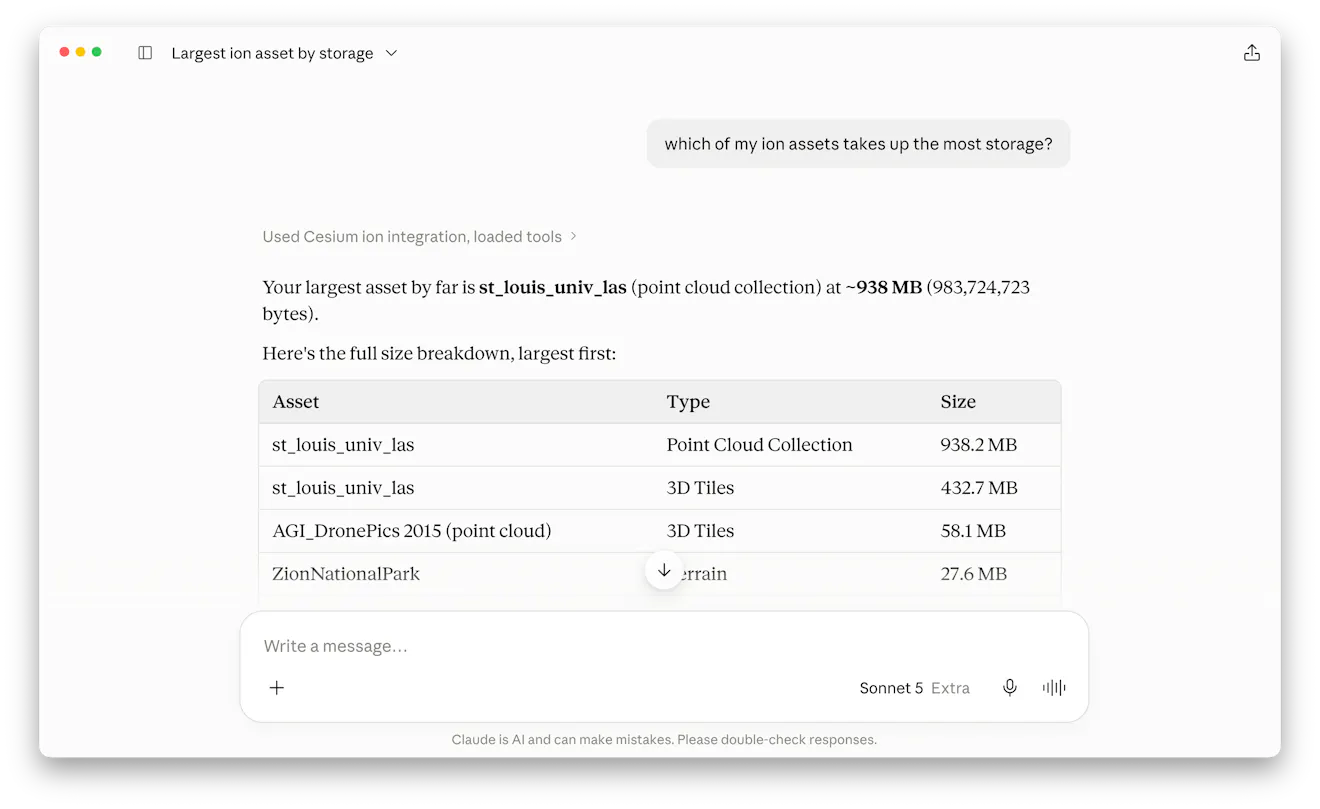
Start broad:
List my Cesium ion assets.
The assistant calls list_assets and returns each asset's ID, name, type, tiling status, size in bytes, and the date it was added. Results are paginated (100 per page by default), and you can steer the sorting conversationally:
Sort them by size, largest first.
Show me the 10 most recently added.
Every asset has a numeric ID. The assistant uses IDs to refer to assets in follow-up operations, so you can say "asset 3812" or just "the campus survey asset." The assistant will look up the ID for you.
Once you have more than a handful of assets, try search instead of scrolling:
Find all assets with "bing" in the name.
Find my terrain assets that are still tiling.
Are there any assets that failed to tile?
Behind the scenes this uses search_assets, which matches a substring against asset names and descriptions and can filter by:
- Type —
3DTILES,GLTF,IMAGERY,TERRAIN,KML,CZML,GEOJSON - Status —
AWAITING_FILES,NOT_STARTED,IN_PROGRESS,COMPLETE,ERROR,DATA_ERROR
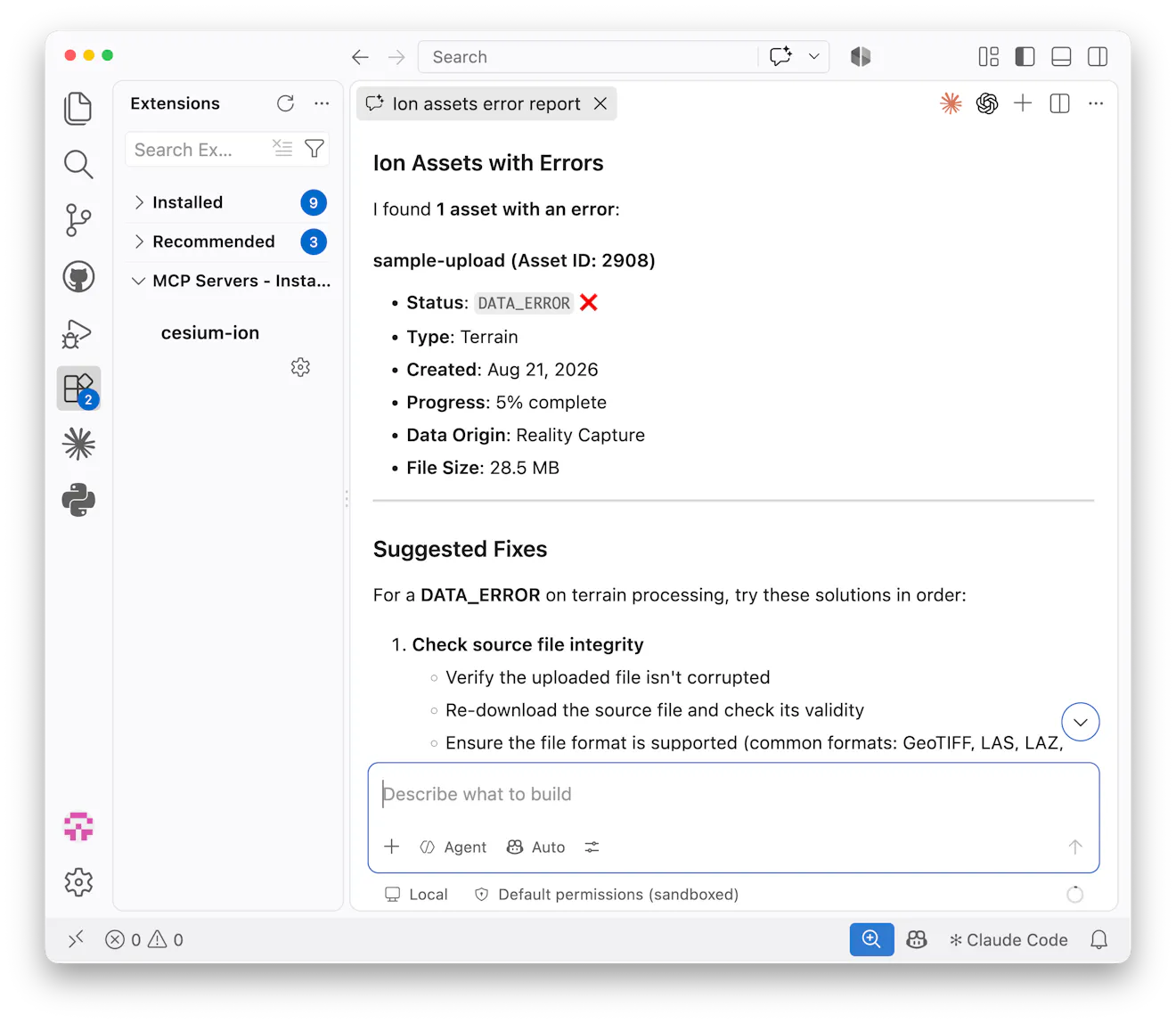
To see everything ion knows about an asset:
Show me the full details of asset 3812.
This returns the complete metadata: name, description, type, tiling status and progress percentage, size, and dates.
For a 3D Tiles asset you can go one level deeper and inspect the tileset itself:
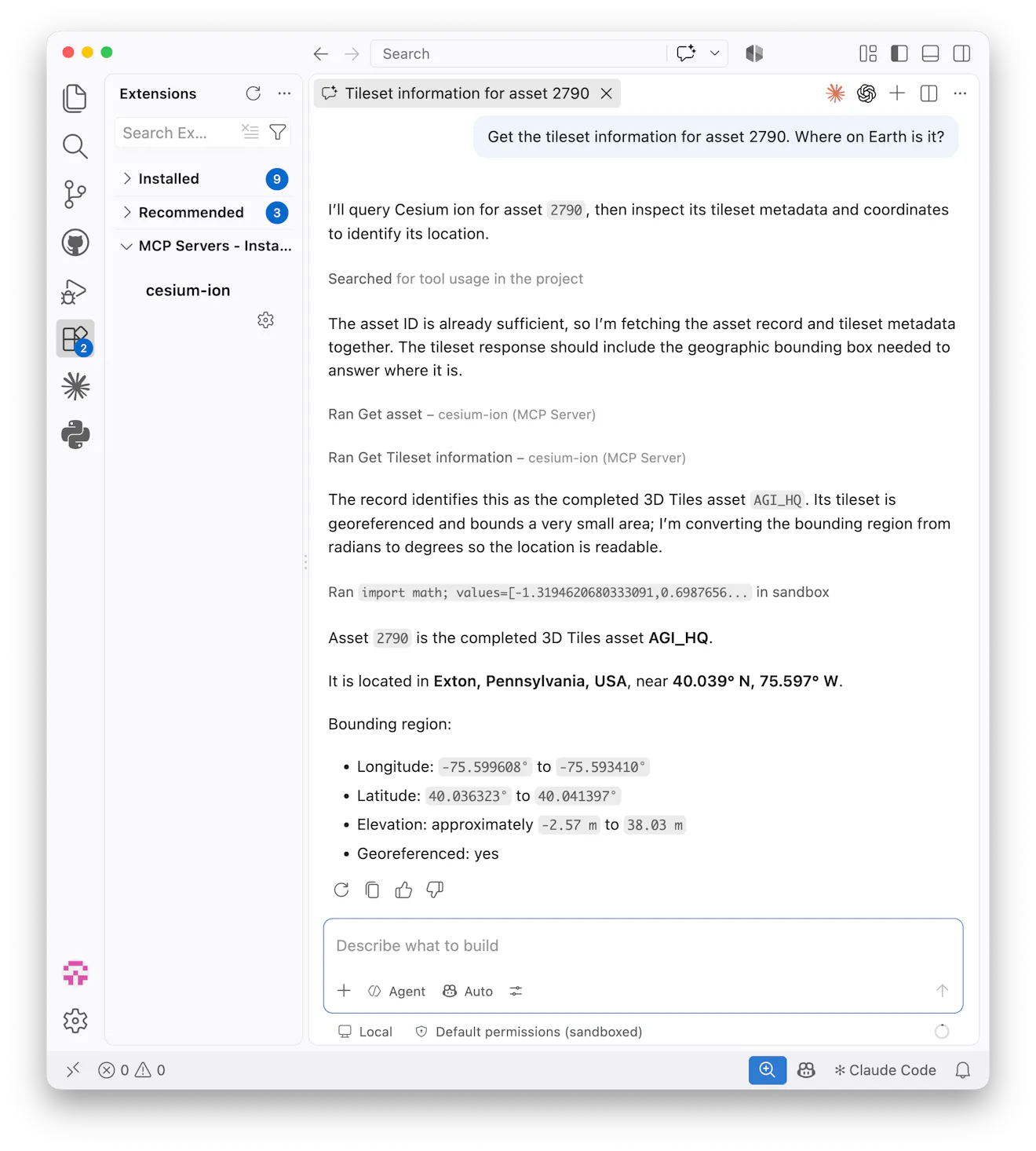
Get the tileset information for asset 3812. Where on Earth is it?
The get_tileset tool fetches the asset's root tileset.json, so the assistant can read the bounding volume and tell you the geographic extent of your data. That's handy for verifying that a tiled model landed where you expected.
Asset descriptions support Markdown. Try editing them conversationally instead of clicking through the dashboard:
Add the description
"Photogrammetry capture of the north campus, flown July 2026. See the survey report for accuracy notes."
to the campus survey asset.
Rename asset 4471 to "Downtown buildings — 2026 update".
The assistant uses modify_asset to make the change. Most AI assistants know to look up an asset's ID before modifying it, so you can just refer to the asset by name.
Tiling options, source data, and asset type can't be changed after creation. To re-tile with different settings, upload the source data as a new asset.
Labels are simple tags you can attach to assets for organizing and filtering beyond search: things like Q3 survey, needs review, or client: Acme Corp.
What labels do I have?
The assistant calls list_labels and shows each label's name and color.
Create a label called "Needs review" in orange.
Tag the campus survey asset with the "Needs review" label.
The assistant chains create_label and add_asset_labels. Once a label exists, apply it to as many assets as you like:
Tag every asset with "test" in the name as "Needs review" too.
A label just needs a name and a color. There's no limit on how many assets share one label, or how many labels one asset has.
Renaming or retiring a label works the same conversational way:
Rename the "Needs review" label to "Reviewed" now that I've been through them.
Remove the "Needs review" label from asset 4471.
Delete the "test" label: I don't need it anymore.
The assistant uses modify_label, remove_asset_labels, and delete_label for these. Deleting a label only removes the tag; it doesn't touch the assets it was on.
Because deleting is permanent, the tool is flagged as destructive, and your client will ask you to confirm before it runs:
Delete the two assets that failed tiling.
The assistant will identify the assets, tell you which IDs it intends to delete, and your MCP client will show a confirmation prompt before each delete_asset call executes.
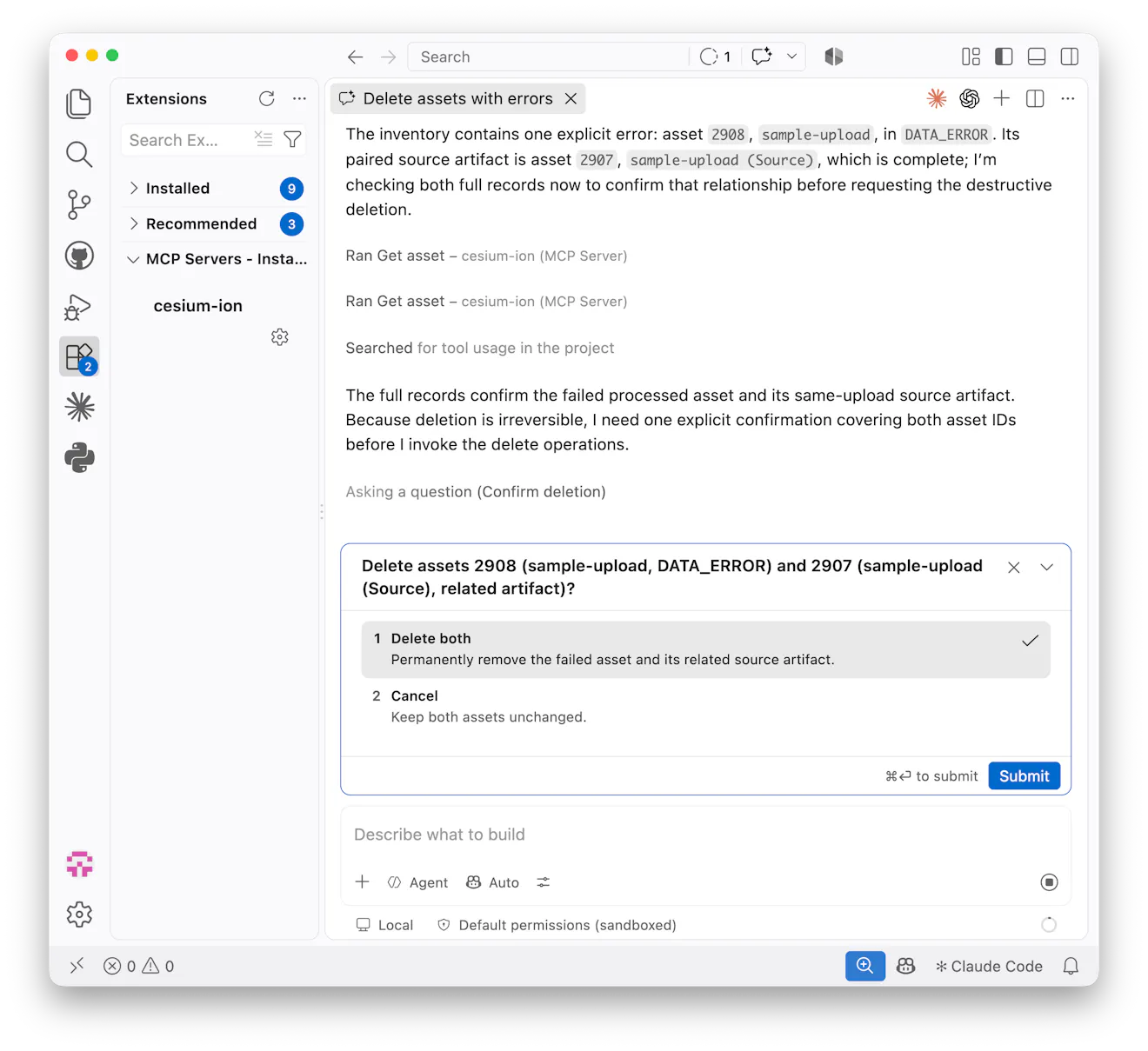
Deleted assets cannot be recovered, and any application streaming that asset will stop working. Double-check the asset ID in the confirmation dialog, especially when deleting multiple assets in one request.
Find every asset I uploaded before 2025 that has an empty description.
Suggest a description for each based on its name and type.
Then apply the ones I approve.
The assistant will chain search_assets, get_asset, and modify_asset calls, checking in with you along the way. This is where the MCP server pays off: workflows that would be dozens of dashboard clicks become one exchange.
Now that you can find and curate assets, learn how to add new ones: Uploading Data with the Asset Importer. For the full list of parameters each tool accepts, see the Tool Reference.