Snap to Design Model Geometry with CesiumJS and Cesium ion
Add responsive snapping to a CesiumJS application by combining immediate client-side results with server refinement against source geometry in Cesium ion.
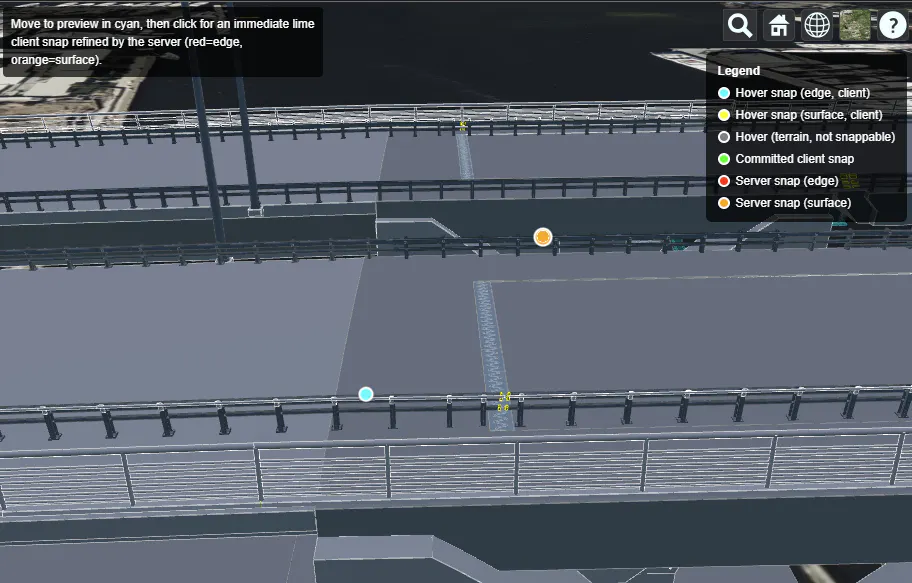
Screenshot of a completed snapping demo showing a legend for marker colours, and some snap points on a bridge railing.
For this tutorial, you need:
- Familiarity with CesiumJS Viewer, 3D Tiles, and screen space input events.
- Familiarity with Cesium Sandcastle.
This tutorial uses the public ion asset 5161569. You are free to use it while you work through this tutorial.
To use your own asset, you need a Cesium ion account, an access token that can read the asset, and a geolocated asset tiled using the BIM/CAD Tiler with Database. The asset also needs edge data if you want to use client-side edge snapping.
The finished application loads a geolocated design model and uses two snapping stages:
Stage 1: Client side-snapping
- Moving the pointer runs a client-side snap for immediate feedback.
- Clicking repeats the client snap, displays that result immediately, and identifies the source element.
Stage 2: Server-side snapping refinement
- Cesium ion refines the point against the source model geometry.
- A successful refinement from the latest click updates a second server marker.
The result is a responsive interaction that refines snap points against the source geometry.
To view the complete code while you follow along with this tutorial, check out this Sandcastle.
CesiumJS supports complementary approaches.
| Approach | Geometry used | Latency | Best use |
|---|---|---|---|
| Client-side | Geometry currently rendered by CesiumJS | Immediate | Hover previews and responsive interaction, where speed is most important |
| Server-side | Source design geometry in Cesium ion | Network request | Refine committed points, where accuracy is most important |
| Hybrid | Client result first, then server refinement | Immediate feedback plus network refinement | Interactive measurements and placement tools, where immediate feedback speed is important, but accuracy is needed |
Client-side snapping
Scene.snap searches a screen space region around the pointer. It prefers edges over surfaces and then chooses the nearest candidate of the same type.
Client-side snapping is synchronous and has no network latency. Its result is based on the model geometry currently rendered at the selected level of detail (LOD), so it is best treated as an approximation of the source geometry.
Scene.snap works with primitives rendered through the Model pipeline, including 3D Tiles and glTF models. It requires WebGL 2 with EXT_color_buffer_float. When no supported geometry is available, it returns undefined.
Server-side snapping
IonSnapService sends an element ID, test point, camera, and canvas dimensions to Cesium ion. The service then snaps against the exact source geometry, not a LOD/approximation.
Each request has network latency. Server snapping also needs a source element ID, so an interactive application must first discover which element the user selected.
Why use both?
The client already knows which rendered feature is under the pointer and can provide a useful point immediately. Passing that feature's element ID and the client point to the server keeps element discovery and geometry refinement aligned. The application remains responsive while Cesium ion computes the final result.
For this tutorial, we will use the hybrid approach.
Create the viewer, load Cesium World Terrain, and add the design model.
const assetId = 5161569;

const viewer = new Cesium.Viewer("cesiumContainer");

viewer.scene.setTerrain(Cesium.Terrain.fromWorldTerrain());
viewer.scene.globe.depthTestAgainstTerrain = true;
viewer.scene.pickTranslucentDepth = true;

const tileset = await Cesium.Cesium3DTileset.fromIonAssetId(assetId);
tileset.edgeDisplayMode = Cesium.EdgeDisplayMode.SURFACES_AND_EDGES;
viewer.scene.primitives.add(tileset);
viewer.zoomTo(tileset);
Cesium World Terrain places the model in its real-world context. Depth testing prevents the model from drawing through terrain. Setting pickTranslucentDepth to true includes translucent surfaces in depth picking. Set it to false to pick opaque geometry behind them. Server-side snapping supports 3D views only, so keep the viewer in 3D when exposing scene-mode controls.
SURFACES_AND_EDGES displays the edge data exported with the asset. Scene.snap can still use available edge data when the application chooses a different display mode.
Create point primitives for hover, client, and server feedback. Keep them in one collection so they can be hidden together during geometry queries. The complete sandcastle does this for Scene.snap, hover pickPosition, and the feature-pick fallback, preventing existing markers from occluding model geometry in those passes.
const markers = viewer.scene.primitives.add(new Cesium.PrimitiveCollection());
const points = markers.add(new Cesium.PointPrimitiveCollection());

const hoverPoint = points.add({
  show: false,
  pixelSize: 10,
  outlineColor: Cesium.Color.WHITE,
  outlineWidth: 2,
  disableDepthTestDistance: Number.POSITIVE_INFINITY,
});

const clientPoint = points.add({
  show: false,
  color: Cesium.Color.LIME,
  pixelSize: 8,
  outlineColor: Cesium.Color.WHITE,
  outlineWidth: 2,
  disableDepthTestDistance: Number.POSITIVE_INFINITY,
});

const serverPoint = points.add({
  show: false,
  pixelSize: 14,
  outlineColor: Cesium.Color.WHITE,
  outlineWidth: 2,
  disableDepthTestDistance: Number.POSITIVE_INFINITY,
});

function clientSnap(screenPosition) {
  markers.show = false;
  const hit = viewer.scene.snap(screenPosition);
  markers.show = true;
  return hit;
}

const scratchPickRay = new Cesium.Ray();

viewer.screenSpaceEventHandler.setInputAction(function (movement) {
  const hit = clientSnap(movement.endPosition);
  if (Cesium.defined(hit)) {
    hoverPoint.show = true;
    hoverPoint.position = hit.position;
    hoverPoint.color = hit.isEdge ? Cesium.Color.CYAN : Cesium.Color.YELLOW;
    return;
  }

  markers.show = false;
  let position = viewer.scene.pickPosition(movement.endPosition);
  markers.show = true;
  if (!Cesium.defined(position)) {
    position = viewer.camera.pickEllipsoid(
      movement.endPosition,
      viewer.scene.ellipsoid,
    );
  }
  if (!Cesium.defined(position)) {
    const ray = viewer.camera.getPickRay(movement.endPosition, scratchPickRay);
    if (Cesium.defined(ray)) {
      const distance = Math.max(viewer.camera.positionCartographic.height, 1.0);
      position = Cesium.Ray.getPoint(ray, distance);
    }
  }

  hoverPoint.show = Cesium.defined(position);
  if (Cesium.defined(position)) {
    hoverPoint.position = position;
    hoverPoint.color = Cesium.Color.GRAY;
  }
}, Cesium.ScreenSpaceEventType.MOUSE_MOVE);
A successful Scene.snap result contains:
object: the snapped feature or primitive;position: the world-space snap point;surfacePosition: the same point as position for a surface snap; for an edge snap, a nearby point on the same object’s surface, or undefined if no surface is visible;screenPosition: the snap point in window coordinates; andisEdge: whether the result is an edge rather than a surface.
A visible point primitive is not a snap candidate, but it can still write depth and occlude the model during a dedicated snap or pick pass. Temporarily hiding the marker collection keeps repeated snaps and picks aimed at model geometry.
In this example, the hover point is cyan (client-side hover edge snap), yellow (client-side hover surface snap), or gray (fallback hover feedback). Fallback positions (points that are not on a geolocated BIM/CAD asset in Cesium ion that supports server-side element snapping, such as terrain) do not identify an element for server-side snapping.
This client-side layer is enough for previews or workflows where rendered-geometry precision is acceptable.
Camera movement can leave the hover marker at a point that no longer corresponds to the geometry under the pointer. Production tools should hide it when camera movement starts or recompute it using the last pointer position when movement ends.
Create one IonSnapService and reuse it for every request.
const snapper = await Cesium.IonSnapService.fromAssetId(assetId);
fromAssetId retrieves the asset's transform to Earth-centered, Earth-fixed (ECEF) coordinates once. Each call to snap reuses that transform and combines it with the supplied camera and CSS canvas dimensions. The gallery waits for this initialization during startup. A production application can catch initialization failure and leave client-side snapping available when the server service is unavailable.
NEAREST snaps to the point on the element nearest the pointer. snapAperture is the on-screen tolerance for nearby snap geometry, measured in CSS pixels. The default is 12 CSS pixels.
A successful result includes snapPoint, plus information such as geometryType, hitPoint, and nearby curve geometry. A request can return undefined when the element is missing or no snap is possible.
The element property is numeric, while IonSnapService expects a hexadecimal string. Convert it directly from its returned integer representation.
const element = feature.getProperty("element");
const elementId = `0x${element.toString(16)}`;
Do not coerce the returned value through a JavaScript Number, because that can round a large identifier.
The click handler repeats the client snap, shows a lime point (client-side click result) immediately, and then requests server refinement. A separate server point preserves both stages for comparison.
let clickSequence = 0;
const MAX_SURFACE_RESULT_DISTANCE_PIXELS = 24;

viewer.screenSpaceEventHandler.setInputAction(async function (movement) {
  const screenPosition = Cesium.Cartesian2.clone(movement.position);
  const sequence = ++clickSequence;
  const clientHit = clientSnap(screenPosition);

  let feature = clientHit?.object;
  if (!Cesium.defined(feature)) {
    markers.show = false;
    feature = viewer.scene.pick(screenPosition, 25, 25);
    markers.show = true;
  }
  if (!Cesium.defined(feature) || typeof feature.getProperty !== "function") {
    console.warn("No element under the cursor");
    return;
  }

  const element = feature.getProperty("element");
  if (!Cesium.defined(element)) {
    console.warn("The selected feature does not have an element ID");
    return;
  }
  const elementId = `0x${element.toString(16)}`;

  const clientPosition =
    clientHit?.position ?? viewer.scene.pickPosition(screenPosition);
  if (!Cesium.defined(clientPosition)) {
    console.warn("No position under the cursor");
    return;
  }
  clientPoint.position = clientPosition;
  clientPoint.show = true;
  serverPoint.show = false;

  const testPoint = clientHit?.isEdge
    ? (clientHit.surfacePosition ?? clientPosition)
    : clientPosition;

  let result;
  try {
    const canvas = viewer.scene.canvas;
    result = await snapper.snap({
      elementId: elementId,
      testPoint: testPoint,
      camera: viewer.camera,
      canvasWidth: canvas.clientWidth,
      canvasHeight: canvas.clientHeight,
      snapMode: Cesium.IonSnapMode.NEAREST,
      snapAperture: clientHit?.isEdge ? undefined : 2,
    });
  } catch (error) {
    console.error("Server-side snap failed", error);
    return;
  }

  if (sequence !== clickSequence) {
    return;
  }
  if (!Cesium.defined(result) || !Cesium.defined(result.snapPoint)) {
    console.warn("No server-side snap was found for this element and point");
    return;
  }

  const onSurface = result.geometryType === Cesium.IonSnapGeometryType.SURFACE;

  const distanceFromTestPointPixels = pixelSeparation(
    result.snapPoint,
    testPoint,
  );
  if (
    onSurface &&
    result.heat === Cesium.IonSnapHeat.NONE &&
    Cesium.defined(distanceFromTestPointPixels) &&
    distanceFromTestPointPixels > MAX_SURFACE_RESULT_DISTANCE_PIXELS
  ) {
    console.warn(
      `Rejected distant surface result: ${distanceFromTestPointPixels.toFixed(1)} px from test point`,
      result,
    );
    return;
  }

  serverPoint.position = result.snapPoint;
  serverPoint.color = onSurface ? Cesium.Color.ORANGE : Cesium.Color.RED;
  serverPoint.show = true;
}, Cesium.ScreenSpaceEventType.LEFT_CLICK);

function pixelSeparation(firstPosition, secondPosition) {
  const firstScreen = viewer.scene.cartesianToCanvasCoordinates(firstPosition);
  const secondScreen =
    viewer.scene.cartesianToCanvasCoordinates(secondPosition);
  return Cesium.defined(firstScreen) && Cesium.defined(secondScreen)
    ? Cesium.Cartesian2.distance(firstScreen, secondScreen)
    : undefined;
}
IonSnapService snaps one source element at a time. Prefer the feature returned by Scene.snap so the element and test point refer to the same rendered object. If the client snap returns no object, a 25 by 25 (CSS pixels) Scene.pick fallback searches the same default region for an element. The clientPosition fallback still provides a test point when there is no client snap point. In the complete Sandcastle, this click-side pickPosition fallback runs after the markers are restored. A production tool should hide the marker collection around that call too, so an existing point cannot contribute depth to the fallback. The gallery hides the previous server marker after it validates both the element metadata and client position, so earlier feedback remains visible if either validation exits first.
testPoint tells the server where to start looking on the selected element. For an edge snap, use surfacePosition when available to start from the same object's surface instead of an edge that may look different in the source geometry. The fallback uses clientPosition when surfacePosition is unavailable.
Surface clicks use a two-pixel snapAperture to reduce the chance that nearby source edges pull the result away. For edge clicks, leaving snapAperture undefined keeps the default tolerance. IonSnapHeat rates how close the result is to closePoint. This request does not set closePoint, so it defaults to testPoint. IonSnapHeat.NONE means the result is not close. If a surface result is also more than 24 pixels from testPoint, the gallery keeps the client result instead.
Repeating the snap on click avoids committing an older hover result. The lime marker (client-side click result) gives immediate feedback while the server request is in flight. The sequence check prevents a slow response from an earlier click from updating the server marker after a newer click. When refinement succeeds, a red marker (server-side edge snap) or orange marker (server-side surface snap) appears. If the service returns no result or throws an error, the lime marker (client-side click result) remains visible. If a newer click exits before the gallery hides serverPoint, the previous server marker also remains visible.
The final click path has a clear boundary between client and server responsibilities:
clientSnapfinds rendered model geometry.- The client result normally supplies both the visible point and source element metadata.
Scene.pickandpickPositionprovide the fallback path. - The click handler converts the feature metadata to the server format.
snapper.snapsends the server refinement request.- The click handler reconciles the asynchronous result with current interaction state.
This separation also makes either layer reusable. A client-only tool can stop after clientSnap. A workflow that already has an element ID, a test point, a camera, and a canvas state can call snapper.snap directly.
You can view an implementation of the hybrid snapping approach here at this Sandcastle.
Things to consider
- Keep
IonSnapServiceinstances and reuse them rather than retrieving the asset transform for every pointer event. - Run server requests on committed interactions such as clicks, not continuously on mouse movement.
- Use CSS canvas dimensions,
clientWidthandclientHeight, becausesnapApertureis measured in CSS pixels. - Hide feedback primitives during every geometry query, including fallback
pickPositioncalls, so they cannot contribute depth or occlude model geometry. - Verify that the asset was tiled using the BIM/CAD Tiler with Database and is geolocated.
IonSnapService.fromAssetIdrejects assets without the required ECEF transform. - Verify browser support for WebGL 2 and
EXT_color_buffer_floatbefore relying on client-side snapping.
- Bring your own data: To use your own asset, you need a Cesium ion account, an access token that can read the asset, and a geolocated asset tiled using the BIM/CAD Tiler with Database. The asset also needs edge data if you want to use client-side edge snapping.
- Build Tools: Use snapping for measurements, placement, or other workflows.
Open the complete working Sandcastle to see a hybrid snapping workflow.
| Symptom | Check |
|---|---|
| No cyan (client-side hover edge snap) or yellow (client-side hover surface snap) marker appears | Confirm WebGL 2 and EXT_color_buffer_float support, and confirm the pointer is over Model-pipeline geometry. Gray (fallback hover feedback) only indicates terrain or sky feedback. |
| Surface snapping works but edge snapping does not | Confirm the asset was exported with edge data. |
| The lime marker (client-side click result) never gains a red (server-side edge snap) or orange (server-side surface snap) marker | Check authentication, whether the asset used the required tiler, and the element metadata property. A normal no-snap result also leaves only the lime marker (client-side click result). |
fromAssetId reports that the asset is not geolocated | Reprocess or configure the iModel asset with valid geolocation so it has an ECEF transform. |
| A large element ID does not work | Keep the ID as BigInt or a string. Do not convert it through an unsafe Number. |
| Server snapping fails outside 3D | Keep the scene in SCENE3D. IonSnapService.snap does not support other views such as 2D. |