Working with BIM/CAD Tileset Metadata
Build a category filtering tool that reads design metadata (embedded in a 3D Tiles tileset.json during tiling in the BIM/CAD Tiler with Database), constructs a hierarchical category/subcategory panel, and lets users show or hide groups of features interactively.
The complete Sandcastle is available here.
- Familiarity with CesiumJS basics (Viewer, 3D Tiles)
- This tutorial uses the Snowdon Towers Sample Architectural model as sample data. A scoped access token and asset ID are included in the code, so no Cesium ion account is needed to follow along.
A tileset metadata viewer that:
- Loads a design model and reads category metadata embedded in the tileset
- Builds a collapsible category/subcategory panel from parallel metadata arrays
- Toggles visibility of categories and subcategories using 3D Tiles styling
- Supports CTRL+click to solo (isolate) a single category
- Provides a "Hide by Pick" mode where clicking a feature hides its entire category
- Shows a hover tooltip identifying features by category name
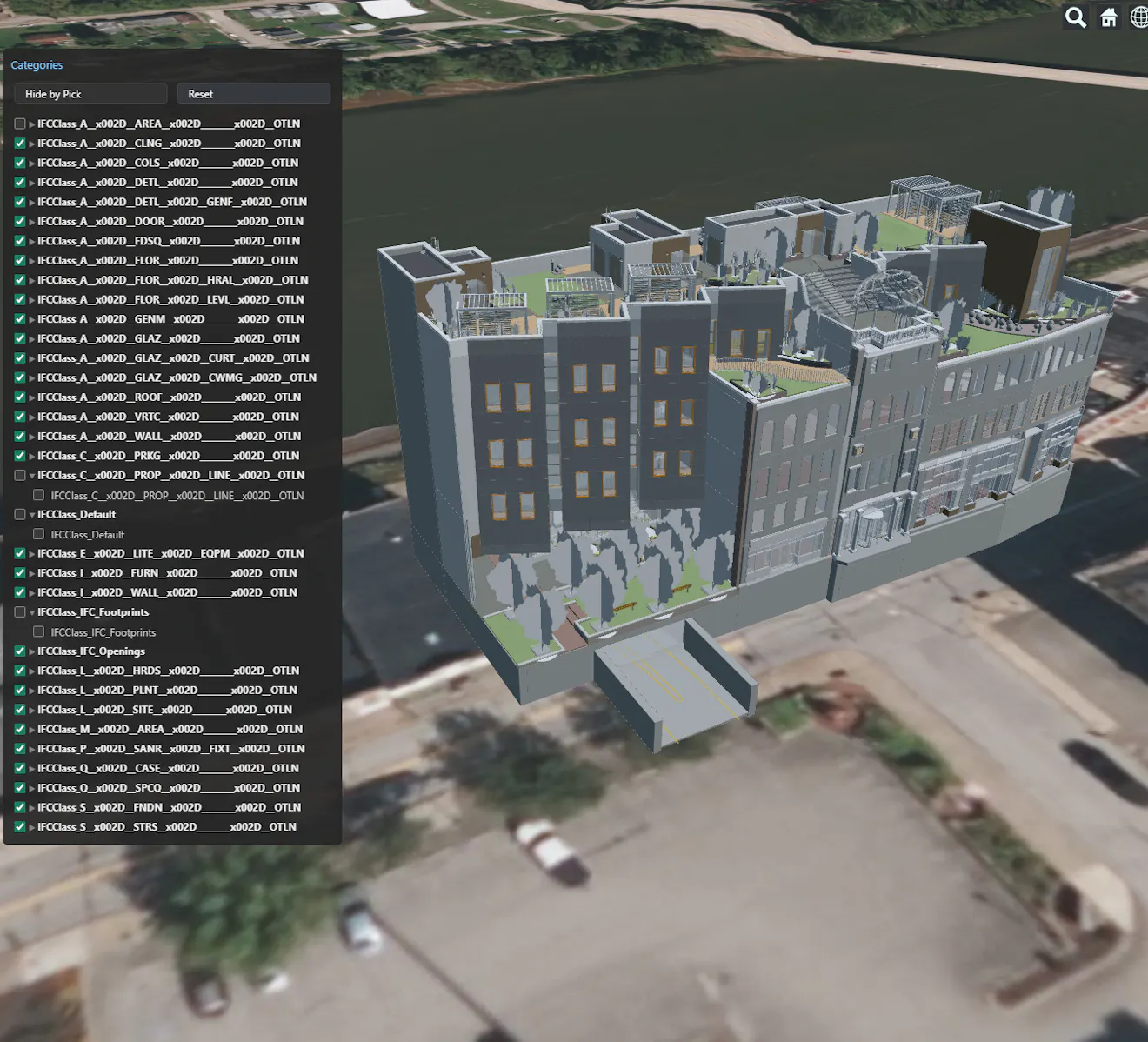
Screenshot of the completed category filtering app showing a 3D architectural model with the collapsible category panel open.
When you upload a design model using the BIM/CAD Tiler with Database, Cesium ion embeds a metadata schema directly in the tileset.json file. This metadata describes the model's structure: which categories of elements exist, what subcategories they contain, and how they map to features in the 3D view.
The key data lives in parallel arrays. Each index across the arrays represents one entry:
categoryIds/categoryNames- the top-level groupings (Walls, Doors, Floors, etc.)subcategoryIds/subcategoryNames/subcategoryParentIds- finer subdivisions within each category
Individual features in the tileset carry two properties: category (a BigInt matching an entry in categoryIds) and subcategory (a BigInt matching an entry in subcategoryIds).
Why parallel arrays? Although tileset.json uses JSON, the 3D Tiles standard doesn't support maps/dictionaries. Parallel arrays provide a compact lookup table that the client can read once on load.
BIM/CAD Tiler with Database Required: Tileset metadata is only generated when you upload using this tiler. If tileset.metadata is undefined, re-upload your model through the BIM/CAD Tiler with Database.
The BIM/CAD Tiler with Database is currently in Technology Preview. APIs for working with this tiler and the data it produces might change prior to General Availability.
Each step below teaches one concept and shows its code. Variables and functions from earlier steps are used in later steps (dependency callouts note these). The complete working Sandcastle combines everything into a single runnable application.
Sandcastle runs your code inside an async function, so top-level await works. If adapting to a standalone app, wrap your code in async function main() { ... } main();.
The companion HTML file provides the #categoryPanel container div used in Step 4, plus CSS for the panel layout and collapsible tree styling. If running outside Sandcastle, your page needs at minimum:
<div id="cesiumContainer" style="width:100%;height:100%;position:absolute;"></div>
<div id="categoryPanel"></div>Start by creating a viewer and loading the tileset from Cesium ion.
const ION_ACCESS_TOKEN = "eyJhbGciOiJIUzI1NiIsInR5cCI6IkpXVCJ9.eyJqdGkiOiIyYTNiMTEyNS0wZWZhLTQ2YTYtOGJjYi1jYjYyOTQxN2NiN2UiLCJpZCI6MjU5LCJzdWIiOiJDZXNpdW1KUyIsImlzcyI6Imh0dHBzOi8vYXBpLmNlc2l1bS5jb20iLCJhdWQiOiJEZXNpZ24gSW5nZXN0aW9uIEdUTSIsImlhdCI6MTc3OTc1MDAxM30.pwnHFphGrT_eReSLU-QRmanDIeNTksS64Tp6rrUJheI";
Cesium.Ion.defaultAccessToken = ION_ACCESS_TOKEN;

const ASSET_ID = 4856290; // Snowdon Towers Architectural

const viewer = new Cesium.Viewer("cesiumContainer", {
  timeline: false,
  animation: false,
  baseLayerPicker: false,
});

viewer.scene.setTerrain(Cesium.Terrain.fromWorldTerrain());

let tileset = viewer.scene.primitives.add(
  await Cesium.Cesium3DTileset.fromIonAssetId(ASSET_ID)
);

await viewer.zoomTo(tileset);
After zoomTo resolves, the tileset is fully loaded and its metadata is available via tileset.metadata.
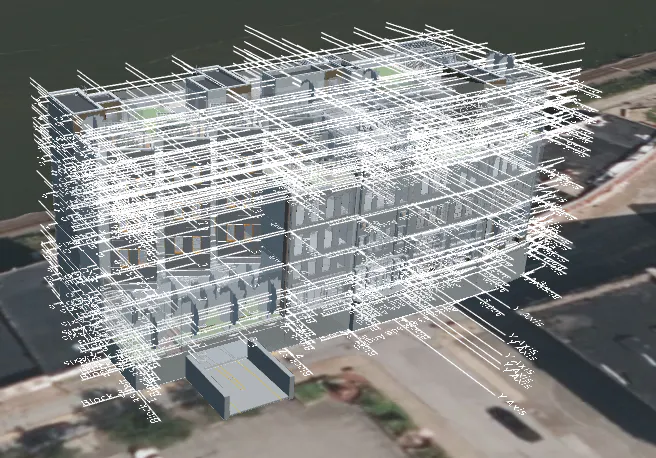
The Snowdon Towers model loaded as a white wireframe mesh.
Dependency: This step populates categoryNameLookup and subsByParent, which are used in Steps 3–6.
Read the parallel metadata arrays from the tileset and build two lookup structures: a map from category ID to display name, and a grouping of subcategories by their parent category.
const categoryNameLookup = new Map(); // BigInt -> display name
const subsByParent = new Map();       // BigInt categoryId -> [{id: BigInt, name: string}]

// Read parallel arrays from tileset metadata
const catIds = tileset.metadata.getProperty("categoryIds");
const catNames = tileset.metadata.getProperty("categoryNames");
const subIds = tileset.metadata.getProperty("subcategoryIds");
const subNames = tileset.metadata.getProperty("subcategoryNames");
const subParentIds = tileset.metadata.getProperty("subcategoryParentIds");

if (!catIds || !catNames || catIds.length === 0) {
  console.error("No category metadata found. Did you upload using the BIM/CAD Tiler with Database?");
  return;
}

// Build category lookup: BigInt categoryId -> display name
catIds.forEach((id, i) => categoryNameLookup.set(BigInt(id), catNames[i]));

// Group subcategories by parent category
for (let i = 0; i < subIds.length; i++) {
  const parentId = BigInt(subParentIds[i]);
  if (!subsByParent.has(parentId)) subsByParent.set(parentId, []);
  subsByParent.get(parentId).push({ id: BigInt(subIds[i]), name: subNames[i] });
}
BigInt conversion: The metadata arrays store IDs as strings (JSON cannot represent 64-bit integers natively). Feature properties store them as BigInt. You must wrap with BigInt(id) when building the lookup so that Map.get() comparisons work correctly against feature property values.
The subParentIds array links each subcategory to its parent category. For example, if subParentIds[3] equals "2199023255571", then subcategoryNames[3] is a child of the category whose ID is "2199023255571". We convert it to BigInt when building the map so that all lookups use a consistent key type.
Dependency: This step introduces hiddenCategories, hiddenSubcategories, and applyStyle(), which are used in Steps 4–6.
Track which categories the user has hidden in a Set, then use a custom style evaluator to show or hide features based on their category and subcategory properties.
const hiddenCategories = new Set();    // BigInt category IDs to hide
const hiddenSubcategories = new Set(); // BigInt subcategory IDs to hide

function applyStyle() {
  if (!tileset) return;
  tileset.style = undefined;
  tileset.style = new Cesium.Cesium3DTileStyle();
  tileset.style.show = {
    evaluate: function (feature) {
      if (hiddenCategories.has(feature.getProperty("category"))) return false;
      if (hiddenSubcategories.has(feature.getProperty("subcategory"))) return false;
      return true;
    },
  };
}
The applyStyle() function is called after building the panel (Step 4) to establish the initial style, and again each time the user toggles a category or subcategory.
Why evaluate instead of style conditions? Category IDs are BigInt values that cannot be expressed in the 3D Tiles styling language's declarative JSON syntax. A JavaScript evaluate callback lets us do Set lookups and BigInt comparisons directly.
Why reset style to undefined first? CesiumJS caches the current style object. Assigning a fresh Cesium3DTileStyle without clearing the old one first may not trigger a re-evaluation. Setting tileset.style = undefined forces a complete style refresh.
Dependency: This step uses categoryNameLookup, subsByParent (Step 2), hiddenCategories, hiddenSubcategories, and applyStyle() (Step 3). It also populates allCatCheckboxes, allSubCheckboxes, and catIdToCheckbox for use by Steps 5–6.
Construct the UI: a panel with one row per category. Each row has a checkbox (to toggle visibility) and a clickable label that expands to reveal subcategories. We also maintain tracking arrays so that later features (solo, reset) can update all checkboxes at once.
// Tracking structures for solo and reset functionality
const allCatCheckboxes = [];      // [{catId: BigInt, cb: HTMLInputElement}]
const allSubCheckboxes = [];      // HTMLInputElement[]
const catIdToCheckbox = new Map(); // BigInt categoryId -> HTMLInputElement

// Get panel container (defined in the HTML tab)
const panel = document.getElementById("categoryPanel");

// Deduplicate and sort categories alphabetically
const uniqueCats = new Map();
catIds.forEach((id, i) => {
  if (!uniqueCats.has(id)) uniqueCats.set(id, catNames[i]);
});
const sortedCats = [...uniqueCats.entries()].sort((a, b) => a[1].localeCompare(b[1]));

for (const [catIdStr, catName] of sortedCats) {
  const catId = BigInt(catIdStr);
  const subs = (subsByParent.get(catId) || [])
    .sort((a, b) => a.name.localeCompare(b.name));

  // Create a row div to hold checkbox + label
  const row = document.createElement("div");
  row.className = "cat-row";

  // Create checkbox - toggling adds/removes from hiddenCategories
  const cb = document.createElement("input");
  cb.type = "checkbox";
  cb.checked = true;
  cb.title = "CTRL+click to solo this category";

  // Register in tracking structures
  allCatCheckboxes.push({ catId, cb });
  catIdToCheckbox.set(catId, cb);

  cb.addEventListener("change", function () {
    if (cb.checked) {
      hiddenCategories.delete(catId);
    } else {
      hiddenCategories.add(catId);
    }
    applyStyle();
  });

  // --> Step 5 adds a CTRL+click solo listener here (same `cb`, same loop)

  // Create expandable label (clicking toggles subcategory visibility)
  const label = document.createElement("span");
  label.className = "cat-label";
  label.textContent = catName;

  row.appendChild(cb);
  row.appendChild(label);
  panel.appendChild(row);

  // If this category has subcategories, build a nested list
  if (subs.length > 0) {
    const subsDiv = document.createElement("div");
    subsDiv.className = "subs";

    label.addEventListener("click", function () {
      label.classList.toggle("open");
      subsDiv.classList.toggle("open");
    });

    for (const sub of subs) {
      const subLabel = document.createElement("label");
      const subCb = document.createElement("input");
      subCb.type = "checkbox";
      subCb.checked = true;
      subCb.addEventListener("change", function () {
        if (subCb.checked) {
          hiddenSubcategories.delete(sub.id);
        } else {
          hiddenSubcategories.add(sub.id);
        }
        applyStyle();
      });
      allSubCheckboxes.push(subCb);
      subLabel.appendChild(subCb);
      subLabel.appendChild(document.createTextNode(" " + sub.name));
      subsDiv.appendChild(subLabel);
    }
    panel.appendChild(subsDiv);
  }
}

// Establish the initial style (all visible)
applyStyle();
The panel renders immediately after the tileset loads because all category data comes from tileset metadata (no additional API calls needed). This is one of the key advantages of embedded metadata: the UI is ready the moment the model appears.
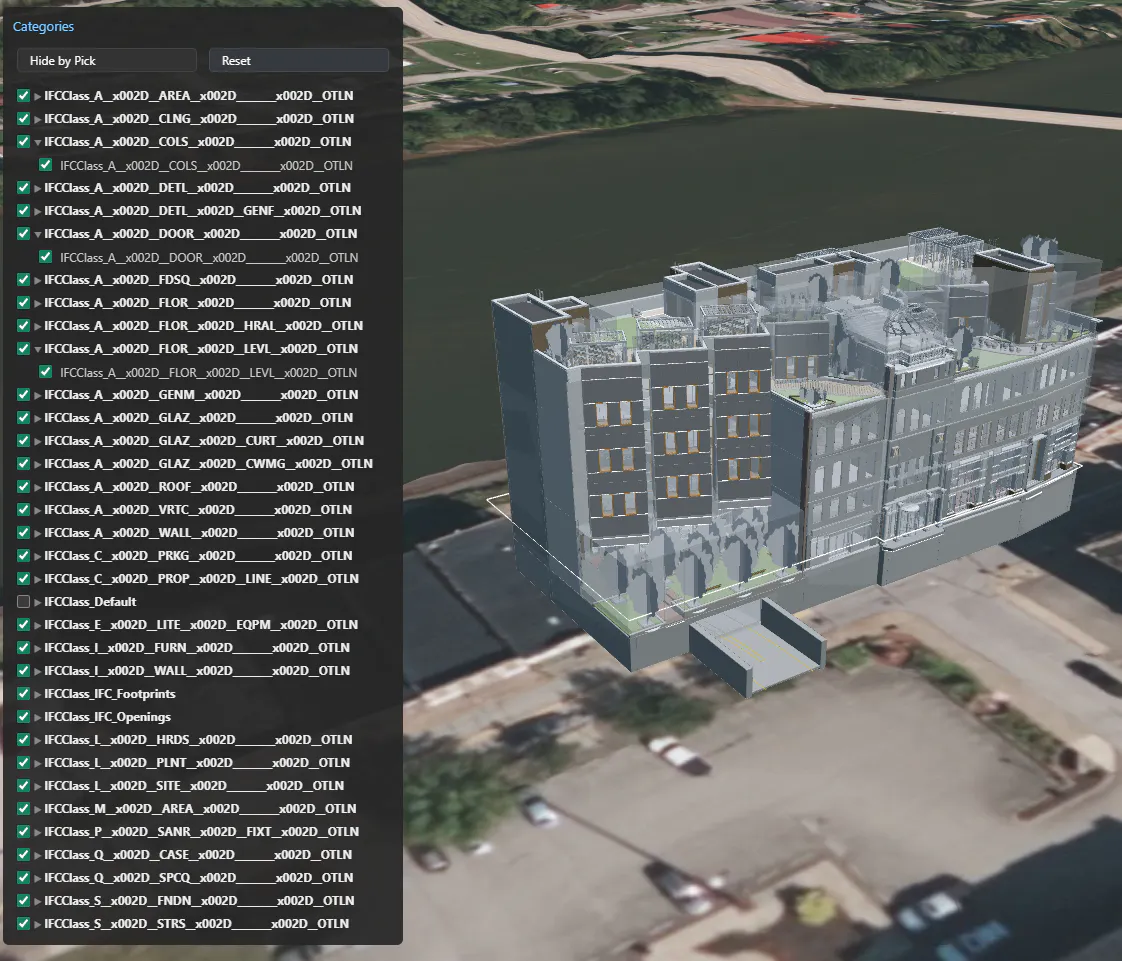
Category panel built with all categories visible in the 3D view.
Dependency: This step adds code inside the Step 4 category loop, on the same cb element, after the change listener. It uses allCatCheckboxes, hiddenCategories (Step 3), and applyStyle() (Step 3).
CTRL+clicking a category checkbox isolates that category by hiding everything else. CTRL+clicking again restores all categories. Add this listener to each category checkbox inside the Step 4 loop:
// Add CTRL+click solo behavior (inside the Step 4 loop, on the same `cb`)
cb.addEventListener("click", function (e) {
  if (e.ctrlKey) {
    e.preventDefault();
    const isAlreadySolo =
      hiddenCategories.size === allCatCheckboxes.length - 1 &&
      !hiddenCategories.has(catId);
    if (isAlreadySolo) {
      // Unsolo: show all
      hiddenCategories.clear();
      allCatCheckboxes.forEach((c) => (c.cb.checked = true));
    } else {
      // Solo: hide everything except this one
      hiddenCategories.clear();
      allCatCheckboxes.forEach((c) => {
        if (c.catId === catId) {
          c.cb.checked = true;
        } else {
          hiddenCategories.add(c.catId);
          c.cb.checked = false;
        }
      });
    }
    applyStyle();
  }
});
When soloing, we iterate allCatCheckboxes to set each checkbox's visual state and update hiddenCategories to match. The detection logic checks whether all categories except the current one are already hidden (which means we're undoing a previous solo).
Note: Solo only affects top-level categories. If you had individually hidden subcategories within the soloed category, those remain hidden. The Reset button (Step 6) clears both levels.
UX note: The solo pattern (CTRL+click to isolate, CTRL+click again to restore) is familiar to users of layer-based design tools like Revit, SketchUp, and Photoshop. It provides a fast way to focus on a single system without manually unchecking every other category.
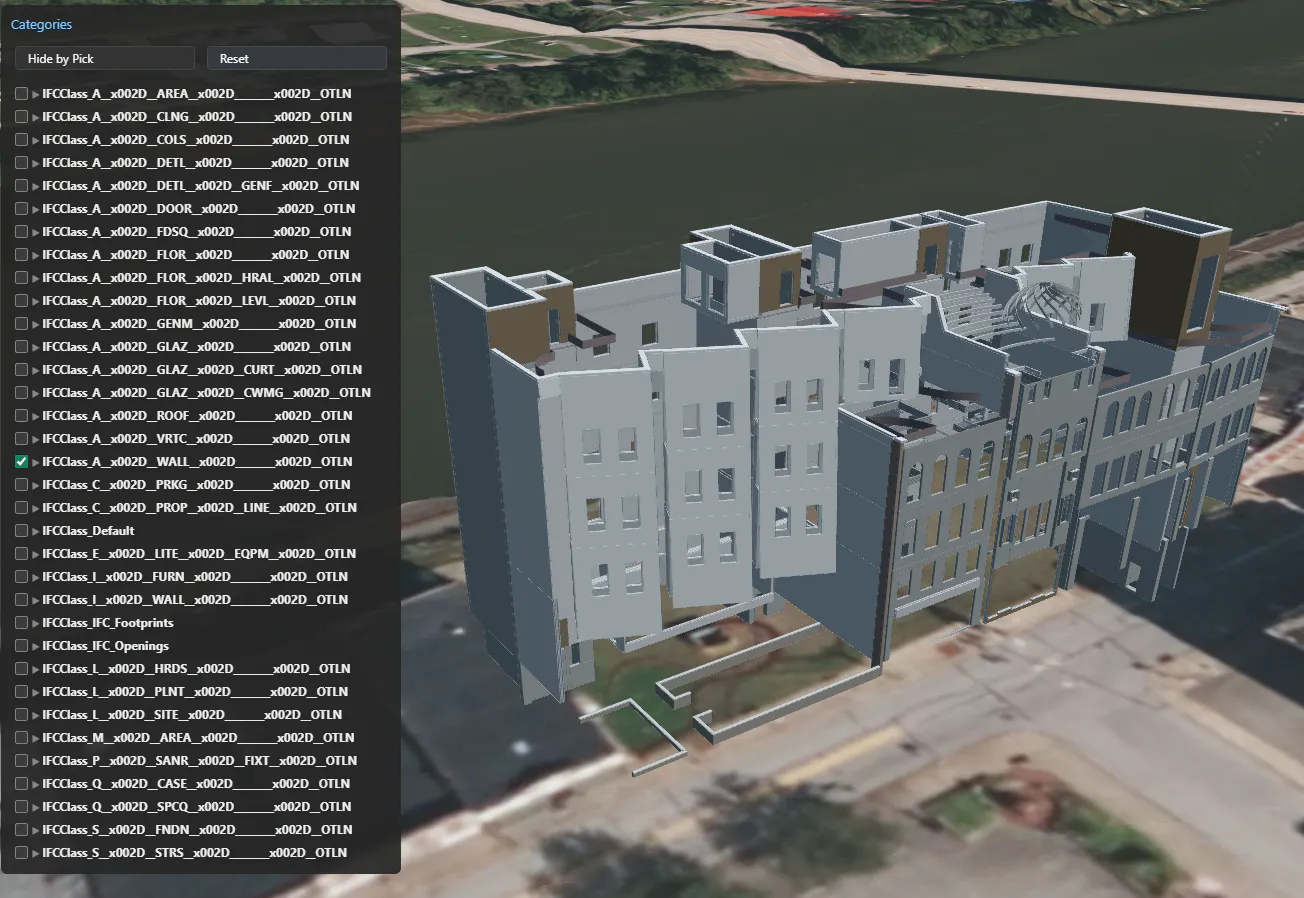
Some categories hidden in the 3D view demonstrating solo functionality.
Dependency: This step uses hiddenCategories, categoryNameLookup (Step 2), catIdToCheckbox, allCatCheckboxes, allSubCheckboxes (Step 4), and applyStyle() (Step 3).
Add a "Hide by Pick" toggle button and a "Reset" button to the panel. When Hide by Pick is active, clicking a feature in the viewport hides its entire category. A hover tooltip shows the category name before the user commits.
First, create the toolbar buttons and hover tooltip:
let hideByPickActive = false;

// Create button row at the top of the panel
const btnRow = document.createElement("div");
btnRow.className = "btn-row";

const pickBtn = document.createElement("button");
pickBtn.textContent = "Hide by Pick";
pickBtn.addEventListener("click", function () {
  hideByPickActive = !hideByPickActive;
  pickBtn.style.background = hideByPickActive ? "#c44" : "#333";
  pickBtn.textContent = hideByPickActive ? "Hide by Pick (ON)" : "Hide by Pick";
  if (!hideByPickActive) hoverLabel.style.display = "none";
});

const resetBtn = document.createElement("button");
resetBtn.textContent = "Reset";
resetBtn.addEventListener("click", function () {
  hiddenCategories.clear();
  hiddenSubcategories.clear();
  allCatCheckboxes.forEach((c) => (c.cb.checked = true));
  allSubCheckboxes.forEach((cb) => (cb.checked = true));
  applyStyle();
});

btnRow.appendChild(pickBtn);
btnRow.appendChild(resetBtn);
panel.insertBefore(btnRow, panel.querySelector(".cat-row"));

// Create hover tooltip element
const hoverLabel = document.createElement("div");
hoverLabel.style.cssText = "position:fixed; padding:4px 8px; background:rgba(0,0,0,0.85); color:#fff; font-size:12px; pointer-events:none; display:none; z-index:1000; border-radius:3px; white-space:nowrap;";
document.body.appendChild(hoverLabel);
Now wire up the event handlers. The Viewer provides a built-in screenSpaceEventHandler on its canvas, so we don't need to create a new one:
// Click: hide the picked feature's category (when active)
viewer.screenSpaceEventHandler.setInputAction(function (movement) {
  if (!hideByPickActive) return;
  if (!tileset) return;
  const feature = viewer.scene.pick(movement.position);
  if (!Cesium.defined(feature) || !(feature instanceof Cesium.Cesium3DTileFeature)) return;

  const catId = feature.getProperty("category"); // BigInt
  hiddenCategories.add(catId);
  const cb = catIdToCheckbox.get(catId); // Map is BigInt-keyed (Step 4)
  if (cb) cb.checked = false;
  applyStyle();
}, Cesium.ScreenSpaceEventType.LEFT_CLICK);

// Hover: show tooltip with category name
viewer.screenSpaceEventHandler.setInputAction(function (movement) {
  if (!hideByPickActive) {
    hoverLabel.style.display = "none";
    return;
  }
  if (!tileset) return;
  const feature = viewer.scene.pick(movement.endPosition);
  if (Cesium.defined(feature) && feature instanceof Cesium.Cesium3DTileFeature) {
    const catId = feature.getProperty("category");
    const catName = categoryNameLookup.get(catId) || "Unknown";
    hoverLabel.textContent = catName;
    hoverLabel.style.display = "block";
    hoverLabel.style.left = (movement.endPosition.x + 15) + "px";
    hoverLabel.style.top = (movement.endPosition.y + 5) + "px";
  } else {
    hoverLabel.style.display = "none";
  }
}, Cesium.ScreenSpaceEventType.MOUSE_MOVE);
When Hide by Pick is inactive, the click handler returns immediately without altering the scene. Note that setInputAction replaces any previous handler for that event type on the same handler instance. Since this demo only uses tile features (not entities), this has no side effects here.
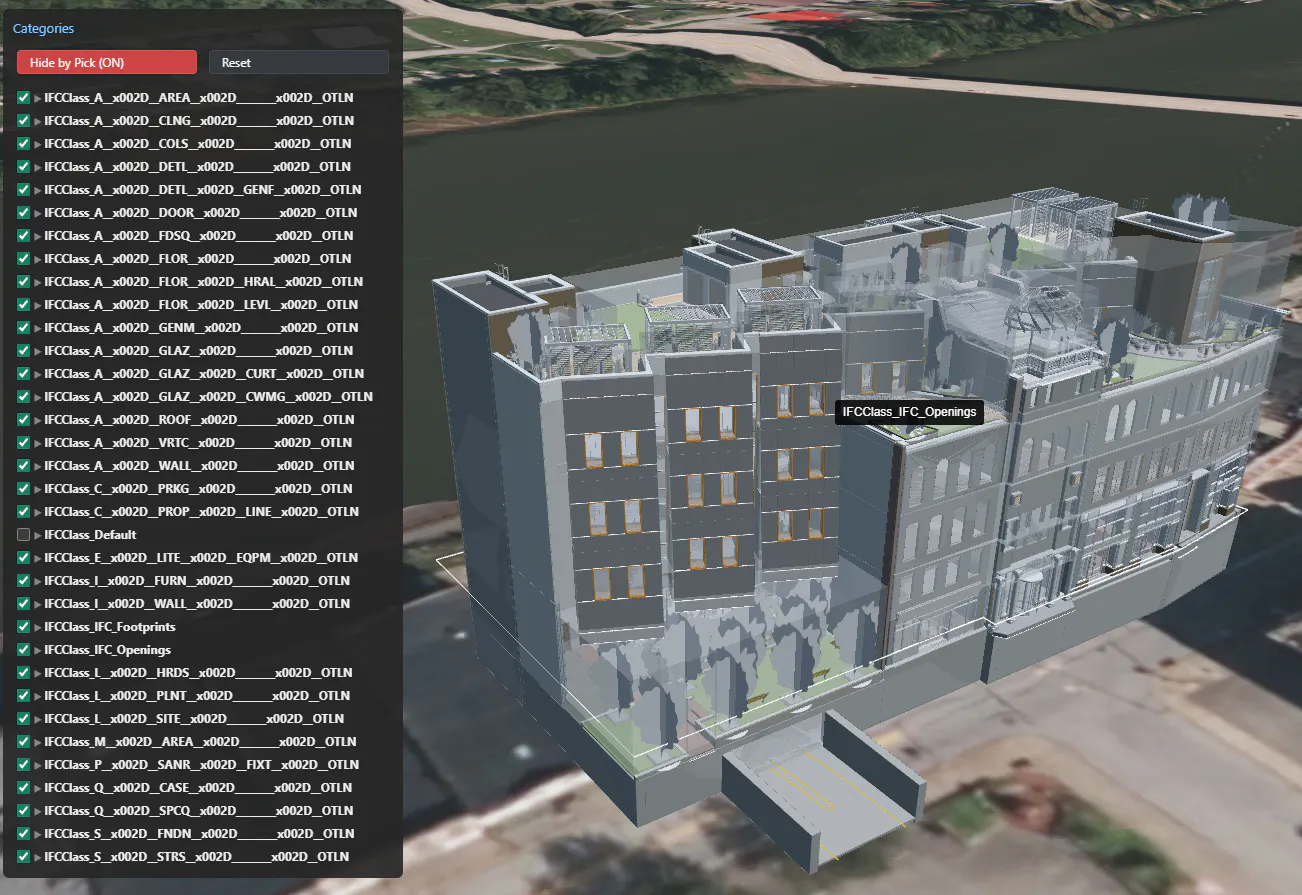
Hide by Pick mode active with a tooltip showing the hovered element's category name.
The complete working Sandcastle allows you to see all steps combined, and differs from the step-by-step code in a few ways, noted below.
The Sandcastle differs from the step-by-step code in a few ways:
- Initialization wrapper - All async work (tileset loading, panel construction) lives inside an async function
initialize()called at script end - Panel construction - Steps 2, 4, 5, and the button-row portion of Step 6 are combined into a single
buildCategoryPanel()function that reads metadata and builds the DOM in one pass - Button row placement - In the Sandcastle, buttons are appended before category rows in the
buildCategoryPanel()flow, rather than inserted after the fact - Guard checks - Event handlers include
if (!tileset)return to handle the case where events fire before initialization completes
- Working with the Asset Elements API - Query individual element metadata via REST, build a property inspector, and search elements by type or property value
- Combine both tutorials: use tileset metadata for fast category filtering, then drill into specific elements with the Elements API for detailed properties
| What You Learned | How |
|---|---|
| Read tileset metadata | tileset.metadata.getProperty("propertyName") |
| Build a category lookup | Parallel arrays with BigInt() conversion into a Map |
| Toggle visibility | Custom evaluate function on Cesium3DTileStyle.show |
| Subcategory hierarchy | subcategoryParentIds links children to parent categories |
| Solo a category | CTRL+click to isolate, CTRL+click to restore |
| Hide by pick | Click features to hide their category interactively |