Importing iModels from Bentley Infrastructure Cloud
If your BIM/CAD model already exists as an iModel on Bentley Infrastructure Cloud (BIC), you can import it into Cesium ion directly. Connect your Bentley account, find the iModel, and ion tiles it into a 3D Tiles design tileset ready to stream.
Importing from BIC uses the BIM/CAD Tiler with Database, so the resulting asset includes an external database you can query with the Asset Elements API.
- You need a Cesium ion account with a connected Bentley account. Sign up for free.
- You must be an owner of the iModel and belong to its organization.
This path is for iModels that already exist in Bentley Infrastructure Cloud. If your source data is a design file that has not been brought into an iModel, use one of the following tilers instead:
| Source | Path to use |
|---|---|
| An iModel in a Bentley Infrastructure Cloud iTwin you own | This tutorial |
| .rvt, .dgn, .dwg, .dxf | BIM/CAD Tiler with Database |
| .ifc | BIM/CAD Tiler with Database or Design Tiler |
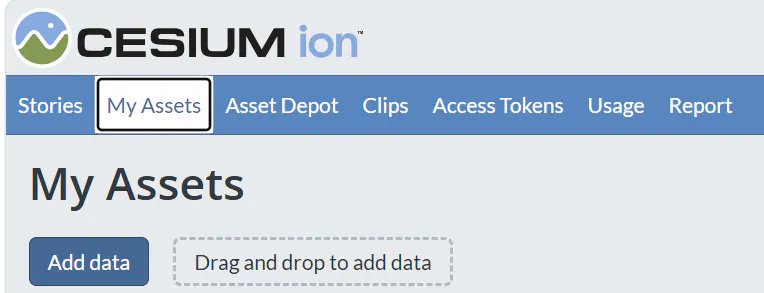
- On the My Assets tab, click Add data.
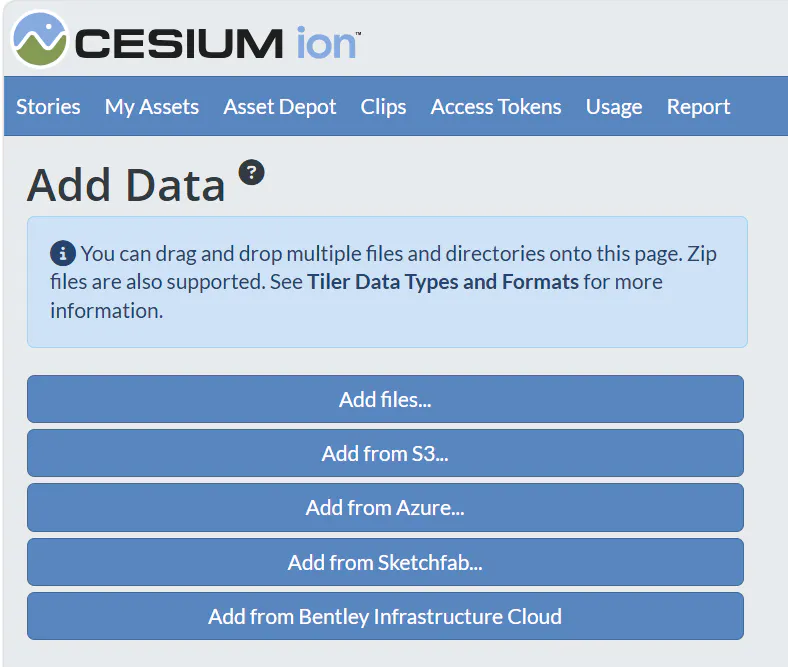
- Click Add from Bentley Infrastructure Cloud.
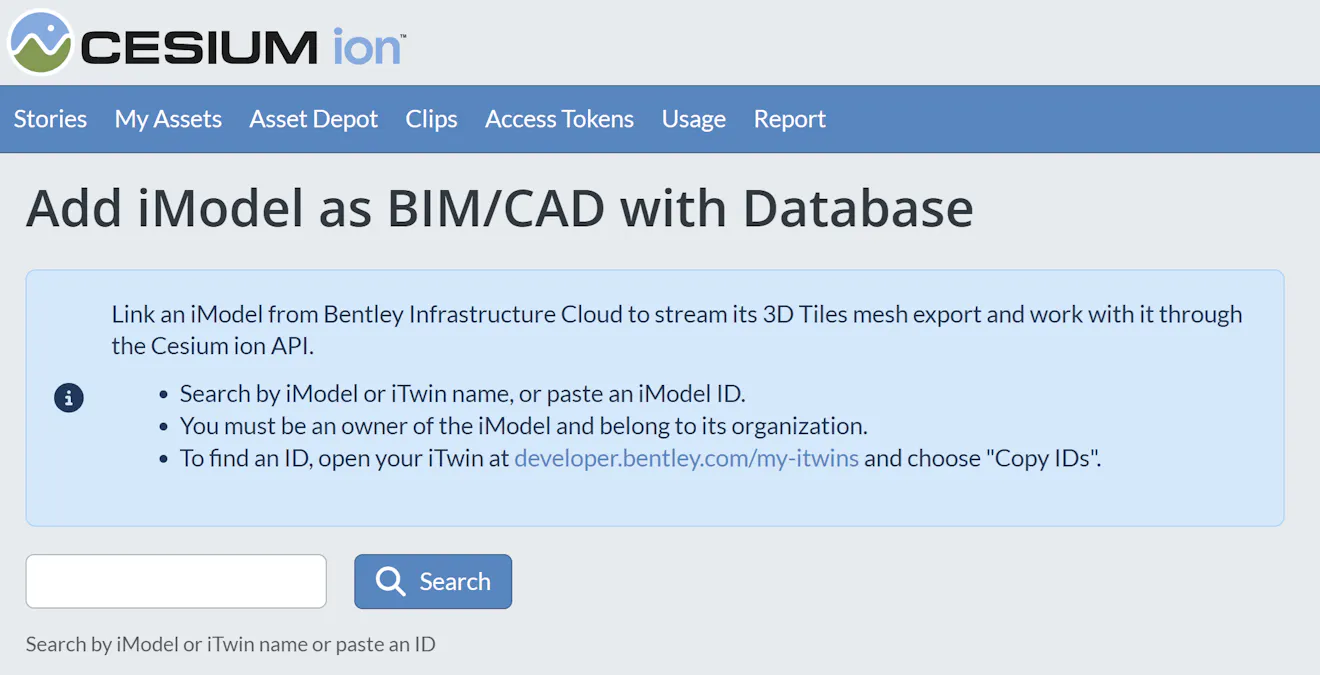
- On the Add iModel as BIM/CAD with Database screen, search by iModel or iTwin name. You can also paste an iModel ID directly.
To find an iModel ID, open your iTwin at developer.bentley.com/my-itwins and choose Copy IDs.
- Select the iModel from the results, give the new asset a name, and confirm.
The tileset produced by an iModel import is a standard 3D Tiles design tileset. Visualize and share it using Cesium Stories or a custom app the same way you would any other ion asset. See Visualizing in the BIM/CAD Tiler with Database guide for step-by-step instructions.
- Working with tileset metadata — extract categories, build layer lists, and toggle visibility
- Working with the Asset Elements API — fetch element properties, highlight by ID, and query by attribute