Model versions and content updates
When you update a BIM/CAD model in Cesium ion, ion does not overwrite the existing tiled asset. Each upload produces a new 3D Tiles asset linked to a shared BIM/CAD Database. Your previous revisions remain available.
This article explains the BIM/CAD asset hierarchy, how to upload a new revision, and how to access version and change data.
When you add a BIM/CAD model for the first time, notice that Create new model is preselected in the BIM/CAD Database Options panel:
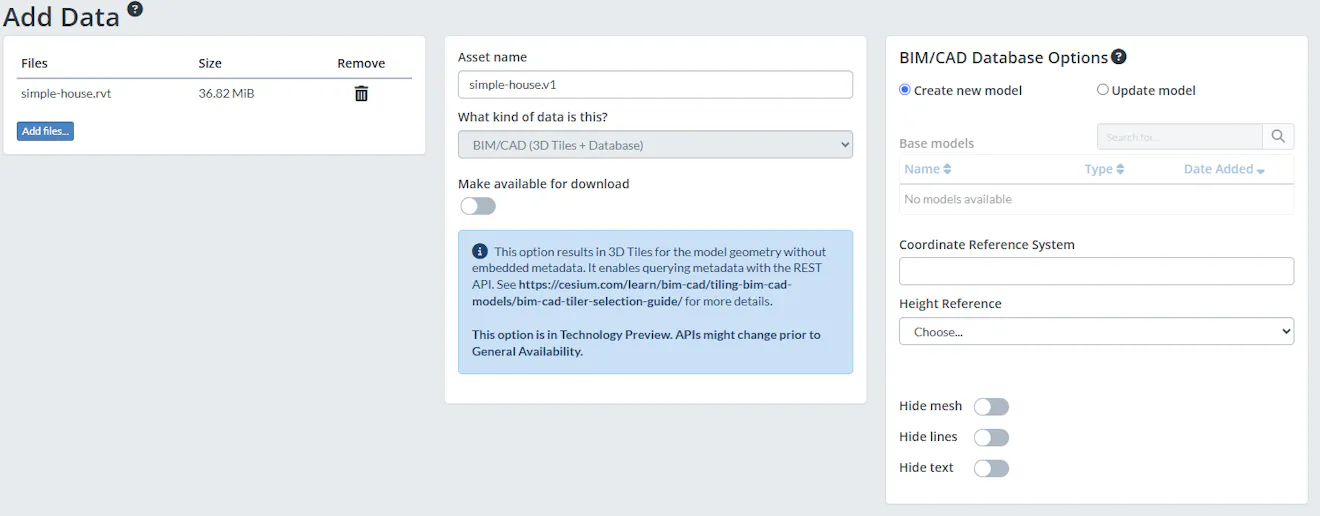
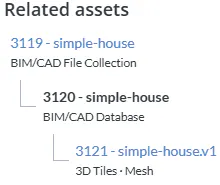
When you upload, Cesium ion separates source assets from tiled assets and lets you manage them independently. When you tile a BIM/CAD model, ion creates three linked assets:
| Asset type | Role |
|---|---|
| 3D Tiles | The streamable tileset; one per tiled revision |
| Design File Collection | The uploaded source files |
| BIM/CAD Database | The backend data store; persists across all revisions |
The relationship is: Design File Collection → BIM/CAD Database → 3D Tiles.
The BIM/CAD Database is the stable anchor. When you upload a revision, ion creates a new 3D Tiles asset and links it to the same BIM/CAD Database. Your BIM/CAD Database asset ID does not change.
You can see this hierarchy in the Related assets panel on any asset's detail page in My Assets:
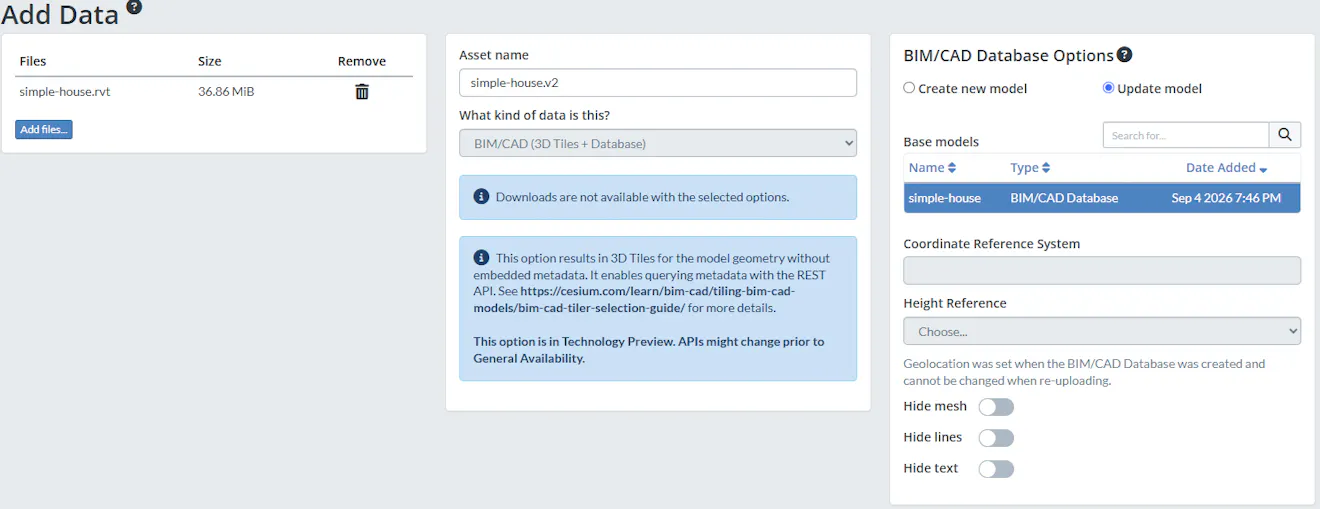
Cesium ion allows you to upload an updated design file and link it to an existing BIM/CAD Database as a new revision.
- On My Assets, click Add data
- Add your updated design file
- Set the type to BIM/CAD (3D Tiles + Database)
- In BIM/CAD Database Options, select Update model
- Select your existing model from the Base models list
- Click Upload
Cesium ion tiles the updated file and creates a new 3D Tiles asset linked to the same BIM/CAD Database.
If your model is in Bentley Infrastructure Cloud (BIC), use the Importing from Bentley Infrastructure Cloud workflow instead. Each import through the BIC path also links to the same BIM/CAD Database, so the stable anchor and revision model apply equally.
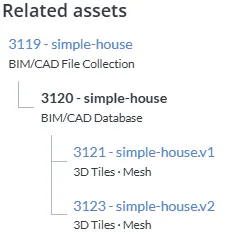
To see all revisions of a model, navigate to the BIM/CAD Database asset in My Assets. The Related assets panel lists every linked 3D Tiles asset as well as the Design File Collection:
| Intent | Approach |
|---|---|
| Keep history | Leave old assets in place. Select the revision you want through the Related assets panel or the related-tilesets API. |
| Replace a revision | Delete the old 3D Tiles asset. Any app with a hard-coded 3D Tiles asset ID will break. |
Design File Collections count toward your storage quota. You can delete them after tiling without affecting the resulting 3D Tiles asset.
BIM/CAD databases and 3D Tiles for BIM/CAD databases do not count towards your storage quota, and their sizes appear as "-".
The Cesium ion Change Detection API compares two related 3D Tiles tilesets and produces a report classifying each element as Inserted, Updated, or Deleted.
For a complete code walkthrough, see the Change Detection tutorial.
- Change Detection tutorial: build an application that visualizes inserted, updated, and deleted elements between two revisions
- Working with the Asset Elements API: query element properties from a BIM/CAD Database