Aggregate BIM/CAD element properties
In this tutorial, you total the net volume of concrete by IFC class on the server, without downloading any elements.
- A 3D Tiles asset backed by a BIM/CAD Database model in your Cesium ion account. Eligible data is models tiled with the BIM/CAD Tiler with Database, or added from Bentley Infrastructure Cloud.
- Familiarity with JSON filters and
getElementfrom Advanced queries. This page uses filters but does not explain them.
The element service gives you two ways to ask a question about a model. Pick the one that matches what you need back.
| You Want | Call | You Get |
|---|---|---|
| Elements with known property values | listElements with a filter, covered in Advanced queries | Matching elements, one page at a time |
| A number about a set of elements, such as total volume | aggregate | Count, min, max, average, and sum for each property |
You create one service per asset from its Cesium ion asset id, the same way as in Advanced queries. The Sandcastle starts like this:
const elementService = Cesium.IonAssetElementService.fromAssetId(ASSET_ID); aggregate returns a count, min, max, average, and sum for each property key you pass, over the elements that match a filter. The server does the math, so you never download the elements. The filter is the same JSON filter that listElements takes. See Advanced queries for filter syntax.
The aggregate Sandcastle uses the Snowdon Towers structural IFC model and these constants:
// Query one IFC class per request; all classes use the same concrete material.
const IFC_CLASS_SUMMARY = [
  "ifcwall",
  "ifcslab",
  "ifcbeam",
  "ifcfooting",
  "ifccolumn",
];
// Physical Material ID for "Concrete, Cast-in-Place gray".
const CONCRETE_PHYSICAL_MATERIAL_ID = "3298534883346";
const NET_VOLUME_PROPERTY = "Volume Aspect.Net Volume";
Physical Material holds the element id of a material element, so the filter compares it to an id string. The id above belongs to this model. Your model’s materials have their own ids.
To find a material id, call getElement on an element made of that material and read the value of its Physical Material property. Keep the id as a string. At the time of writing, a numeric id matched no elements.
const element = await elementService.getElement(elementId);
// "3298534883346" for "Concrete, Cast-in-Place gray" in the sample model
const materialId = element.properties["Physical Material"].value;
For one IFC class, the call looks like this. It is the body of the IFC_CLASS_SUMMARY.map callback shown in “Compare groups”, where ifcClass is the current class from IFC_CLASS_SUMMARY:
const result = await elementService.aggregate({
  propertyKeys: [NET_VOLUME_PROPERTY],
  filter: {
    "IFC Class Name": { $eq: ifcClass },
    "Physical Material": { $eq: CONCRETE_PHYSICAL_MATERIAL_ID },
  },
}); For concrete walls, the result looks like this, with numbers rounded:
{
  total: 58,
  aggregations: [
    {
      propertyKey: "Volume Aspect.Net Volume",
      count: 58,
      min: 1.91,
      max: 65.08,
      avg: 20.09,
      sum: 1164.94,
    },
  ],
} total is how many elements matched the filter. count is how many of those have a numeric value for the property. They can differ. In this model, 24 concrete slabs match the filter but only 14 have a net volume, so total is 24 and count is 14. Only the 14 slabs with numeric net volumes contribute to sum.
A property with no numeric values comes back with count of 0, null for min, max, and avg, and a sum of 0.
Mistyped property or filter keys can also produce zero results without an error.
The aggregate response has no units. Net volume in this model is in cubic meters. To check the units of a property in your own model, call getElement on one matching element and read the property’s units and displayValue, for example units: "Units:CUB_M" and displayValue: "2.9821 m³". Read units for the raw values being aggregated. displayValue may use different units.
One aggregate call returns one set of numbers for one filter. To compare groups, send one request per group. The Sandcastle runs one request per IFC class in parallel and builds a table row from each result:
// Run the independent class queries concurrently. `total` is the number
// of matching elements; the aggregate also reports statistics for values
// that actually have a numeric net-volume value.
const rows = await Promise.all(
  IFC_CLASS_SUMMARY.map(async (ifcClass) => {
    const result = await elementService.aggregate({
      propertyKeys: [NET_VOLUME_PROPERTY],
      filter: {
        "IFC Class Name": { $eq: ifcClass },
        "Physical Material": { $eq: CONCRETE_PHYSICAL_MATERIAL_ID },
      },
    });
    return {
      ifcClass: ifcClass,
      elements: result.total,
      ...result.aggregations[0],
    };
  }),
); Each row keeps total as elements and spreads in the statistics, including count. The Sandcastle table shows the element count and the net volume total, min, max, and average. The table below adds count as “With volume” to show the slabs without a net volume:
| IFC class | Elements | With volume | Net volume (m³) |
|---|---|---|---|
| ifcwall | 58 | 58 | 1,164.94 |
| ifcslab | 24 | 14 | 679.76 |
| ifcbeam | 35 | 35 | 59.09 |
| ifcfooting | 9 | 9 | 56.88 |
| ifccolumn | 13 | 13 | 19.48 |
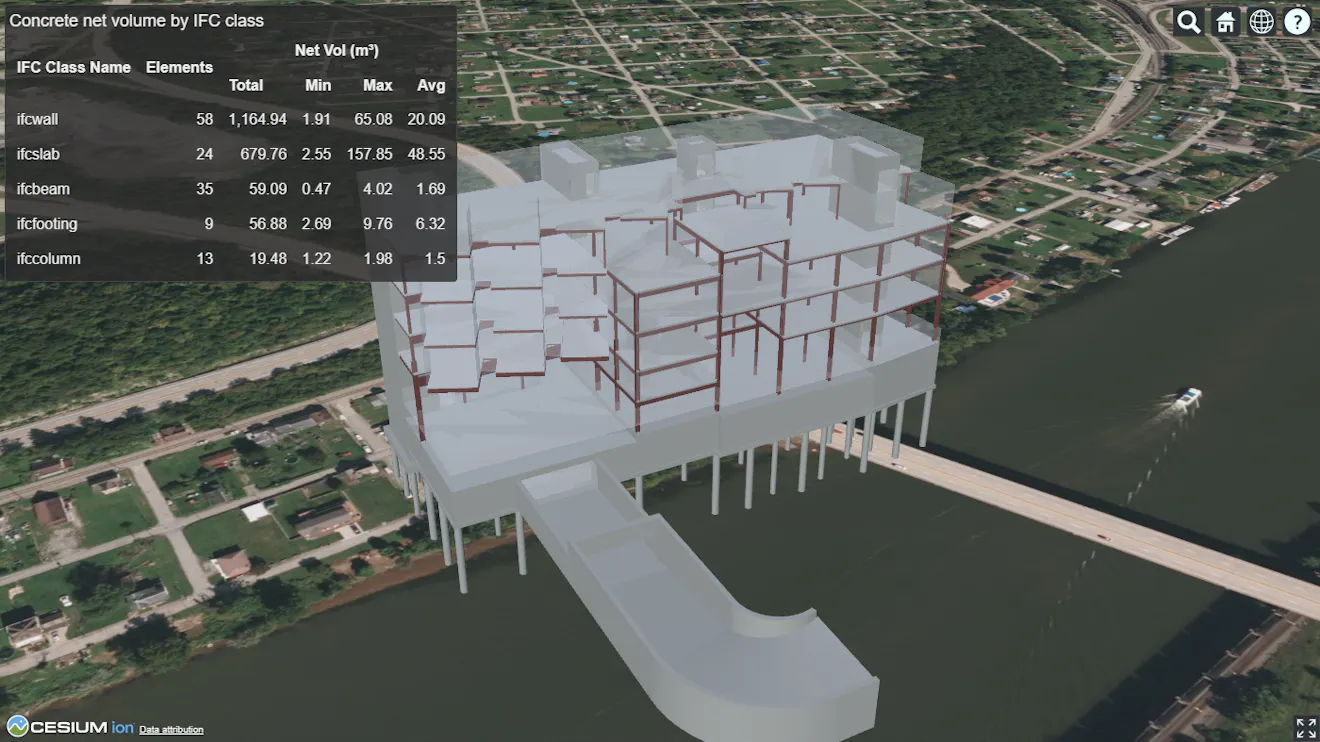
The aggregate Sandcastle showing concrete net volume by IFC class over the Snowdon Towers structural model.
Open the aggregate Sandcastle to run everything together. It also sets up the viewer, loads the tileset, and builds the result table in HTML.
- Each group you compare costs one
aggregaterequest. The aggregate Sandcastle sends five requests at once, one per IFC class. - Aggregation reads a property index that Cesium ion builds for the asset. A newly tiled asset may return no results until indexing finishes.
`IonAssetElementService`is experimental and may change without the standard deprecation period.
- Advanced queries covers filters, pagination, and inspecting one element.
- Navigate a BIM/CAD model tree shows how to browse a model’s hierarchy.
- The
IonAssetElementServicereference documentation lists every method and option. - Run the aggregate Sandcastle.