Change Detection for BIM/CAD Models with Cesium ion API
In this tutorial, you compare the latest two versions of a BIM/CAD Database model and visualize inserted, updated, and deleted elements in CesiumJS.
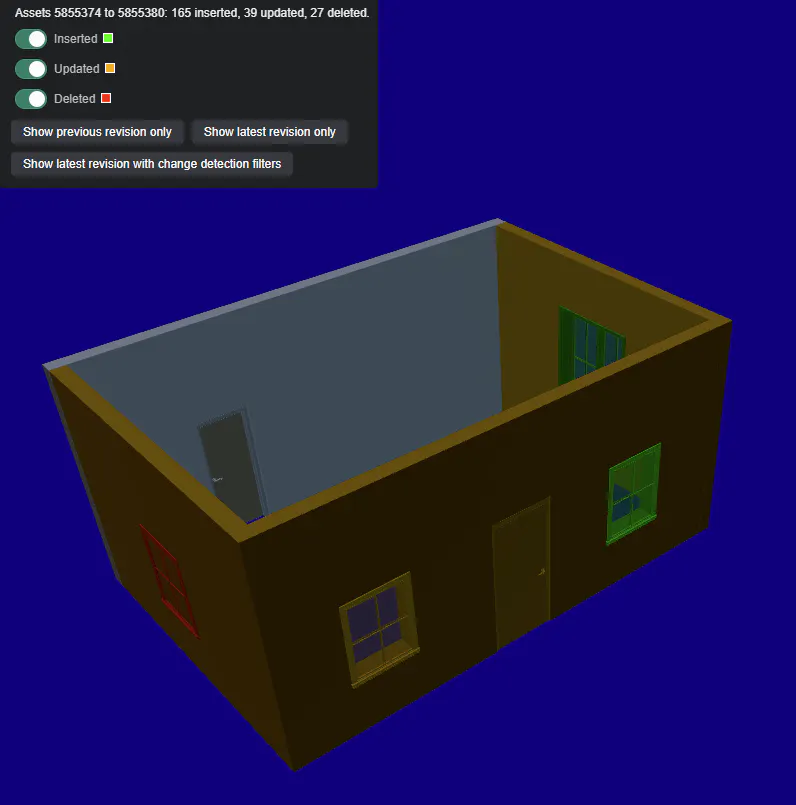
Screenshot of a completed change detection demo showing toggles to highlight different changes, new/inserted elements are currently highlight green.
For this tutorial, you need:
- Access to Cesium ion development and the Change Detection API.
- A BIM/CAD model tiled with BIM/CAD Tiler with Database, or a model added from Bentley Infrastructure Cloud.
- At least two related 3D Tiles versions of the model.
- A comparison created for the two latest versions, or a private token with
assets:writescope to create one dynamically. - A public ion token restricted to the sample assets with the
assets:readscope for the completed application. - Familiarity with CesiumJS, 3D Tiles, and 3D Tiles styling.
Keep write access private: When using your own data, you can create a comparison dynamically with POST /assets/compare and a token that has assets:write. Keep that token in a private development environment or make the request through a backend. Do not include it in a published client application. This tutorial's comparison was created ahead of time so the finished gallery can expose only an assets:read token.
The finished application:
- Discovers the two latest related 3D Tiles assets.
- Retrieves a comparison created in advance in Cesium ion.
- Downloads the complete comparison report.
- Highlights inserted elements in lime, updated elements in orange, and deleted elements in red.
- Switches between the previous revision, latest revision, and latest revision with change detection filters.
- Provides filter controls with matching color swatches, plus a status message with change counts.
Process the original model
In Cesium ion, add your BIM/CAD model and select BIM/CAD Tiler with Database. Wait for the resulting 3D Tiles asset to finish processing.
Ensure you select "BIM/CAD (3D Tiles + Database)" if you are uploading your own files, if you can't that means that file type isn't supported. Ensure you select "Create a new iModel" for new datasets. You can find information on supported file types for the BIM/CAD Tiler with Database here.
Models added from Bentley Infrastructure Cloud also support this workflow. To import multiple versions of one of these models, repeat the import through the POST /v1/assets/imodel route and pass the changesetIndex of each version to import, when omitted the latest changeset is imported. The changesetIndex parameter is currently experimental. In either case, the result must be backed by a BIM/CAD Database so Cesium ion can associate related versions and compare their elements.
If you have chosen to add from Bentley Infrastructure Cloud then you can go to My Assets > Add Data > Add from Bentley Infrastructure Cloud, then search or enter your iModel ID. You can find the guide on Importing Models from Bentley Infrastructure Cloud here.
You will have to wait until the 3D Tiles asset has finished tiling before you can proceed.
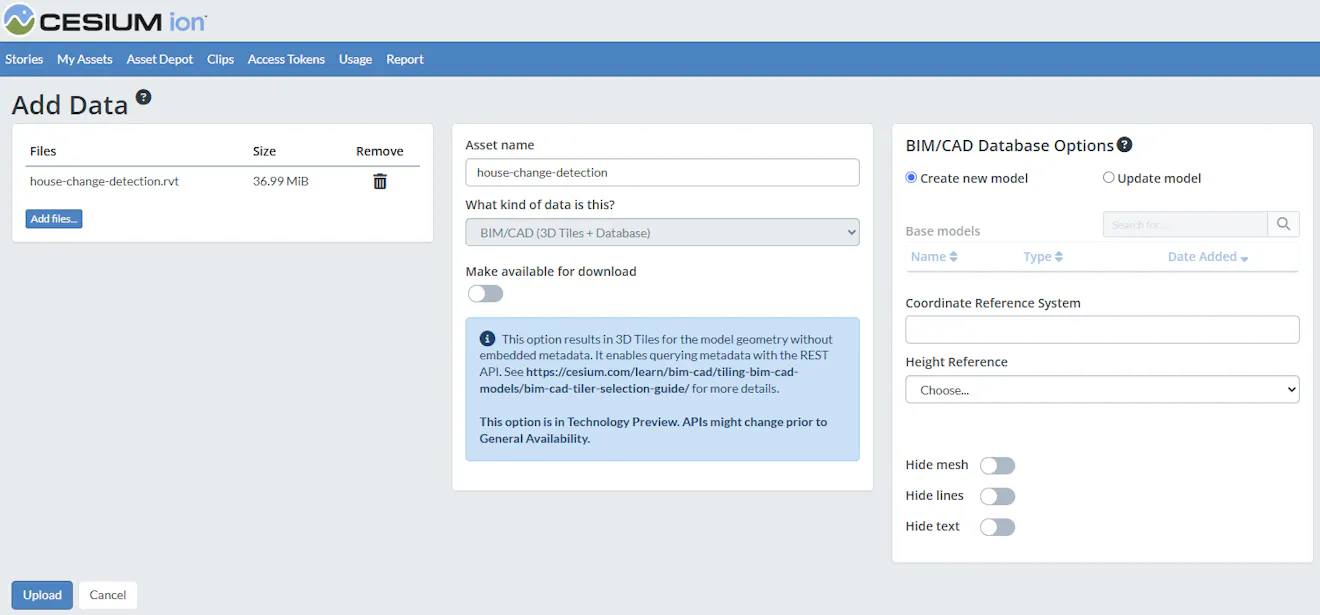
Make a revision
Update the source model with one clear example of each operation:
- Add an element that should be reported as inserted.
- Change an existing element that should be reported as updated.
- Remove an existing element that should be reported as deleted.
Keeping the revision focused makes the resulting visualization and screenshots easier to understand for this tutorial.
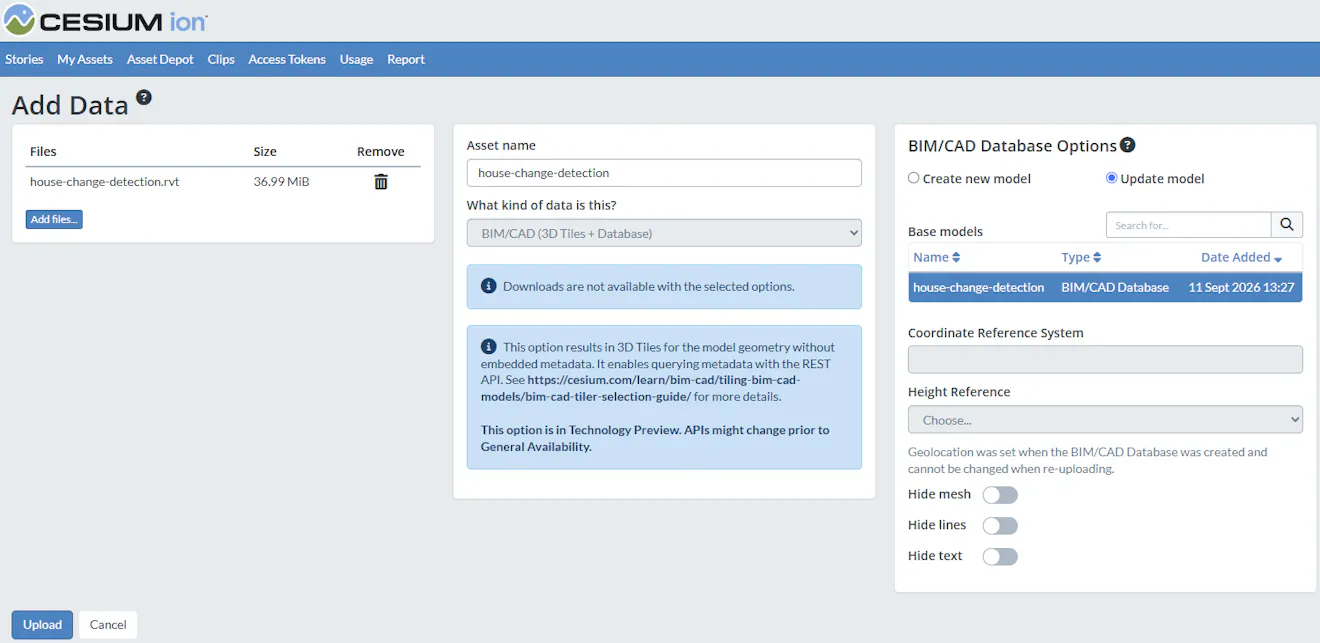
Ensure you select the Base iModel that you created earlier.
After uploading your revision, you will have to wait until the corresponding 3D Tiles asset has finished tiling before you can proceed.
Set the ion API URL, a read-only access token, and the BIM/CAD Database asset ID. The application uses that database asset to discover its related 3D Tiles versions.
const API_URL = "https://api.ion.cesium.com";
const ION_ACCESS_TOKEN = "YOUR_READ_ONLY_ION_TOKEN";
const BIM_CAD_DATABASE_ASSET_ID = "YOUR DATABASE ASSET ID";

Cesium.Ion.defaultServer = `${API_URL}/`;
Cesium.Ion.defaultAccessToken = ION_ACCESS_TOKEN;

const viewer = new Cesium.Viewer("cesiumContainer", {
  baseLayer: false,
  timeline: false,
  animation: false,
  baseLayerPicker: false,
  sceneModePicker: false,
});

const changes = {
  inserted: new Set(),
  updated: new Set(),
  deleted: new Set(),
};
const visibility = {
  inserted: true,
  updated: true,
  deleted: true,
};

let currentTileset;
let previousTileset;
let currentStyle;
let previousStyle;

const highlightColors = {
  inserted: Cesium.Color.LIME,
  updated: Cesium.Color.ORANGE,
  deleted: Cesium.Color.RED,
};
The helper joins ion API paths to the configured origin and adds the public token. The signed report uses a separate request without that token.
async function fetchIonJson(path, options = {}) {
  const response = await fetch(`${API_URL}${path}`, {
    ...options,
    headers: {
      Accept: "application/json",
      ...options.headers,
      Authorization: `Bearer ${ION_ACCESS_TOKEN}`,
    },
  });
  if (!response.ok) {
    throw new Error(
      `Ion request failed: ${response.status} ${response.statusText}`,
    );
  }
  return response.json();
}
Request the related tilesets and select the first two results. The endpoint returns revisions newest first, so the first asset is the later comparison input and the second is the earlier input.
async function getLatestRevisions() {
  const { items } = await fetchIonJson(
    `/assets/${BIM_CAD_DATABASE_ASSET_ID}/tileset-revisions?limit=2`,
  );
  if (!Array.isArray(items) || items.length < 2) {
    throw new Error("At least two model revisions are required.");
  }

  const [toRevision, fromRevision] = items;

  return {
    fromAssetId: fromRevision.assetId,
    toAssetId: toRevision.assetId,
  };
}
This approach continues to select the latest pair when additional revisions are added.
The Change Detection API needs a comparison job for the selected asset pair. When using your own data, you can create the job dynamically with a token that has assets:write:
async function createComparisonPrivately(
  { fromAssetId, toAssetId },
  privateWriteToken,
) {
  const response = await fetch(`${API_URL}/assets/compare`, {
    method: "POST",
    headers: {
      Accept: "application/json",
      "Content-Type": "application/json",
      Authorization: `Bearer ${privateWriteToken}`,
    },
    body: JSON.stringify({ fromAssetId, toAssetId }),
  });
  if (!response.ok) {
    throw new Error(
      `Create request failed: ${response.status} ${response.statusText}`,
    );
  }
  return response.json();
}
fromAssetId must identify the earlier 3D Tiles asset and toAssetId must identify the later one. Both must be backed by the same BIM/CAD Database model.
Keep the write token private, either by running this request in a private development environment or by placing it behind a backend. The complete sandcastle example includes the POST as a commented example, but its sample comparison was created ahead of time so the active code uses only the read-only token.
GET /assets/compare requires only assets:read. It retrieves the existing job without creating another one. The getComparisonReport() function polls the same URL until the job completes, then downloads the full report.
async function getComparisonReport({ fromAssetId, toAssetId }) {
  const compareParams = new URLSearchParams({ fromAssetId, toAssetId });
  const comparePath = `/assets/compare?${compareParams}`;
  let comparison = await fetchIonJson(comparePath);

  const deadline = Date.now() + 120000;
  while (["QUEUED", "IN_PROGRESS"].includes(comparison.status)) {
    if (Date.now() >= deadline) {
      throw new Error("Comparison timed out.");
    }
    await new Promise((resolve) => setTimeout(resolve, 2000));
    comparison = await fetchIonJson(comparePath);
  }

  if (comparison.status !== "COMPLETE") {
    throw new Error(comparison.error ?? "Comparison failed.");
  }

  const fullReportUrl = comparison.results?.fullReport;
  if (!fullReportUrl) {
    throw new Error("The comparison does not include a full report.");
  }

  const reportResponse = await fetch(fullReportUrl);
  if (!reportResponse.ok) {
    throw new Error(
      `Report request failed: ${reportResponse.status} ${reportResponse.statusText}`,
    );
  }

  const items = await reportResponse.json();
  if (!Array.isArray(items)) {
    throw new Error("The comparison report does not contain an element list.");
  }
  return items;
}
A 400 response can mean that no comparison exists for this asset pair. Create it privately with POST before running the public example.
The inline response is limited to 1,000 changed elements. getComparisonReport() therefore requires results.fullReport and uses its signed URL to retrieve the complete result.
Do not forward the ion token: The full report URL is signed and may use another origin. Fetch it directly without the ion Authorization header.
The signed URL grants temporary access to the report, so do not log, persist, or share it. If it expires before download, retrieve the completed comparison again to obtain its current report URL.
Element IDs can exceed JavaScript's safe integer range. Normalize them with BigInt so report IDs match the IDs stored in feature metadata.
function normalizeElementId(value) {
  return BigInt(value).toString();
}

function getElementId(feature) {
  const id = feature.getProperty("element");
  return id === undefined ? undefined : normalizeElementId(id);
}

function readChanges(items) {
  for (const item of items) {
    const type = item.$meta.op.toLowerCase();
    changes[type].add(normalizeElementId(item.ECInstanceId));
  }
}
Each report row carries its operation in $meta.op as Inserted, Updated, or Deleted, and its element ID in ECInstanceId. The application stores those operations as lowercase set names; features in the latest tileset whose IDs appear in none of the sets are unchanged. The report lists every changed instance, including non-element rows such as schema metadata, whose IDs never match a feature. BigInt preserves large decimal or hexadecimal IDs when matching report results to feature metadata.
Load the earlier and later assets together. Their shared georeferencing places them in the same coordinate system.
const revisions = await getLatestRevisions();
readChanges(await getComparisonReport(revisions));

[previousTileset, currentTileset] = await Promise.all([
  Cesium.Cesium3DTileset.fromIonAssetId(revisions.fromAssetId),
  Cesium.Cesium3DTileset.fromIonAssetId(revisions.toAssetId),
]);
viewer.scene.primitives.add(previousTileset);
viewer.scene.primitives.add(currentTileset);
Classify each latest-revision feature as inserted or updated, then tint it with its category color. With the default HIGHLIGHT blend, white keeps the original material, so unselected categories show the model as-is.
function getCurrentFeatureType(feature) {
  const id = getElementId(feature);
  return changes.inserted.has(id)
    ? "inserted"
    : changes.updated.has(id)
      ? "updated"
      : undefined;
}

currentStyle = new Cesium.Cesium3DTileStyle({
  color: {
    evaluateColor(feature, result) {
      const type = getCurrentFeatureType(feature);
      return Cesium.Color.clone(
        type && visibility[type] ? highlightColors[type] : Cesium.Color.WHITE,
        result,
      );
    },
  },
});
Deleted elements are absent from the latest tileset. Tint the deleted geometry from the earlier tileset red, while making all other geometry from the earlier tileset transparent.
previousStyle = new Cesium.Cesium3DTileStyle({
  color: {
    evaluateColor(feature, result) {
      const deleted = changes.deleted.has(getElementId(feature));
      return Cesium.Color.clone(
        deleted && visibility.deleted
          ? highlightColors.deleted
          : Cesium.Color.TRANSPARENT,
        result,
      );
    },
  },
});
The complete sandcastle example uses Sandcastle.addToggleButton() for the three filters and appends a matching color swatch to each label. Inserted and Updated toggle highlights without hiding latest-revision geometry. Deleted controls deleted geometry from the earlier revision.
function showRevision(mode) {
  if (!currentTileset) {
    return;
  }
  previousTileset.show = mode !== "latest";
  currentTileset.show = mode !== "previous";
  previousTileset.style = mode === "changes" ? previousStyle : undefined;
  currentTileset.style = mode === "changes" ? currentStyle : undefined;
}
Each filter updates visibility[type], returns to the change-detection mode, and marks the affected tileset's style dirty so it re-evaluates: Deleted refreshes previousStyle, and the other filters refresh currentStyle.
Three Sandcastle.addToolbarButton() controls call showRevision() to display the complete previous revision, the complete latest revision, or the filtered comparison. The change view keeps the earlier tileset available because deleted geometry no longer exists in the latest revision. The complete gallery contains the concise toolbar and swatch wiring.
Open the complete working Sandcastle to see the complete example
Only one related tileset is returned
The revised version may not have finished processing. Wait for processing to complete and try again. The example requires at least two related revisions, but it does not require exactly two.
The comparison request returns 400
Confirm that both IDs identify related 3D Tiles assets in chronological order. A GET can also return 400 when no existing comparison is available. Create the comparison privately with POST first.
The request returns 401 or 403
Confirm you have the correct token (if you are using the assets from this tutorial, copy it from the complete code, if you are using your own data you will need to create one), it can access the appropriate assets, and has assets:read. You will only need a token with assets:write to make a POST to api.ion.cesium.com/assets/compare to create your own comparison jobs for your own assets.
Deleted elements do not appear
Confirm that the report contains deleted operations, the earlier asset is loaded as previousTileset, and the Deleted control is enabled.
No features match the report
Inspect the 3D Tiles metadata and the comparison response. The sample tilesets must expose element IDs through the element feature property, and those IDs must match the report after normalization.
The versions appear in different locations
Both versions must preserve the same georeferencing. Reprocess the source or correct its transform before overlaying the tilesets.