Working with the Asset Elements API
Cesium ion supports the ingestion of various Design data formats such as RVT, IFC and DWG. The Asset Elements API exposes various element properties that were previously not exposed. You can utilize this API within CesiumJS to enable design inspection, filtering and querying.
You'll learn how to:
- Use the Asset Elements API to get the properties for a specific element (
GET /assets/{assetId}/elements/{elementId}) in the tileset. - Query the API for all elements that match specific criteria (
GET /assets/{assetId}/elements). - Combine API query results with 3D Tiles styling.
- Use all of the above to build an inspection tool that lets users click any element to see its full properties, query elements by type or property value, and navigate to results in the 3D view.
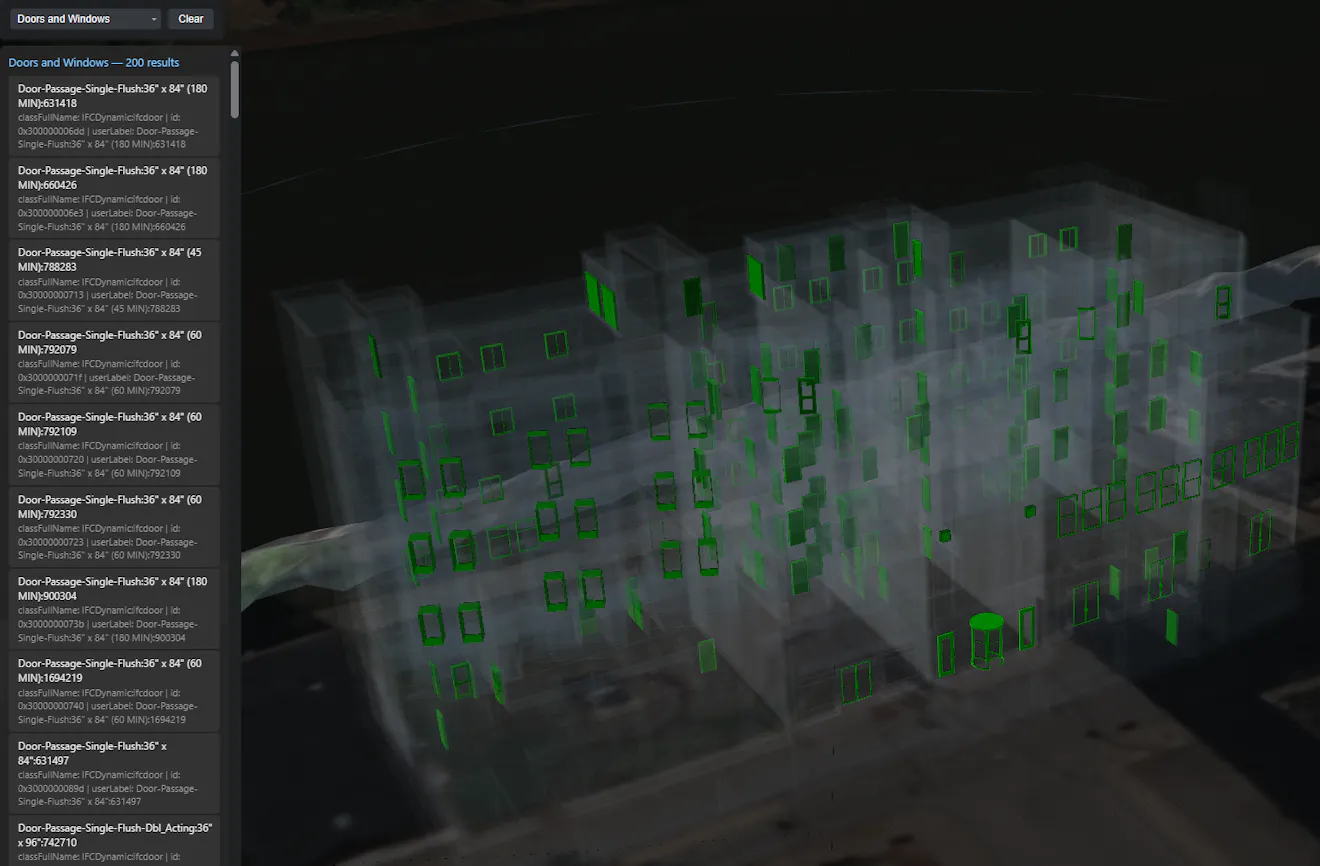
Screenshot of the completed element inspection app showing a query for Doors and Windows with matched elements highlighted green in the 3D view and a result panel on the left.
- Familiarity with CesiumJS basics (Viewer, 3D Tiles, entities)
- Completion of Working with Tileset Metadata from Design Ingestion is recommended but not required
- Familiarity with Cesium Sandcastle
- A basic understanding of RESTful APIs
- This tutorial uses the Snowdon Towers Sample Architectural model as its sample data. A scoped access token and asset ID are included in the code below, so no Cesium ion account is needed to follow along.
A combined pick-and-query viewer that:
- Lets users click any element to fetch and display its full property set
- Highlights hovered and selected elements with distinct colors
- Deselects elements when clicking empty space
- Hides 2D grid lines that clutter the 3D view
- Queries elements by property using SQL or JSON filter syntax
- Shows progressive results in a scrollable panel
- Flies the camera to an element's geographic location when selected from the result panel
The Asset Elements API is a REST API that provides detailed properties for individual elements in your design model. While Working with Tileset Metadata from Design Ingestion describes the model as a whole, the Elements API lets you drill into any single element and retrieve its complete property set from the source file.
Base URL: https://api.cesium.com/assets/{assetId}/elements
Authentication: Bearer token in the Authorization header.
Key endpoints:
GET /assets/{assetId}/elements- List/query elements (paginated)GET /assets/{assetId}/elements/{elementId}- Get a single element by ID
You can find further documentation here.
What is an "element"? An element represents a single object from your source design file, such as a wall, door, or column. While a tileset may split an element across multiple rendered features for efficient streaming, the element ID links them all back to the same source object and its complete property set.
Each step below teaches one concept and shows its code in isolation. Variables and functions introduced in one step may reference those from other steps (dependency callouts note these). The steps build on each other. The complete working Sandcastle combines everything into a single runnable application.
The companion HTML file provides the HTML elements to display the results UI. Copy the contents of the file into the HTML/CSS tab in Cesium Sandcastle if you are following along.
Start by loading the tileset and configuring the viewer for element inspection. We enable globe translucency so we can fade the globe later when highlighting elements, and depth testing so the building renders correctly against terrain.
const ION_ACCESS_TOKEN = "eyJhbGciOiJIUzI1NiIsInR5cCI6IkpXVCJ9.eyJqdGkiOiIyYTNiMTEyNS0wZWZhLTQ2YTYtOGJjYi1jYjYyOTQxN2NiN2UiLCJpZCI6MjU5LCJzdWIiOiJDZXNpdW1KUyIsImlzcyI6Imh0dHBzOi8vYXBpLmNlc2l1bS5jb20iLCJhdWQiOiJEZXNpZ24gSW5nZXN0aW9uIEdUTSIsImlhdCI6MTc3OTc1MDAxM30.pwnHFphGrT_eReSLU-QRmanDIeNTksS64Tp6rrUJheI"; // Same token for API calls - this token only has access to assets for this tutorial
Cesium.Ion.defaultAccessToken = ION_ACCESS_TOKEN;

const ASSET_ID = 4823245; // The Snowdon Towers Architectural asset ID

const ELEMENTS_API_BASE = "https://api.cesium.com";

const viewer = new Cesium.Viewer("cesiumContainer", {
  timeline: false,
  animation: false,
  baseLayerPicker: false,
});

viewer.scene.setTerrain(Cesium.Terrain.fromWorldTerrain());

// Enable depth testing and globe translucency for element inspection
viewer.scene.globe.depthTestAgainstTerrain = true;
viewer.scene.globe.translucency.enabled = true;

// Load the design model
const tileset = viewer.scene.primitives.add(
  await Cesium.Cesium3DTileset.fromIonAssetId(ASSET_ID)
);

await viewer.zoomTo(tileset);
BIM/CAD Tiler with Database required: The Asset Elements API only works with models processed through this pipeline. If tileset.metadata is undefined or the API returns 404, re-upload your model using the BIM/CAD Tiler with Database.
The BIM/CAD Tiler with Database is currently in Technology Preview. APIs for working with this tiler and the data it produces might change prior to General Availability.
Dependency: This step uses selectedElementId (Step 3), matchedElementIds (Step 5), and selectElement() (Step 6). The complete code ties everything together.
Each rendered feature in a 3D Tiles model carries an element property: a BigInt value that identifies which source element it belongs to. To fetch the properties for that element, we pass its BigInt element ID to the single-element endpoint.
A single-element response looks like this:
{
  "id": "2199023257263",
  "properties": {
    "iFCClassName": "ifcwall",
    "userLabel": "Basic Wall:Exterior - Brick on CMU",
    "footprintArea": 128.5,
    "volume": 412.3,
    "material": "Brick, Common"
  },
  "location": {
    "center": { "longitude": -75.596, "latitude": 40.039, "height": 12.5 },
    "radius": 3.2
  }
}
The location.center is in WGS84 degrees/meters and location.radius is the bounding sphere radius in meters.
Element ID typing
Feature properties store element IDs as BigInt values (e.g. 8589934767n). The API uses decimal string identifiers (e.g., "2199023257263"). Since BigInt auto-converts to a decimal string in template literals, no conversion function is needed. When receiving IDs from API responses (strings), convert them to BigInt at the boundary with `BigInt(el.id)` so Set lookups and equality checks work correctly.
Click handler
Wire up a click handler that picks the feature under the cursor, reads its element ID, and calls the API. We use the viewer's built-in screenSpaceEventHandler rather than creating a new one to avoid event conflicts. Clicking empty space deselects the current element:
// A reusable entity for displaying element properties in the InfoBox
const elementPropertiesEntity = new Cesium.Entity({ name: "Element", show: false });
viewer.entities.add(elementPropertiesEntity);

viewer.screenSpaceEventHandler.setInputAction(async function (movement) {
  const feature = viewer.scene.pick(movement.position);
  if (!Cesium.defined(feature) || !(feature instanceof Cesium.Cesium3DTileFeature)) {
    // Clicked empty space: clear selection (but keep query highlights)
    if (selectedElementId) {
      selectedElementId = null;
      viewer.selectedEntity = undefined;
      if (tileset) tileset.makeStyleDirty();
      if (matchedElementIds.size === 0) {
        viewer.scene.globe.translucency.frontFaceAlpha = 1.0;
      }
    }
    return;
  }

  // Read the element ID from the feature
  const rawId = feature.getProperty("element");
  if (!Cesium.defined(rawId)) return;

  // Select without flying (flyTo is only used from the result panel)
  await selectElement(rawId, null, { flyTo: false });
}, Cesium.ScreenSpaceEventType.LEFT_CLICK);
The buildDescription helper converts an element's properties object into an HTML table for the InfoBox:
function buildDescription(properties) {
  const rows = Object.entries(properties)
    .map(([key, value]) => `<tr><td><b>${key}</b></td><td>${value}</td></tr>`)
    .join("");
  return `<table class="cesium-infoBox-defaultTable"><tbody>${rows}</tbody></table>`;
}
Feature properties vs API properties: The properties embedded in tiles (accessed via feature.getProperty()) are a minimal subset, kept small to optimize streaming performance. The API returns the complete property set from the source model. This is why the API exists: detailed per-element data is served on-demand rather than inflating every tiles payload.
Dependency: This step uses hiddenElementIds (Step 4) and matchedElementIds (Step 5) in the style callback. These Sets are empty initially, so the style logic handles them gracefully before those steps run.
Add visual feedback so the user can see which element is selected. We track two states: a hover highlight (cyan, temporary) and a selection highlight (yellow, persistent). Non-selected elements fade to near-transparent when something is selected.
let selectedElementId = null; // BigInt or null
let hoveredElementId = null;  // BigInt or null

function applyStyle() {
  const style = new Cesium.Cesium3DTileStyle();
  style.color = {
    evaluateColor: function (feature, result) {
      const id = feature.getProperty("element");

      // Hidden elements (2D cleanup): fully transparent
      if (hiddenElementIds.has(id)) {
        return Cesium.Color.clone(Cesium.Color.TRANSPARENT, result);
      }
      // Selected element: yellow highlight
      if (id === selectedElementId) {
        return Cesium.Color.clone(Cesium.Color.YELLOW, result);
      }
      // Hovered element: cyan highlight
      if (id === hoveredElementId) {
        return Cesium.Color.clone(Cesium.Color.CYAN.withAlpha(0.7), result);
      }
      // Query match: green highlight
      if (matchedElementIds.size > 0 && matchedElementIds.has(id)) {
        return Cesium.Color.clone(Cesium.Color.LIME, result);
      }
      // Faded when a selection or query is active
      if (selectedElementId || matchedElementIds.size > 0) {
        return Cesium.Color.clone(Cesium.Color.WHITE.withAlpha(0.02), result);
      }
      // Default: full color
      return Cesium.Color.clone(Cesium.Color.WHITE, result);
    },
  };
  tileset.style = style;
}
Call applyStyle() once after the tileset loads to assign the style object. After that, call tileset.makeStyleDirty() whenever state changes (selection, hover, query results) to re-evaluate the existing callbacks without the overhead of parsing a new style:
applyStyle(); // Call once after tileset loadsNote that hidden elements (from the 2D cleanup in Step 4) are handled here too, using TRANSPARENT color. This single evaluateColor callback manages all visual states: hidden, selected, hovered, query-matched, and default.
Add a hover handler to preview which element the cursor is over:
viewer.screenSpaceEventHandler.setInputAction(function (movement) {
  const feature = viewer.scene.pick(movement.endPosition);
  if (Cesium.defined(feature) && feature instanceof Cesium.Cesium3DTileFeature) {
    const rawId = feature.getProperty("element");
    if (Cesium.defined(rawId)) {
      if (rawId !== hoveredElementId) {
        hoveredElementId = id;
        if (tileset) tileset.makeStyleDirty();
      }
      return;
    }
  }
  if (hoveredElementId !== null) {
    hoveredElementId = null;
    if (tileset) tileset.makeStyleDirty();
  }
}, Cesium.ScreenSpaceEventType.MOUSE_MOVE);
Why evaluateColor instead of style conditions? For small result sets, declarative style conditions are sufficient. However as the number of highlighted elements grows (hundreds or thousands of query matches), evaluating a long list of conditions per feature becomes expensive. A JavaScript evaluateColor callback with lookups scales far better for large queries. Note that we call tileset.makeStyleDirty() whenever state changes rather than reassigning the style object. This tells CesiumJS to re-evaluate the existing style without the overhead of parsing a new one.
Design models often contain 2D CAD elements (grid lines, annotation, drawing borders) that the ingestion pipeline converts to 3D geometry positioned at the WGS84 ellipsoid surface. These can clutter the view. We query the API at startup to find these elements and hide them.
The inline version below demonstrates the pagination concept (following Link headers). In the final Sandcastle code, we use the queryElements() helper from Step 5 instead (shown after):
const hiddenElementIds = new Set(); // BigInt element IDs to hide

async function hideGridLines() {
  const params = new URLSearchParams({
    where: "iFCClassName = 'ifcgrid'",
    limit: "1000",
  });
  let nextUrl = `${ELEMENTS_API_BASE}/assets/${ASSET_ID}/elements?${params}`;

  while (nextUrl) {
    const resp = await fetch(nextUrl, {
      headers: { Authorization: `Bearer ${ION_ACCESS_TOKEN}` },
    });
    if (!resp.ok) break;
    const data = await resp.json();

    for (const el of data.items) {
      hiddenElementIds.add(BigInt(el.id));
    }

    // Follow pagination via Link header
    nextUrl = parseLinkHeader(resp.headers.get("Link"));
  }

  if (hiddenElementIds.size > 0) {
    console.log(`Hiding ${hiddenElementIds.size} 2D grid elements`);
    if (tileset) tileset.makeStyleDirty();
  }
}
This inline loop demonstrates the pagination concept clearly. In the complete Sandcastle code, we use this refactored version instead, which reuses the queryElements() helper from Step 5:
async function hideGridLines() {
  try {
    await queryElements(ASSET_ID, {
      where: "iFCClassName = 'ifcgrid'",
      onPage(items) {
        for (const el of items) hiddenElementIds.add(BigInt(el.id));
        if (tileset) tileset.makeStyleDirty();
      },
    });
    if (hiddenElementIds.size > 0) {
      console.log(`Hidden ${hiddenElementIds.size} 2D grid elements`);
    }
  } catch (err) {
    console.warn("Failed to hide grid lines:", err.message);
  }
}
The parseLinkHeader utility extracts the next URL from the Link headers:
function parseLinkHeader(header) {
  if (!header) return null;
  const match = header.match(/<([^>]+)>;\s*rel="next"/);
  return match ? match[1] : null;
}
Why do 2D elements end up in the 3D view? When a source file contains 2D linework (common in DWG, DGN, and Revit files with plan/section views) and other artifacts from the source file, the ingestion pipeline doesn't remove them. This is expected. The API gives you a programmatic way to identify and hide these elements or highlight them for your use case.
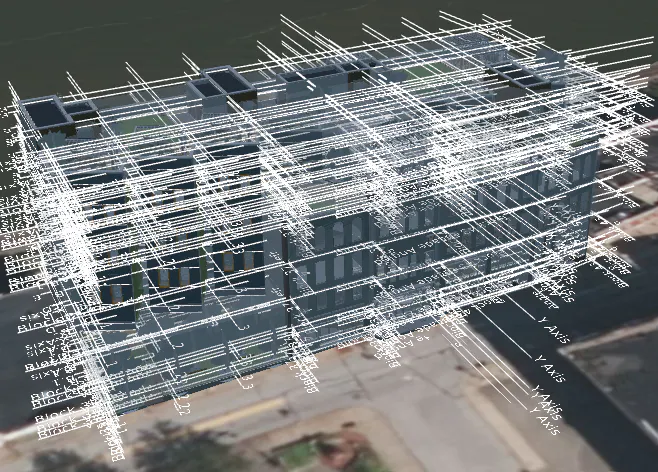
The building before 2D cleanup - wireframe view cluttered with horizontal grid lines at ground level.
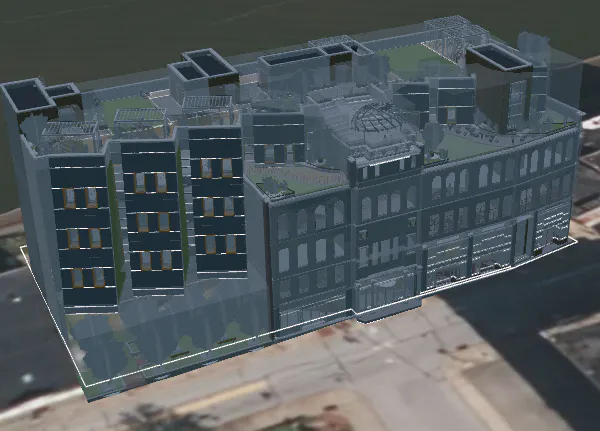
The building after 2D cleanup - the view is clearer with grid line elements hidden
Dependency: This step uses appendResultItems() (Step 6) in the onPage callback. The query logic and result display are separated for clarity but work together in the final code.
The Elements API supports two query styles for filtering elements by property:
- SQL WHERE - Familiar syntax for database users
- JSON filter - MongoDB-style operators, easier to compose programmatically
Both produce the same results. You choose one per request (they're mutually exclusive).
BIM content in the API: The elements returned by the API correspond to BIM objects from your source file. For IFC models, this includes classes like ifcwall, ifccolumn, ifcspace, ifcdoor, ifcwindow, ifcslab, and many more. Each element carries its source properties (dimensions, materials, type marks, etc.). Not all source data may be preserved; coverage depends on the source format and the ingestion pipeline's support for that format's object types.
Note: We currently support both query styles, but we may standardize on one in a future release based on community usage and feedback.
SQL WHERE examples
| Query | Description |
|---|---|
iFCClassName = 'ifcwall' | All walls |
iFCClassName = 'ifcspace' AND footprintArea > 450 | Large spaces |
userLabel LIKE '%Exterior%' | Labels containing "Exterior" |
iFCClassName IN ('ifcwall', 'ifcplate', 'ifcbuildingelementproxy') | Multiple types |
JSON filter examples
| Filter | Description |
|---|---|
{ "iFCClassName": "ifcwall" } | All walls |
{ "iFCClassName": "ifcspace", "footprintArea": { "$gt": 450 } } | Large spaces |
{ "userLabel": { "$like": "%Exterior%" } } | Labels containing "Exterior" |
{ "iFCClassName": { "$in": ["ifcwall", "ifcplate"] } } | Multiple types |
Paginated query function
Before building the query logic, define the pre-built queries we'll offer. Each object has a label (for display), a style ("sql" or "json"), and the corresponding query payload:
const QUERIES = [
  {
    label: "All Walls (SQL)",
    style: "sql",
    where: "iFCClassName = 'ifcwall'",
  },
  {
    label: "All Walls (JSON)",
    style: "json",
    filter: { iFCClassName: "ifcwall" },
  },
  {
    label: "Large Spaces > 450 sq ft",
    style: "sql",
    where: "iFCClassName = 'ifcspace' AND footprintArea > 450",
  },
  {
    label: "Doors and Windows",
    style: "json",
    filter: { iFCClassName: { $in: ["ifcdoor", "ifcwindow"] } },
  },
  {
    label: "Labels containing 'Exterior'",
    style: "sql",
    where: "userLabel LIKE '%Exterior%'",
  },
  {
    label: "Structural Elements",
    style: "json",
    filter: {
      iFCClassName: { $in: ["ifccolumn", "ifcbeam", "ifcslab", "ifcfooting"] },
    },
  },
];
We also need references to the DOM elements for the result panel (defined in the HTML):
const resultPanel = document.getElementById("resultPanel");
const resultHeader = document.getElementById("resultHeader");
const resultsList = document.getElementById("resultsList");
The API returns results in pages. We follow Link headers to get all pages, calling an onPage callback as each page arrives for progressive rendering:
async function queryElements(assetId, options = {}) {
  const { where, filter, limit = 1000, signal, onPage } = options;

  // Build query parameters
  const params = new URLSearchParams();
  if (where) params.set("where", where);
  if (filter) params.set("filter", JSON.stringify(filter));
  params.set("limit", String(limit));
  let nextUrl = `${ELEMENTS_API_BASE}/assets/${assetId}/elements?${params}`;

  let totalFetched = 0;
  let totalElements;

  while (nextUrl) {
    const resp = await fetch(nextUrl, {
      headers: { Authorization: `Bearer ${ION_ACCESS_TOKEN}` },
      signal,
    });
    if (!resp.ok) throw new Error(`Query failed: HTTP ${resp.status}`);
    const data = await resp.json();

    totalFetched += data.items.length;
    if (data.total !== undefined) totalElements = data.total;

    // Notify caller of this page for progressive rendering
    if (onPage) {
      onPage(data.items, totalFetched, totalElements);
    }

    nextUrl = parseLinkHeader(resp.headers.get("Link"));
  }

  return { total: totalElements ?? totalFetched };
}
Running a query
To execute a query, cancel any in-flight request, clear previous results, and start fetching:
let activeQueryController = null;
const matchedElementIds = new Set(); // BigInt element IDs of matched elements

async function runQuery(query) {
  // Cancel previous query if still running
  if (activeQueryController) activeQueryController.abort();
  activeQueryController = new AbortController();

  // Clear previous state
  selectedElementId = null;
  matchedElementIds.clear();
  if (tileset) tileset.makeStyleDirty();
  viewer.selectedEntity = undefined;
  resultsList.innerHTML = "";

  // Fade the globe for better visibility
  viewer.scene.globe.translucency.frontFaceAlpha = 0.25;
  resultPanel.style.display = "block";
  resultHeader.textContent = `${query.label} - loading...`;

  try {
    const params = {};
    if (query.style === "sql") params.where = query.where;
    if (query.style === "json") params.filter = query.filter;

    const result = await queryElements(ASSET_ID, {
      ...params,
      signal: activeQueryController.signal,
      onPage(pageItems, totalSoFar, totalElements) {
        // Add matched IDs for highlighting
        for (const el of pageItems) matchedElementIds.add(BigInt(el.id));
        if (tileset) tileset.makeStyleDirty();

        // Progressively render results in the panel
        appendResultItems(pageItems);

        const totalLabel = totalElements !== undefined ? ` of ${totalElements}` : "";
        resultHeader.textContent = `${query.label} - ${totalSoFar}${totalLabel} results`;
      },
    });

    resultHeader.textContent = `${query.label} - ${result.total} result${result.total !== 1 ? "s" : ""}`;
  } catch (err) {
    if (err.name === "AbortError") return;
    resultHeader.textContent = `Error: ${err.message}`;
  }
}
Clearing results
When the user switches queries or wants to reset, clear all state and restore the default view:
function clearResults() {
  if (activeQueryController) activeQueryController.abort();
  selectedElementId = null;
  matchedElementIds.clear();
  resultsList.innerHTML = "";
  resultPanel.style.display = "none";
  viewer.scene.globe.translucency.frontFaceAlpha = 1.0;
  viewer.selectedEntity = undefined;
  if (tileset) tileset.makeStyleDirty();
}
Which query style should I use? Both produce identical results. SQL WHERE may feel more natural if you have database experience. JSON filter is easier to compose programmatically (no string concatenation or SQL injection concerns).
Show each result in a clickable list. Clicking an item highlights it in the viewer, fetches its properties, and flies the camera to its location.
Building the result list
function appendResultItems(items) {
  for (const el of items) {
    const li = document.createElement("li");

    const label = document.createElement("div");
    label.className = "result-label";
    label.textContent = el.properties?.userLabel || el.properties?.iFCClassName || el.id;
    li.appendChild(label);

    const detail = document.createElement("div");
    detail.className = "result-detail";
    const props = el.properties ? Object.entries(el.properties).slice(0, 3) : [];
    detail.textContent = props.map(([k, v]) => `${k}: ${v}`).join(" | ");
    li.appendChild(detail);

    li.addEventListener("click", () => selectElement(BigInt(el.id), el.location));
    resultsList.appendChild(li);
  }
}
Selecting and flying to an element
When the user clicks a result in the panel, highlight it, fly the camera to its location, and fetch it's properties. The flyTo option controls whether camera navigation happens: clicking directly on the model only highlights (the user already sees the element), while clicking a result item in the panel flies to it.
async function selectElement(elementId, location, options = {}) {
  const { flyTo = true } = options;
  selectedElementId = elementId;
  if (tileset) tileset.makeStyleDirty();
  viewer.scene.globe.translucency.frontFaceAlpha = 0.25;

  // Fly to the element's location (with proximity validation)
  if (flyTo) {
    const center = location?.center;
    if (isLocationValid(center)) {
      flyToSphere(center.longitude, center.latitude, center.height, location.radius || 5);
    } else {
      viewer.zoomTo(tileset);
    }
  }

  // Fetch and display element properties in InfoBox
  elementPropertiesEntity.name = `Element ${elementId}`;
  elementPropertiesEntity.description = "Loading...";
  elementPropertiesEntity.show = true;
  viewer.selectedEntity = elementPropertiesEntity;

  try {
    const url = `${ELEMENTS_API_BASE}/assets/${ASSET_ID}/elements/${encodeURIComponent(elementId)}`;
    const resp = await fetch(url, {
      headers: { Authorization: `Bearer ${ION_ACCESS_TOKEN}` },
    });
    if (!resp.ok) throw new Error(`HTTP ${resp.status}`);
    const element = await resp.json();
    elementPropertiesEntity.description = buildDescription(element.properties || {});
  } catch (err) {
    elementPropertiesEntity.description = `<p style="color:#ff6b6b;">Error: ${err.message}</p>`;
  }

  // Force InfoBox refresh by toggling selectedEntity
  viewer.selectedEntity = undefined;
  viewer.selectedEntity = elementPropertiesEntity;
}
Proximity validation
Element locations come from the source model's coordinate system, transformed to WGS84 during ingestion. If the coordinate reference system was misconfigured, the location might be far from the actual tileset. A proximity check prevents the camera from flying to the wrong hemisphere:
function isLocationValid(center) {
  if (!tileset) return false;
  if (!center) return false;
  if (!Number.isFinite(center.longitude) || !Number.isFinite(center.latitude)) return false;
  // Reject (0,0) - "null island" indicates missing/invalid CRS during ingestion
  if (center.longitude === 0 && center.latitude === 0) return false;

  // Check if the location is within 5x the tileset's bounding sphere radius
  const elementCartesian = Cesium.Cartesian3.fromDegrees(
    center.longitude,
    center.latitude,
    center.height || 0
  );
  const distance = Cesium.Cartesian3.distance(elementCartesian, tileset.boundingSphere.center);
  const maxDistance = Math.max(tileset.boundingSphere.radius * 5, 1000);
  return distance <= maxDistance;
}
The flyToSphere helper uses flyToBoundingSphere to automatically scale the camera distance based on the element's radius, so small elements get a close-up and large elements a wider view:
function flyToSphere(lon, lat, height, radius) {
  const center = Cesium.Cartesian3.fromDegrees(lon, lat, height);
  const boundingSphere = new Cesium.BoundingSphere(center, radius * 1.5);
  viewer.camera.flyToBoundingSphere(boundingSphere, {
    offset: new Cesium.HeadingPitchRange(0, Cesium.Math.toRadians(-30), 0),
    duration: 2,
  });
}- Bring your own data: To use this workflow with your own models, you'll need a Cesium ion account, an access token with assets:read scope, and a design model uploaded through the BIM/CAD Tiler with Database and georeferenced with an EPSG code and vertical datum. Replace the
ASSET_IDandION_ACCESS_TOKENconstants with your own values. - Assembly selection: If your model contains hierarchical assemblies (curtain walls, stair systems), you can query for parent elements and highlight all their child components. This capability depends on parent/child relationship data in the API, which may be available in future releases.
- Cross-model queries: Query elements across multiple tilesets from the same project to find all structural columns, then cross-reference with architectural spaces.
- Data-driven dashboards: Combine query results with charting libraries to visualize element distributions, material quantities, or space utilization.
Open the complete working Sandcastle to see all six steps combined into a single application.
Open the complete working Sandcastle to see all six steps combined into a single application.
The Sandcastle differs from the step-by-step code in a few ways:
- Initialization wrapper - An async initialize() function defers tileset loading because Sandcastle evaluates scripts synchronously before the DOM is ready. The tileset variable is declared at the top level and assigned inside
initialize(). - Toolbar wiring -
Sandcastle.addToolbarMenu()connects the QUERIES array to a dropdown, andSandcastle.addToolbarButton()adds a Clear button. - Defensive if (tileset) guards - The toolbar fires its initial
onselectbefore the tileset finishes loading. The step code blocks already include these guards.
| Symptom | Likely Cause | Fix |
|---|---|---|
| API returns 404 | Model not uploaded through BIM/CAD Tiler with Database | Re-upload using BIM/CAD Tiler with Database |
| API returns 401 | Invalid or expired access token | Generate a new token with assets:read scope |
tileset.metadata is undefined | Legacy pipeline upload | Re-upload using BIM/CAD Tiler with Database |
| Element location far from tileset | Source model has incorrect CRS | The proximity check handles this; verify your EPSG code |
No element property on features | Model has no element ID mapping | Verify the model was uploaded with BIM/CAD Tiler with Database |
| Empty query results | Property name is case-sensitive | Check exact property names via a single-element fetch first |
| What You Learned | How |
|---|---|
| Fetch element metadata | GET /assets/{assetId}/elements/{elementId} with Bearer token |
| Convert feature ID to API format | BigInt(el.id) at the API response boundary |
| Highlight elements by ID | Custom evaluateColor function with Set membership check |
| Hide 2D content | Query for ifcgrid elements, add to hidden set |
| Query by property | where (SQL) or filter (JSON) query parameters |
| Handle pagination | Follow Link: ; rel="next" headers |
| Navigate to elements | Use element.location.center with proximity validation |