Build a Flight Simulator with CesiumJS Using AI
In this tutorial, you'll use an AI coding agent to build a simple flight simulator powered by CesiumJS, Google Photorealistic 3D Tiles, React, and TypeScript. Instead of writing code by hand, you'll guide your agent with natural language prompts and iterate on the results.
- An AI coding agent set up in your editor (see the tutorial to Build a CesiumJS App with AI for setup instructions)
- Node.js (v22 or later)
- A Cesium ion account with an access token
- Access to Google Photorealistic 3D Tiles via Cesium ion
- (Optional) A Vercel account to deploy your application
Start by asking your agent to create the project structure. Open an empty folder in your editor and send this prompt:
Prompt:
Create a new Vite + React + TypeScript project for a CesiumJS 3D globe app.
Use vite-plugin-cesium to handle Cesium's static asset configuration.
Initialize package.json, tsconfig, vite.config.ts, and install dependencies.
Your agent will:
- Run
npm create vite@latestwith thereact-tstemplate - Install
cesiumandvite-plugin-cesium - Configure
vite.config.tsto include the Cesium plugin
What's happening: vite-plugin-cesium automatically handles CESIUM_BASE_URL and copies Cesium's static assets (workers, assets, third-party, widgets) to your build output, no manual Webpack/Rollup configuration needed.
Install CesiumJS Agent Skills
The cesiumjs-skills repository provides curated domain skills covering the CesiumJS API. Installing these gives your AI agent accurate, up-to-date knowledge of CesiumJS patterns and best practices, so it writes better code.
Claude Code
One-liner from the terminal (recommended):
claude plugin marketplace add CesiumGS/cesiumjs-skills
Or interactively inside Claude Code:
- Type
/pluginand press Enter. - Select Add Marketplace → enter
CesiumGS/cesiumjs-skills. - Type
/pluginagain → Install Plugin → choosecesiumjs-skills. - Run
/reload-pluginsto activate.
All other code harnesses
These skills follow the open Agent Skills standard. Install them in your project root with:
npx skills add cesiumgs/cesiumjs-skills --all
Ask the agent to replace the default globe with Google Photorealistic 3D Tiles:
Prompt:
Remove the globe and default tileset and add Google Photorealistic 3D Tiles.
Create an .env file for me to add my ion access token.
Your agent should have created a .env file with a placeholder. Open it and paste your Cesium ion access token. The file should look like:
VITE_CESIUM_ION_ACCESS_TOKEN=eyJhbGci...your_real_token...
Note: Vite exposes environment variables prefixed with VITE_ to client code via import.meta.env. Never commit real tokens to version control.
Ask the agent to start the dev server:
Prompt:
Start the dev server.
Open http://localhost:5173 in your browser. You should see the Google Photorealistic 3D Tiles rendering of the globe. If you see a white screen, check the browser console: this is a good moment to practice debugging with your agent.
Now for the main feature. Send a detailed prompt describing what you want:
Prompt:
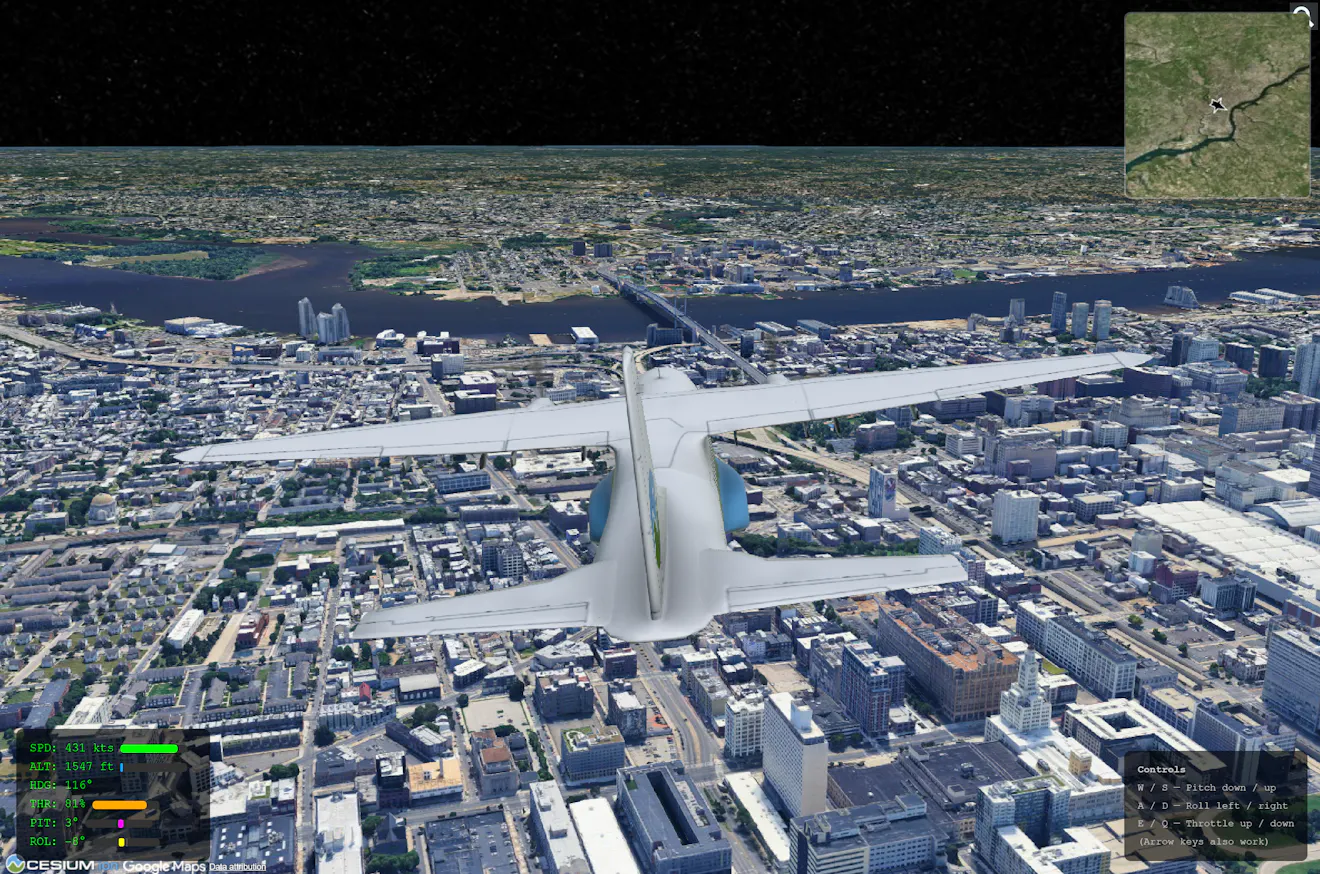
Build a simple flight simulator using the globe we’ve just built.
The interface should show a 3D model of a commercial airliner, with a third person camera that tracks the motion of the plane.
The UI should have controls for the aircraft (throttle, pitch, and roll) controlled with the keyboard and displayed on the screen.
The plane should start flying over Philadelphia at 2,000 feet, headed towards New York City.
Add a minimap overlay so I can see where the plane is on a map.
Use a small plane icon to show heading and leave a trail on the map so I know where we’ve flown.
Note: When debugging visual issues, describe what you see rather than guessing at the technical cause or attach screenshots to your prompts. Let the agent diagnose: it often has better context about what the code is doing. You may need to instruct your agent to correct problems like the plane model facing the wrong direction, or controls being reversed from what you might expect. After this first prompt, take a moment to describe anything that isn’t working as you’d like and work with your agent to correct the issues.
In order to publish your application to the web for anyone to access, we recommend a service such as Vercel. To deploy the app you just built, run the following in your terminal from your project’s root directory:
npm install -g vercel
vercel login
vercel
You can also follow Vercel’s Getting Started Guide to install agent plugins and skills to more easily allow you to instruct your agent to perform this deployment step.
- Try the AI Quickstart Tutorial if you haven't set up your agent yet.
- Follow the guide to Build a Philadelphia Landmark Tour with CesiumJS Using AI.
- Explore CesiumJS documentation for more 3D capabilities.
- Try loading your own 3D Tiles from Cesium ion.