Build a CesiumJS App with AI
Who is this for? Developers who want to use an AI coding agent to quickly create the skeleton of a CesiumJS application and iterate on it. This guide will help you set up your AI harness, inject CesiumJS domain skills, and guide you to your first CesiumJS viewer visualizing the globe in a web app.
- Node.js v22+: To run your dev server and build tooling. Install it from nodejs.org or via your system package manager.
- A Cesium ion account (free): Provides an access token for terrain, imagery, and Google Photorealistic 3D Tiles. Sign up at ion.cesium.com.
Choose from the instructions below for the code harness you are using.
Claude Code
To install and configure Claude Code CLI, navigate to Quickstart - Claude Code Docs and follow the first two steps. (Install Claude Code and Log in to your account).
Then, in a code editor or terminal of your choice, create a new empty directory as the project’s workspace.
OpenAI Codex
To install and configure OpenAI Codex CLI, navigate to Quickstart – Codex | OpenAI Developers and follow the first two steps (Install the Codex CLI and Run codex and sign in).
Then, in a code editor of your choice, create a new empty directory as the project’s workspace.
GitHub Copilot
To install and configure GitHub Copilot in Visual Studio Code, navigate to Quickstart for GitHub Copilot - GitHub Docs and follow the instructions.
Then, create a new workspace in Visual Studio Code.
Cursor
To install and configure Cursor, navigate to Quickstart | Cursor Docs and follow the instructions.
When creating a new application, it can be useful to instruct your agent on your desired tech stack. If you’re not sure which stack to use, chat with your agent and ask it to help you design the set of tools that will best accomplish your goal. Consider using your agent’s planning mode, if available, to iterate on ideas before coding begins.
Now use the prompts below to create your application:
Create a new Vite + React + TypeScript project for a CesiumJS 3D globe app. Use vite-plugin-cesium to handle Cesium's static asset configuration. Initialize package.json, tsconfig, vite.config.ts, and install dependencies.
The agent should produce a runnable project skeleton with cesium, react, react-dom, vite, and vite-plugin-cesium.
Install CesiumJS Agent Skills
The cesiumjs-skills repository provides curated domain skills covering the CesiumJS API. Installing these gives your AI agent accurate, up-to-date knowledge of CesiumJS patterns and best practices, so it writes better code.
Claude Code
One-liner from the terminal (recommended):
claude plugin marketplace add CesiumGS/cesiumjs-skills
Or interactively inside Claude Code:
- Type
/pluginand press Enter. - Select Add Marketplace → enter
CesiumGS/cesiumjs-skills. - Type
/pluginagain → Install Plugin → choosecesiumjs-skills. - Run
/reload-pluginsto activate.
All other code harnesses
These skills follow the open Agent Skills standard. Install them in your project root with:
npx skills add cesiumgs/cesiumjs-skills --all
Create a React component that renders a full-page CesiumJS Viewer. Read the Cesium ion token from a VITE_CESIUM_ION_TOKEN environment variable. Set the initial camera to look at San Francisco from a low angle. Create a .env file with a placeholder for the token.
Then go to your access tokens in ion and copy the default token. Paste it into the .env file that was just created.
Start the dev server and open the app in my browser.
At this point you should see a view of the globe, looking at San Francisco, in your browser.
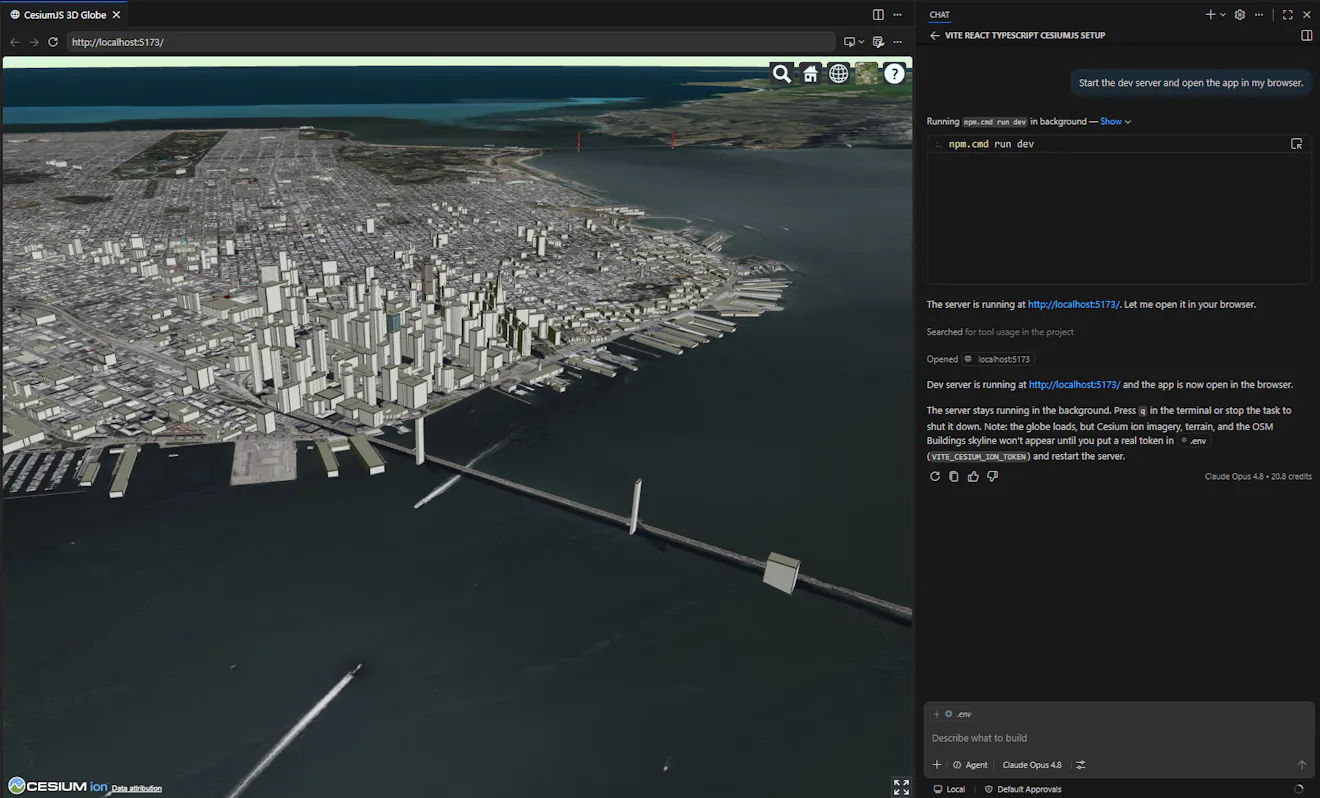
Things may not be perfect on the first try—that's normal and expected. The key is to treat your AI agent like a collaborator: tell it what you're seeing, what's wrong, and what you want instead.
Describe what you see, not what you think the bug is. Instead of "the flyTo offset is wrong," say "the camera is ending up above the target instead of looking at it." The agent will diagnose the root cause better when you give it the visual result.
Be specific about what "wrong" means. "It's broken" gives the agent nothing to work with. "The globe is just a solid blue ball with no imagery or land masses" gives it better information to help it solve the problem.
Iterate in small steps. If the camera is too far away, tell your agent to "bring the camera in by half." If markers are floating, tell it: "the markers are hovering way above the buildings." One fix at a time keeps things on track.
Ask the agent to restart or rebuild when things feel stale. Environment changes (like adding a token to .env) often require a dev server restart. If something should be working but isn't, ask the agent to restart the server.
If you're stuck in a loop, give more context. When the same fix isn't working after a couple of attempts, describe the full situation: what you changed, what you expected, and what's actually happening. Screenshots help too if your agent supports them.
- Build a Philadelphia Landmark Tour with CesiumJS Using AI: guide an AI coding agent with natural language prompts and iterate on the results to create a tour of Philadelphia landmarks.
- Build a Flight Simulator with CesiumJS Using AI: use an AI coding agent to build a simple flight simulator powered by CesiumJS, Google Photorealistic 3D Tiles, React, and TypeScript.
- CesiumJS API Reference: full documentation for every class and function.
- CesiumJS Agent Skills: 14 domain skills for AI-assisted CesiumJS development.