Google Street View in CesiumJS
CesiumJS supports the display of panoramic imagery in both equirectangular and cube map formats, enabling panoramas to be accurately positioned and oriented alongside other geospatial content within a 3D scene.
Panoramic imagery can be integrated into CesiumJS using external providers or custom datasets. In this tutorial, you will learn how to load Google Street View imagery via the Google Street View Static API and incorporate it directly into your CesiumJS scenes.
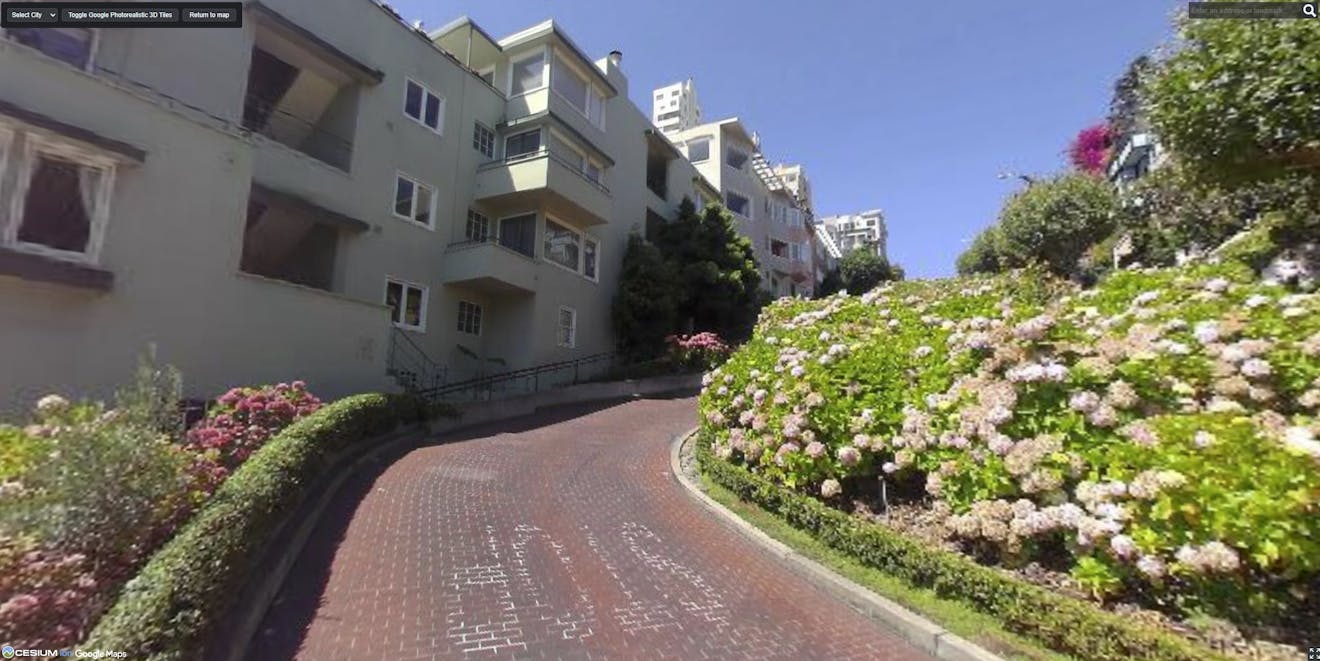
Google Street View in CesiumJS, at Lombard Street in San Francisco, California, USA.
You’ll learn how to:
- Initialize a CesiumJS viewer.
- Configure access to the Google Street View Static API via Cesium ion.
- Fetch the nearest Street View panorama for a given location.
- Load that panorama into the CesiumJS scene.
- Allow users to change locations by editing coordinates.
- Add Google Photorealistic 3D Tiles for spatial context.
- Toggle Photorealistic 3D Tiles on and off for comparison.
Before starting, make sure you have:
- A CesiumJS application set up (local dev server or Sandcastle-style environment).
- A valid Cesium ion access token assigned to
Cesium.Ion.defaultAccessToken. - Access enabled for Google Photorealistic 3D Tiles and Google Street View through Cesium ion.
Start by importing CesiumJS and Sandcastle utilities; then create a basic viewer. For this example, you will disable UI elements that are not needed and hide the globe because Street View panoramas are rendered as local scene primitives.
import * as Cesium from "cesium";
import Sandcastle from "Sandcastle";

const viewer = new Cesium.Viewer("cesiumContainer", {
  selectionIndicator: false,
  infoBox: false,
});

viewer.scene.globe.show = false;
At this point, you have a minimal CesiumJS scene ready to accept 3D content.
For convenience, Cesium ion provides an endpoint that loads Google Street View data without the need to authenticate with the Google Maps API. By connecting this way, you can streamline your API key management and avoid hardcoding or exposing additional keys.
Currently, this Cesium ion endpoint is experimental and intended for development purposes only. In a production app, you should configure your own Google Maps API credentials.
const ionResponse = await Cesium.Resource.fetchJson({
  url: `${Cesium.Ion.defaultServer}/experimental/panoramas/google`,
  headers: {
    Authorization: `Bearer ${Cesium.Ion.defaultAccessToken}`,
  },
});

 Cesium.GoogleMaps.defaultStreetViewStaticApiKey = ionResponse.options.key;
Cesium.GoogleMaps.streetViewStaticApiEndpoint = ionResponse.options.url;
Once configured, CesiumJS can request Street View imagery on your behalf.
The GoogleStreetViewCubeMapPanoramaProvider handles fetching and assembling Street View imagery into a cube map suitable for real-time rendering.
const provider =
  await Cesium.GoogleStreetViewCubeMapPanoramaProvider.fromUrl();
This provider will be reused for all panorama requests in the scene.
You do not need to pass a URL to GoogleStreetViewCubeMapPanoramaProvider.fromUrl().
When the URL parameter is omitted, Cesium.GoogleMaps.streetViewStaticApiEndpoint is used, which we configured in the previous step. It defaults to Google’s standard Static Street View API endpoint.
Next, you will define a helper function that takes a panorama ID and location, loads the panorama, adds it to the scene, and positions the camera inside it.
async function loadPanorama(panoIdObject) {
  const { panoId, latitude, longitude } = panoIdObject;

  const panoCartographic = Cesium.Cartographic.fromDegrees(
    longitude,
    latitude,
    0
  );

  const streetViewPanorama = await provider.loadPanorama({
    cartographic: panoCartographic,
    panoId,
  });

  viewer.scene.primitives.add(streetViewPanorama);

  const lookPosition = Cesium.Cartesian3.fromDegrees(
    longitude,
    latitude,
    0
  );

  const heading = Cesium.Math.toRadians(-90);

  viewer.scene.camera.lookAt(
    lookPosition,
    new Cesium.HeadingPitchRange(
      heading, // heading
      0, // pitch
      2 // range
    )
  );
}
This function is the core of the Street View integration.
A panorama with both Street View and Photorealistic 3D Tiles.
Street View experiences typically allow rotation and tilt but restrict translation and zoom. You can match that behavior using the screen space camera controller and implement scroll-wheel zoom by adjusting the camera’s field of view.
const controller = viewer.scene.screenSpaceCameraController;

controller.enableRotate = true;
controller.enableTilt = true;
controller.enableTranslate = false;
controller.enableZoom = false;

const handler = new Cesium.ScreenSpaceEventHandler(viewer.scene.canvas);

const minFov = Cesium.Math.toRadians(20.0);
const maxFov = Cesium.Math.toRadians(100.0);
const zoomSpeed = 0.05;

handler.setInputAction(
  function (wheelDelta) {
    const camera = viewer.camera;
    const frustum = camera.frustum;

    let fov = frustum.fov;

    if (wheelDelta < 0) {
      fov *= 1.0 + zoomSpeed;
    } else {
      fov *= 1.0 - zoomSpeed;
    }

    frustum.fov = Cesium.Math.clamp(fov, minFov, maxFov);
  },
  Cesium.ScreenSpaceEventType.WHEEL
);
This keeps the user anchored inside the panorama while still allowing mouse-wheel zooming and free exploration, closely matching the Google Street View interaction model.
Finally, you will define an initial location, find the nearest Street View panorama, and load it into the scene.
// User-editable location
const longitude = -75.222071;
const latitude = 40.027237;
const height = 1; // meters

const cartographic = Cesium.Cartographic.fromDegrees(
  longitude,
  latitude,
  height
);

const panoIdObject = await provider.getNearestPanoId(cartographic, 100);
loadPanorama(panoIdObject);
To explore a new location in this tutorial, you need only to update the longitude and latitude values and reload the application.
Photorealistic 3D Tiles provide valuable spatial context and allow you to compare Street View imagery with the surrounding 3D environment.
let tileset;
try {
  tileset = await Cesium.createGooglePhotorealistic3DTileset({
    // Only the Google Geocoder can be used with Google Photorealistic 3D Tiles.
    onlyUsingWithGoogleGeocoder: true,
  });

  viewer.scene.primitives.add(tileset);
} catch (error) {
  console.log(
    `Error loading Photorealistic 3D Tiles tileset.\n${error}`
  );
}
For tutorial and comparison purposes, you can add a toggle button to show or hide the Photorealistic 3D Tiles.
Sandcastle.addToolbarButton("Toggle Photorealistic Tiles", function () {
  tileset.show = !tileset.show;
});
Explore and experiment with the Google Street View panorama Sandcastle.
No panorama loads for a location
Not all coordinates have Street View coverage. If getNearestPanoId returns undefined or throws an error, try:
- Increasing the search radius (the second argument to
getNearestPanoId), e.g.,await provider.getNearestPanoId(cartographic, 800). - Starting with coordinates of a location known to have Street View coverage, such as a major city or road.
Panoramas fail to load
This is typically caused by missing or misconfigured credentials. Verify:
- Your Cesium ion access token is valid.
- You have called Cesium ion
/experimental/panoramas/googleendpoint, using the results to set thedefaultStreetViewStaticApiKeyandstreetViewStaticApiEndpointbefore creating the provider.
Photorealistic 3D Tiles do not appear
Refer to the Photorealistic 3D Tiles in CesiumJS tutorial for steps and tips.
Camera behaves unexpectedly
If the camera moves outside the panorama or behaves more like a globe view:
- Confirm that globe rendering is disabled (
viewer.scene.globe.show = false). - Ensure translation and zoom are disabled on the camera controller.
- Google Street View Cesium documentation: API reference for loading Google Street View imagery into CesiumJS panoramas via
GoogleStreetViewCubeMapPanoramaProvider - CesiumJS cube map panorama documentation: API reference for displaying a six-face cube map panorama in a CesiumJS scene
- Google Street View CesiumJS Sandcastle: interactive example and live code playground for experimenting with Google Street View in CesiumJS along with other CesiumJS features
- Panoramic imagery in CesiumJS: overview of how equirectangular and cube map panoramas are rendered and positioned in CesiumJS
- Introducing panoramic imagery in CesiumJS
In this tutorial, you learned how to integrate Google Street View imagery into a CesiumJS scene, position it accurately in 3D space, and compare it directly with Google Photorealistic 3D Tiles. This approach enables immersive, street-level visualization while retaining the full power of CesiumJS’s 3D geospatial rendering pipeline.
From here, you can extend this example by adding UI-driven location search or panorama navigation or blending Street View with additional 3D datasets.