Display Panoramic Images in Cesium JS
CesiumJS supports panoramic and 360° spherical imagery, allowing applications to render immersive equirectangular and cube map panoramas directly in a CesiumJS scene. This enables workflows like streaming Google Street View panoramas (and other panoramic imagery services) alongside 3D geospatial context.
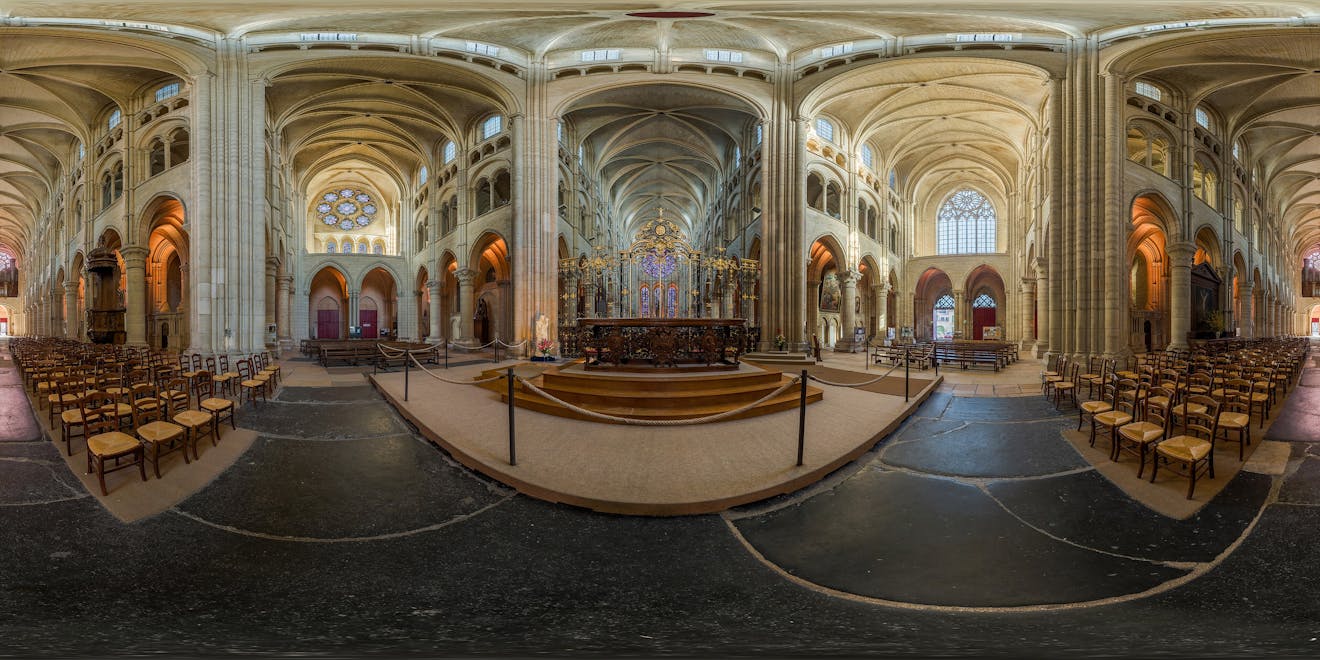
360-degree panorama image of the interior of Laon Cathedral, France. Photo by David Iliff, licensed under CC BY-SA 3.0.
You’ll learn how to:
- Add an equirectangular panorama to a CesiumJS scene and place the camera "inside" it.
- Add a cube map panorama (six faces) and orient it correctly.
- Configure camera controls for an immersive experience, including optional field-of-view "zoom."
- A basic CesiumJS app. If you're starting from scratch, follow the CesiumJS Quickstart tutorial and verify your app runs before continuing.
- A panorama image: equirectangular: ideally 2:1 aspect ratio representing 360° horizontal / 180° vertical and/orCube map: six faces (90° × 90° rectilinear projections per face).
The code examples in this tutorial will provide you with sample data to get started.
Note on image hosting and CORS: If your panorama images are hosted on a different domain, your server must allow cross-origin use (CORS); otherwise WebGL can’t sample them as textures. If the source doesn’t support CORS, you’ll need a same-origin proxy.
Create a viewer and turn off the globe so the panorama becomes the scene background. For the best panorama viewing experience, you may want to hide the globe by setting globe.show = false.
import * as Cesium from "cesium";

const viewer = new Cesium.Viewer("cesiumContainer");

// For best panorama viewing, turn off the globe
viewer.scene.globe.show = false;
const controller = viewer.scene.screenSpaceCameraController;
Why hide the globe?
- Panoramic imagery is commonly used as a background context layer, while other primitives (3D Tiles, models, entities) render in front.
- Practical note: You can re-enable the globe when you exit panorama mode (e.g.,
viewer.scene.globe.show = true). - Performance note: In many apps this can also reduce draw work during panorama viewing by avoiding globe rendering.
Equirectangular panoramas are a single image that wraps onto a sphere around the camera. Once your imagery is ready, locate and orient your panorama: You’ll need a position on the globe and, when available, heading/pitch/roll metadata to orient it correctly.
const equirectangularFromFile = () => {
  const position = Cesium.Cartesian3.fromDegrees(-122.4175, 37.655, 100);

  // If you have orientation metadata (e.g., from EXIF/XMP or your imagery service),
  // convert it to radians and use it here.
  // Dummy values shown for demonstration.
  const heading = Cesium.Math.toRadians(10.0); // rotation about the local up axis
  const pitch = Cesium.Math.toRadians(-5.0); // negative looks down
  const roll = Cesium.Math.toRadians(2.0); // roll about the forward axis
  const hpr = new Cesium.HeadingPitchRoll(heading, pitch, roll);

  // Create a transform matrix to locate AND orient the panorama.
  // This incorporates heading/pitch/roll at the panorama's world position.
  const transform = Cesium.Transforms.headingPitchRollToFixedFrame(
    position,
    hpr,
    Cesium.Ellipsoid.WGS84,
    Cesium.Transforms.eastNorthUpToFixedFrame
  );

  const image =
    "https://upload.wikimedia.org/wikipedia/commons/0/08/Laon_Cathedral_Interior_360x180%2C_Picardy%2C_France_-_Diliff.jpg";

  const credit = new Cesium.Credit(
    "Photo by DAVID ILIFF. Interior of Laon Cathedral, France. Licensed under " +
      "https://creativecommons.org/licenses/by-sa/3.0/."
  );

  const panorama = new Cesium.EquirectangularPanorama({
    transform,
    image,
    credit,
  });

  viewer.scene.primitives.add(panorama);

  // Place camera at the panorama center
  viewer.scene.camera.lookAt(
    position,
    new Cesium.HeadingPitchRange(0, 0, 2) // small offset to allow rotation
  );

  // Keep the user "inside" the panorama (optional, recommended for many experiences)
  controller.enableZoom = false;
  controller.enableTranslate = false;
};
Why heading/pitch/roll? Many capture pipelines and imagery services provide orientation metadata. Incorporating it into the panorama’s transform ensures the panorama is correctly aligned with the real-world scene.
What’s happening here?
- You compute a local frame transform and pass it into the panorama so it’s located/oriented in the global scene.
- You position the camera at the panorama center using
camera.lookAt. - You can optionally restrict controls to keep the camera anchored for a clean “look around” experience.
- You are incorporating heading/pitch/roll into the transform.
An immersive panorama that can be directly rendered in a CesiumJS scene.
Cube maps are six images (front/back/left/right/up/down) that wrap onto a cube around the camera. Like equirectangular panoramas, you’ll create a transform to orient it correctly in the scene.
const cubeMapFromFiles = () => {
  const position = Cesium.Cartesian3.fromDegrees(104.923323, 11.569967, 0);

  // Create a transform matrix to orient the panorama
  const matrix4 = Cesium.Transforms.localFrameToFixedFrameGenerator(
    "north",
    "down"
  )(position, Cesium.Ellipsoid.default);

  const transform = Cesium.Matrix4.getMatrix3(matrix4, new Cesium.Matrix3());

  const credit = new Cesium.Credit(
    "Image by Kiensvay via Wikimedia Commons " +
      "Licensed under " +
      '<a href="https://creativecommons.org/licenses/by-sa/4.0/" target="_blank">CC BY-SA 4.0</a>.'
  );

  const cubeMapPanorama = new Cesium.CubeMapPanorama({
    sources: {
      positiveZ:
       "https://upload.wikimedia.org/wikipedia/commons/3/37/360%C2%B0_Phnom_Penh_%28Central_Market_2022%29_%28left%29.jpg",
      negativeZ:
        "https://upload.wikimedia.org/wikipedia/commons/1/1b/360%C2%B0_Phnom_Penh_%28Central_Market_2022%29_%28right%29.jpg",
      positiveY:
        "https://upload.wikimedia.org/wikipedia/commons/7/73/360%C2%B0_Phnom_Penh_%28Central_Market_2022%29_%28down%29.jpg",
      negativeY:
        "https://upload.wikimedia.org/wikipedia/commons/d/de/360%C2%B0_Phnom_Penh_%28Central_Market_2022%29_%28up%29.jpg",
      negativeX:
        "https://upload.wikimedia.org/wikipedia/commons/2/2e/360%C2%B0_Phnom_Penh_%28Central_Market_2022%29_%28back%29.jpg",
      positiveX:
  "https://upload.wikimedia.org/wikipedia/commons/d/db/360%C2%B0_Phnom_Penh_%28Central_Market_2022%29_%28front%29.jpg",
    },
    transform,
    credit,
  });

  viewer.scene.camera.lookAt(position, new Cesium.HeadingPitchRange(0, 0, 2));

  removeAndDestroyPanoramas();
  viewer.scene.primitives.add(cubeMapPanorama);

  // Optional: restore default navigation for this mode
  controller.enableZoom = true;
  controller.enableTranslate = true;
};
To include any heading/pitch/roll metadata into your transform, reference the example in Step 2.
Tip: If the cube faces appear swapped/rotated, double-check:
- The face naming conventions (positiveX, negativeX, etc.).
- Your local-frame axes selection (north/down here).
A cube map of Phnom Penh. Create a transform to orient a cube map correctly in the scene.
It may be necessary to remove a panorama when you’re done with it (for example, switching back to a “world view,” or loading a different panorama at a new location).
function removeAndDestroyPanoramas() {
  const primitives = viewer.scene.primitives;

  for (let i = primitives.length - 1; i >= 0; i--) {
    const primitive = primitives.get(i);

    const isPanorama =
      primitive instanceof Cesium.CubeMapPanorama ||
      primitive instanceof Cesium.EquirectangularPanorama;

    if (isPanorama) {
      // Remove from scene
      primitives.remove(primitive);

      // Optional: if your CesiumJS version exposes destroy(),
      // call it to release GPU resources.
      // if (typeof primitive.destroy === "function") {
      //   primitive.destroy();
      // }
    }
  }
}
If you switch back to “world view,” reset camera and globe defaults.
function exitPanoramaMode() {
  // Re-enable globe/world context
  viewer.scene.globe.show = true;

  controller.enableZoom = true;
  controller.enableTranslate = true;

  viewer.scene.camera.lookAtTransform(Cesium.Matrix4.IDENTITY);
}
To view your panorama in your scene, position the camera at the panorama center using camera.lookAt. For an immersive experience, it’s often helpful to allow rotation and tilt but disable translation and zoom so the user stays anchored at the panorama origin.
The equirectangular setup disables zoom and translation to keep the user “inside” the panorama, while the cube map setup restores default navigation (zoom/translate) for easier exploration. Pick the behavior that best matches your application’s UX.
const controller = viewer.scene.screenSpaceCameraController;

controller.enableRotate = true;
controller.enableTilt = true;
controller.enableTranslate = false;
controller.enableZoom = false;
Optional: “Zoom” by adjusting field of view (FOV)
In panorama mode, it can feel natural for your mouse wheel to narrow/widen the camera FOV (instead of translating the camera). If you want scroll-wheel zooming without translating the camera, adjust the camera’s field of view while keeping enableZoom = false.
const handler = new Cesium.ScreenSpaceEventHandler(viewer.scene.canvas);

const minFov = Cesium.Math.toRadians(20.0);
const maxFov = Cesium.Math.toRadians(100.0);
const zoomSpeed = 0.05;

function enableFieldOfViewAdjustment() {
  handler.setInputAction(
    function (movement) {
      const camera = viewer.camera;
      const frustum = camera.frustum;

      let fov = frustum.fov;
      const delta = movement;

      if (delta < 0) {
        fov *= 1.0 + zoomSpeed; // zoom in (narrower view)
      } else {
        fov *= 1.0 - zoomSpeed; // zoom out (wider view)
      }

      fov = Cesium.Math.clamp(fov, minFov, maxFov);
      frustum.fov = fov;
    },
    Cesium.ScreenSpaceEventType.WHEEL
  );
}

enableFieldOfViewAdjustment();
Explore and experiment with the panorama Sandcastle.
Is your panorama black and not rendering?
- Check CORS headers on your image host; WebGL can’t sample cross-origin textures without proper CORS.
Is your panorama rotated or facing the wrong way?
- Confirm you’re using the correct local frame and orientation metadata (heading/pitch/roll) when building the transform.
Are you wondering why you can “leave” the panorama?
- Disable translate/zoom controls (or keep the camera anchored at the panorama center), so interaction stays immersive.
- CesiumJS equirectangular panorama documentation: API reference for displaying a single equirectangular (360×180) panorama image in a CesiumJS scene
- CesiumJS cube map panorama documentation: API reference for displaying a six-face cube map panorama in a CesiumJS scene
- Google Street View Cesium documentation: API reference for loading Google Street View imagery into CesiumJS panoramas via GoogleStreetViewCubeMapPanoramaProvider
- Google Street View Sandcastle: interactive example and live code playground for experimenting with Google Street View in CesiumJS
- Panorama Sandcastle: interactive example and live code playground for experimenting with equirectangular and cube map panoramas in CesiumJS
- CesiumJS documentation: core API reference and guides for building 3D geospatial applications with CesiumJS
- CesiumJS camera and interaction controls: details on configuring camera behavior for immersive experiences, including rotation, tilt, constrained navigation, and field‑of‑view adjustment
- Cesium ion documentation: managing access tokens, assets, and third-party data integrations
- Introducing panoramic imagery in CesiumJS
Additional panorama data sources
In addition to Google Street View, there are several other public and open data sources that provide panoramic imagery you can use with CesiumJS panoramas.
Geolocated street‑level imagery APIs
These platforms provide georeferenced street‑level imagery that can be queried by location or spatial extent and integrated into custom panorama pipelines:
- Google Street View Cesium documentation: API reference for loading Google Street View imagery into CesiumJS panoramas via
GoogleStreetViewCubeMapPanoramaProvider - Mapillary: a large collection of crowdsourced, geolocated street‑level imagery with APIs for discovering images based on location, bounding boxes, and metadata
- Panoramax: an open, federated platform for hosting and accessing geolocated street‑level photographs. Panoramax exposes a standards‑based API (STAC) for discovering imagery and associated metadata across public and self‑hosted instances.
Non‑geolocated or loosely georeferenced panoramas
These sources are useful for interior scenes or general environment context where exact geolocation is not required:
- Wikimedia Commons (360° panoramas): a large collection of freely licensed 360° panoramic images, including equirectangular and cube‑map‑ready assets, suitable for demonstrations, samples, and educational use
- Poly Haven HDRIs: high‑quality equirectangular HDR panoramas commonly used for background context. Although not geolocated, these assets are useful for interior scenes, skyboxes, and non‑site‑specific panorama experiences
Panoramic imagery enables immersive, street‑level and site‑level visualization while preserving the spatial context of a full 3D geospatial scene. With CesiumJS, you can seamlessly integrate both equirectangular and cube map panoramas, position them accurately on the globe, and place your users directly inside the experience.
This capability is particularly powerful for workflows that benefit from human‑scale context, such as infrastructure inspection, asset condition assessment, site planning, and situational awareness. By combining panoramas with other CesiumJS primitives like terrain, 3D Tiles, models, and analytical overlays, you can bridge the gap between geospatial data and on‑the‑ground visual understanding.