Building an App for the Web
This tutorial will show you how to deploy an existing project using Cesium for Unity to the Web. After following these steps, your application will be able to run in a regular web browser without the need to install anything.
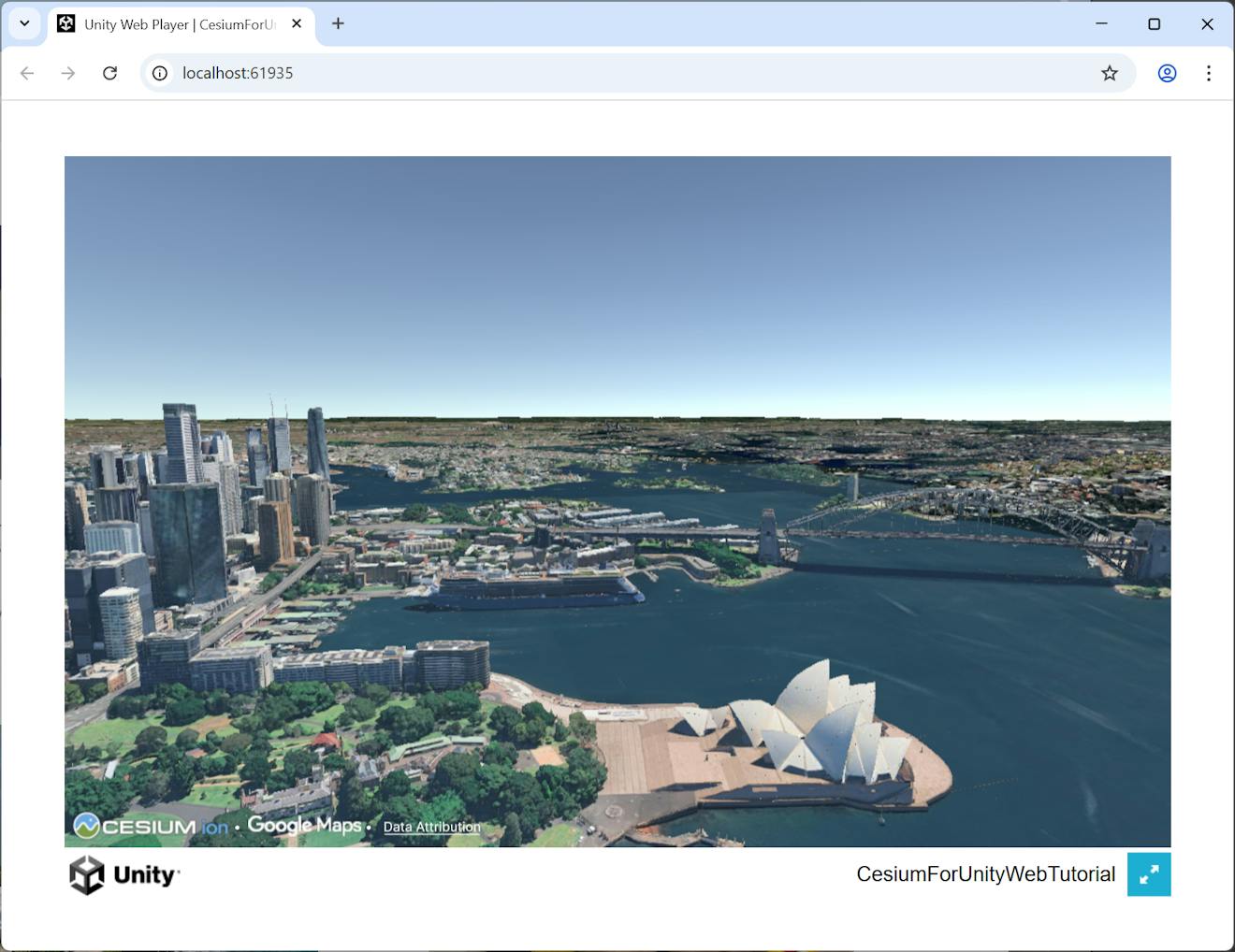
A view of Sydney Harbour, visualized with Google Photorealistic 3D Tiles in Cesium for Unity and rendered in a web browser.
You may also be interested in CesiumJS, which is a web-first framework for 3D geospatial visualization. Both CesiumJS and Cesium for Unity are flexible options for creating 3D geospatial experiences on the web, and you can pick the one that best suits your use case.
You’ll learn how to:
- Prepare a project for Web deployment in Unity.
- Build your application to WebAssembly, and run it using Unity's web server.
- Host your application on your own web server.
- Unity 6 or later.
- An existing project using Cesium for Unity. If you don't have one, we recommend following the Quickstart tutorial first.
1Ensure that you have installed Unity 6+ with Web Build Support enabled. If you need help, see the Unity documentation for instructions to set up Unity for the Web platform.
2Build out your Unity project as you see fit. If you need some inspiration, follow the Quickstart tutorial first. Make sure to use Unity 6 or later!
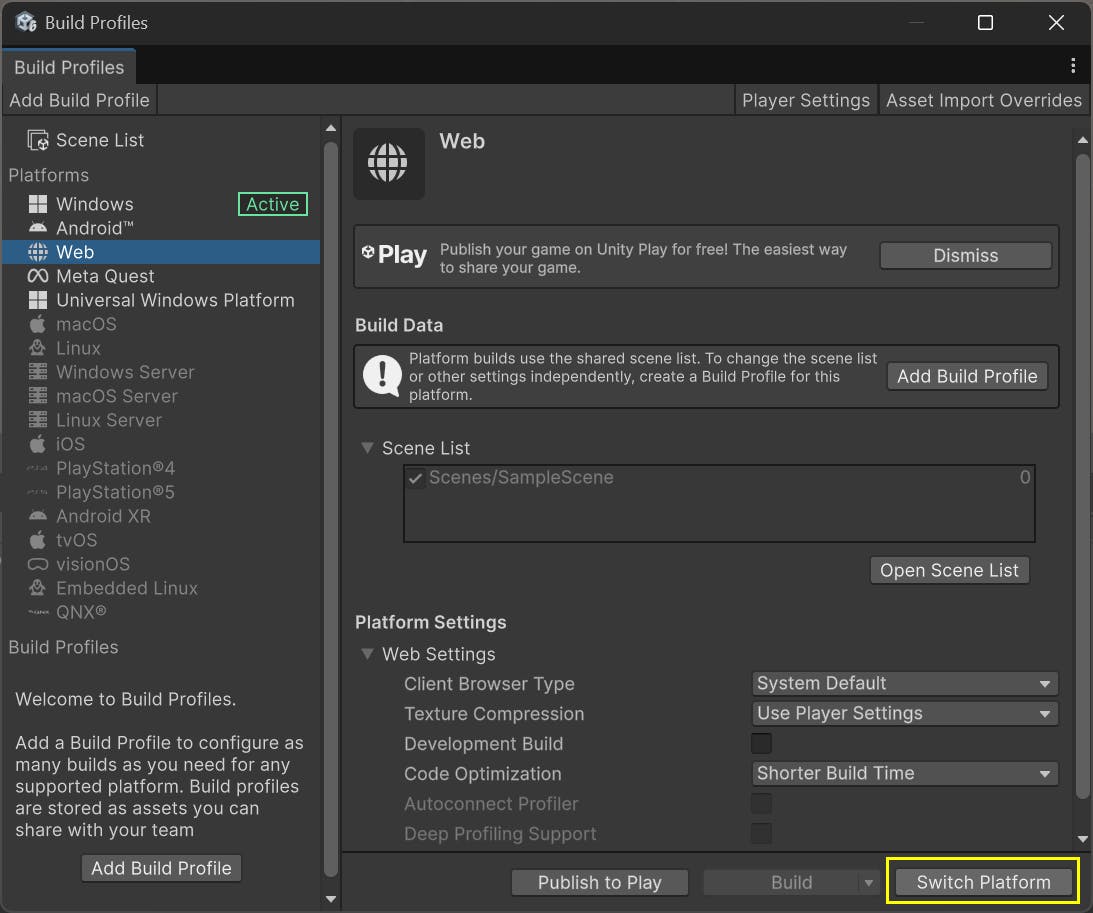
1Switch the project’s platform to Web. This can be done through File > Build Profiles. Select the Web platform, then, click Switch Platform.
2Click Player Settings in the top right of the window. Scroll down to the Publishing Settings section, and then check the box next to Enable Native C/C++ Multithreading.
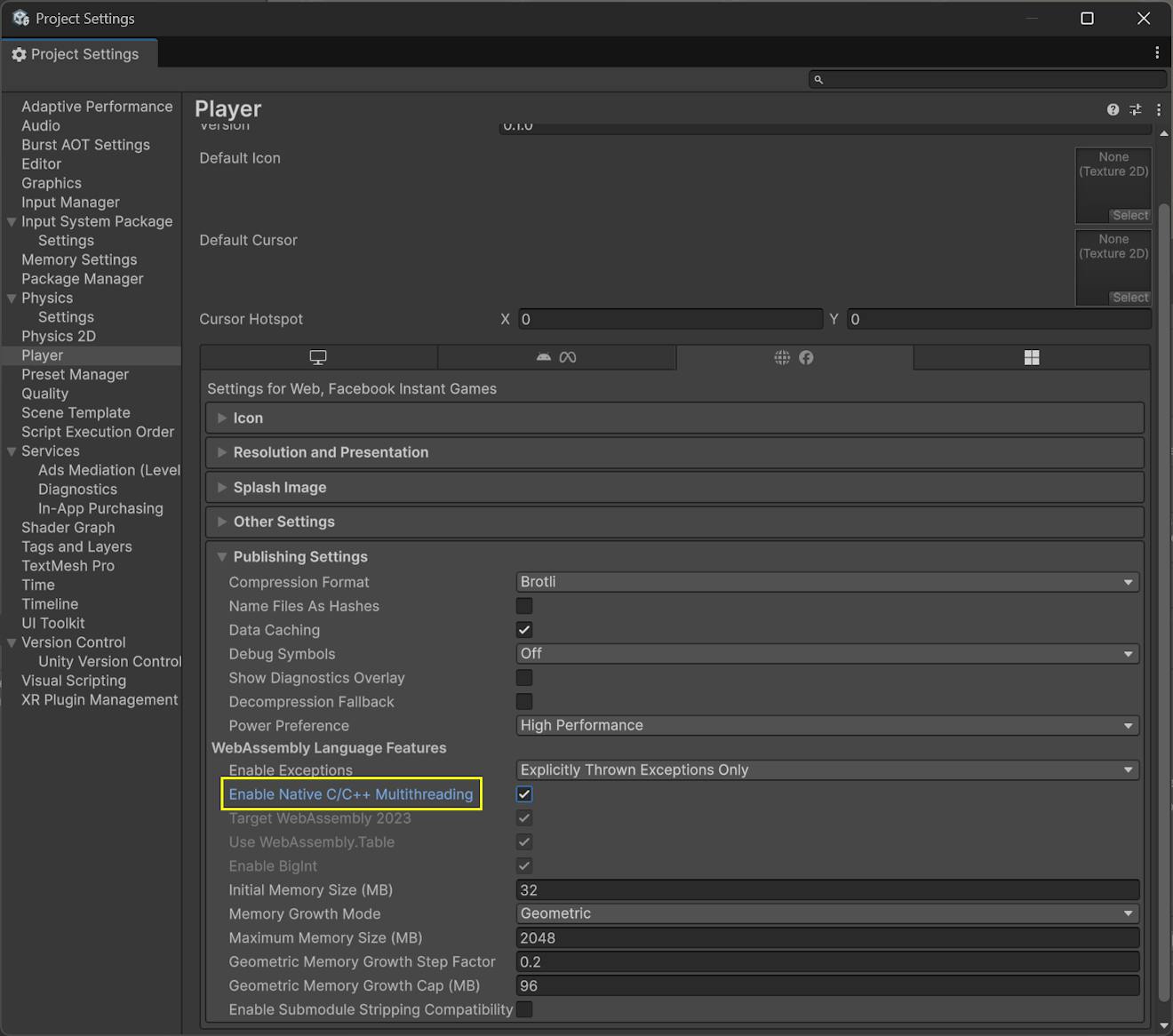
If you miss this step, you will see linker errors later when attempting to build your project. They'll look something like this:
wasm-ld: error: Library/PackageCache/com.cesium.unity@57778A6EB39E/Plugins/WebGL/libCesiumForUnityNative-Runtime.a(CesiumCreditSystem.cpp.o): undefined symbol: __wasm_lpad_context
wasm-ld: error: Library/PackageCache/com.cesium.unity@57778A6EB39E/Plugins/WebGL/libCesiumForUnityNative-Runtime.a(CesiumCreditSystem.cpp.o): undefined symbol: _Unwind_CallPersonality
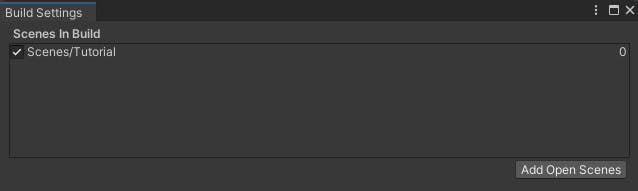
3For this tutorial, we will only include one scene in the build for simplicity. Check that the scene you want to use is the only one listed in the Build Profiles window. If not, open your scene in the Unity Editor, then click Open Scene List and then click Add Open Scenes to add it. Remove any other scenes that are listed.
4Now click Build And Run. Unity will prompt you for an output location for the built project before starting compilation.
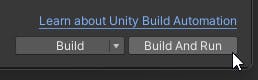
Once compilation is finished, Unity will launch a web server to host the built application. It will also launch a web browser to connect to the web server, and your application will appear.
Cesium for Unity—as well as Unity itself—utilizes cutting-edge web features that may impose requirements on the web server that hosts the application.
The test web server launched by Unity meets these requirements. However, in production, you will probably want to host your application elsewhere. Ensure that your server fulfills all of the points below.
1Secure Context
Cesium for Unity's use of native multithreading requires that the web application run in a secure context. This is established by the hosting web server including specific headers in its responses:
Cross-Origin-Opener-Policy: same-originCross-Origin-Embedder-Policy: require-corpCross-Origin-Resource-Policy: cross-origin
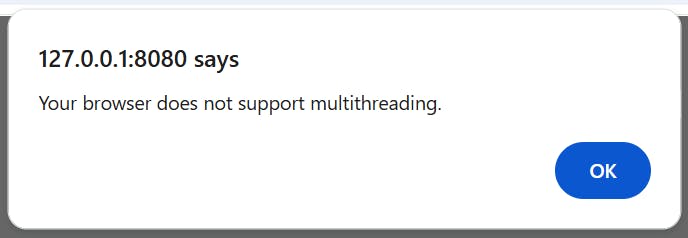
If your web server does not include these response headers, the application will display an error when it launches:
2Brotli encoding for .br files
By default, Unity uses Brotli compression to minimize the size of the files that must be downloaded before running the application. It gives the compressed files the .br file extension. Modern web browsers have built-in support for decompressing Brotli, but they will only know to do so if the web server tells them. Specifically, all .br files must be served with the following HTTP response header:
Content-Encoding: br
If this response header is missing, the application will report an error at startup.
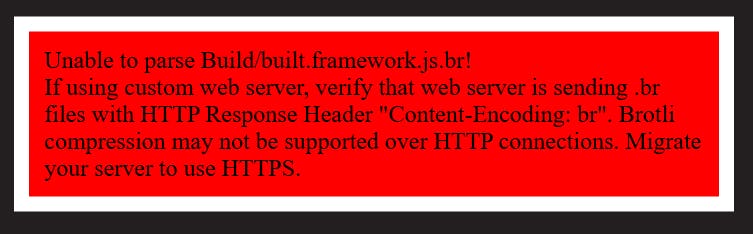
Depending on the web server, this may not be easy to do. It's not enough to simply add the Content-Encoding header to all responses; it must be added to only the .br file responses.
If this is difficult to arrange for your web server, there is a workaround. In Unity's Player Settings, enable the Decompression Fallback option.
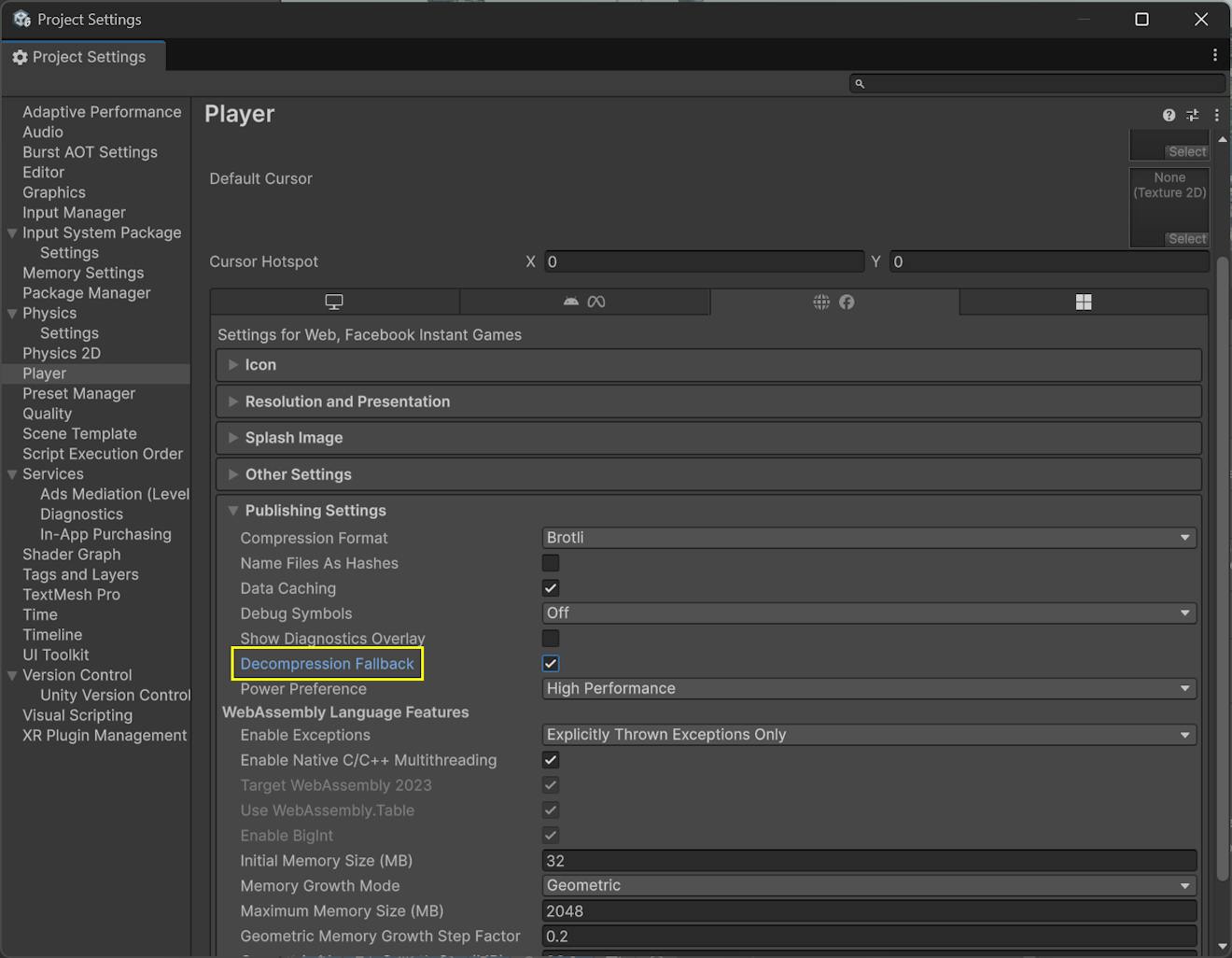
With Decompression Fallback enabled, Unity inserts code to detect when the .br files are served without the proper response header, and manually decompresses them. This works well, but will increase application startup time.
We're excited to see what you build with Cesium for Unity on the web! Visit the community forum with any questions, feedback, or cool demos you can share.